





 Salesforce ERP
 ERP + CRM Platform
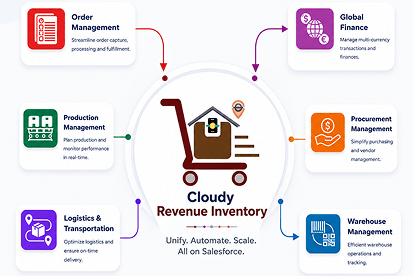
  Inventory Management
  Warehouse Management
  Order Management
  Vendor Management
  Logistics Management
  BOM Management
  Order Fulfillment
  Business Operations
  SaaS Platform for Operations
  Salesforce Cloud ERP Platform
  Xero
Xero
 Zoho books
 Quickbooks
 Shopify
 Acumatica
 SAP
SAP
 Odoo
Odoo
 NetSuite
 Microsoft Dynamics 365
 Sage
Sage



 Agentforce Revenue Management
 Agentforce Revenue Management + Billing
  Salesforce CPQ
 Salesforce Advanced Billing
  Migrate from CPQ to ARM
  Managed Services
 Salesforce Implementation
 Revenue Cloud Implementation
 ServiceNow Consulting Services
 Zoho CRM implementation
 MuleSoft Integration
 Workato Integration
 Microsoft
 Data Cloud
 Tableau
 Signer
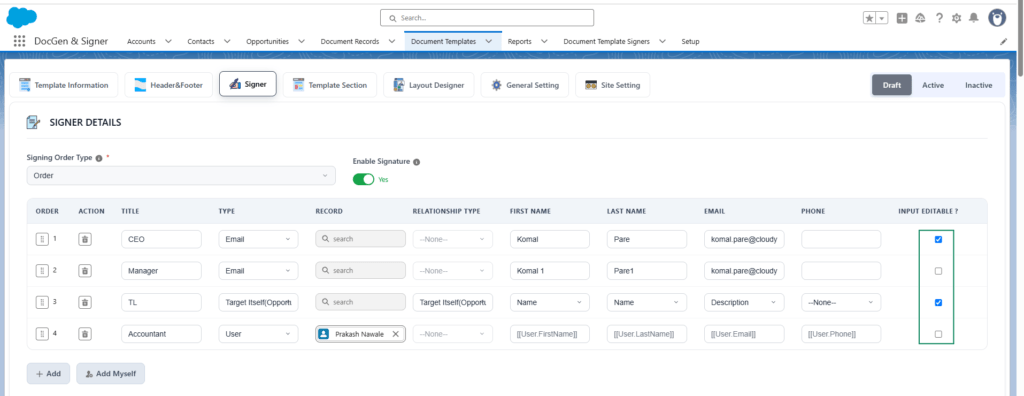
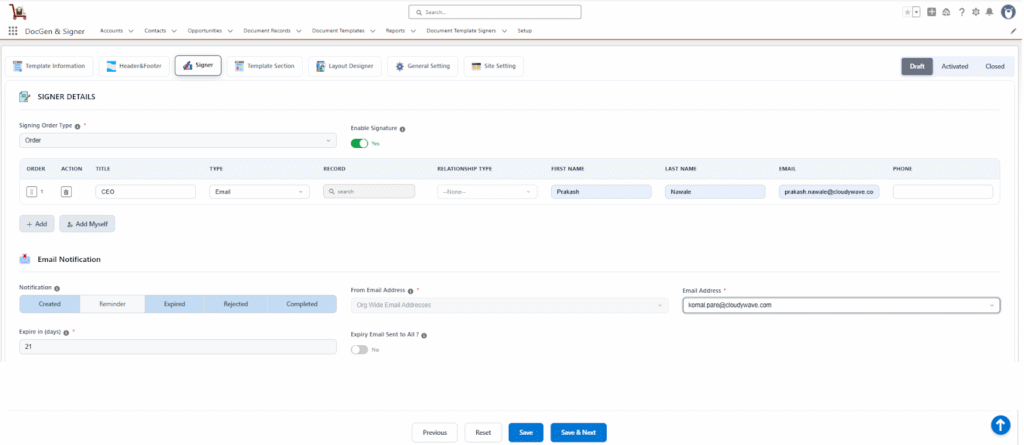
The Signer Details section allows users to configure the individuals or entities who will sign the document. Once the Enable Signature option is activated, the system automatically displays default email templates containing predefined subjects and body content. These templates can be customized as needed.

Important: Ensure that each signer has a valid email address to receive the document invitation and notifications.
Signing Order Type
Choose how signers will receive and complete the signing process.
Ordered (Sequential)
- Signers receive the document one after another, in the defined order.
- The next signer receives the document only after the previous signer has completed their signature.
Non-Ordered (Parallel)
- All signers receive the document at the same time.
- They can sign in any sequence, independently of one another.
General Options
| Fields | Description |
| Enable Signature | Toggle to enable or disable signature requirements for this document. When disabled, signers cannot be added, and signature settings will not apply. |
| Order | Drag and drop signers to define their signing sequence (applies to Ordered type). |
| Action | Delete a signer from the list. |
| Title | Specify the title or designation of the signer (e.g., CEO, Director). |
| Type | Choose how the signer is identified — Email, Lead, Contact, User, or Target Object. |
| Record | Search and link the record corresponding to the selected signer type. |
| Relationship Type | Defines the signer’s relationship to the target object (e.g., Target Object itself or its Parent Object). |
| First Name /Last Name | Enter or map the signer’s name details. |
| Email / Phone | Provide contact details for notifications and verification. |
| Input Editable? | Allows users to edit the input or interactive fields added to the document when selected. If the checkbox is not selected, the fields are read-only, and users cannot edit their values. |
Adding Signers
You can add signers in two ways:
- Add (Custom Signer)
- Add Myself
- Add
Add signers by selecting from the available options:
| Signer Type | Description |
| Enter First Name, Last Name, Email, and Phone. (First Name, Last Name, and Email are mandatory.) | |
| Lead | Select a Lead record; details auto-populate. |
| Contact | Select a Contact record; details auto-populate. |
| User | Select a Salesforce User record; details auto-populate. |
| Target Object | Select fields from the target object or its parent object to define the signer dynamically. |
2. Add Myself
- Adds the currently logged-in user as a signer automatically only need to give the title.
Email Configuration
1. Sender Configuration
| Fields | Description |
| From Email Address | Choose the sender address from verified Org-Wide Email Addresses in Salesforce Setup. |
| Email Address | Defines the sender’s email used for sending signer notifications. If no address is available, click to set up an organization-wide email address. (After click on this link check the Organization-wide Email Addresses) |
| Enable Dynamic Sender(Use Target Record User As a Sender) | Enables the sender of document communications to be determined dynamically from Salesforce data. |
| Sender Field (Target Object) | Identifies the Salesforce field used to determine the sender dynamically. |
Schedule Settings
| Fields | Description |
| Expire in (days) | Defines the number of days before the document or signing request expires. |
| Remind After (days) | Defines when a reminder should be sent for a pending document or signing request. |
| Expiry Email Sent to All? | When the signing order type is Ordered, enabling this option sends the expiration email to all signers once the document expires. |
Batch Scheduling and Execution
Cloudy DocGen & Signer supports batch execution to automate background processes based on scheduled dates and business requirements.
Batches That Can Be Scheduled
The following batch can be executed or scheduled based on business requirements:
DocumentSignerDailyEmailScheduler
This batch automatically processes signer email notifications based on the configured document and signer dates.
It handles the following notifications:
- Signature Reminder Email – Sends a reminder email when the configured reminder date matches the current date.
- Expiration Email – Sends an expiration notification when the configured document or signer expiration date matches the current date.
The batch should be scheduled to run daily so that it automatically checks eligible documents and sends the applicable reminder and expiration notifications.
Steps to Schedule a Batch Daily
Follow the steps below to schedule the DocumentSignerDailyEmailScheduler batch to run daily:
1. Click the Gear icon and select Setup.
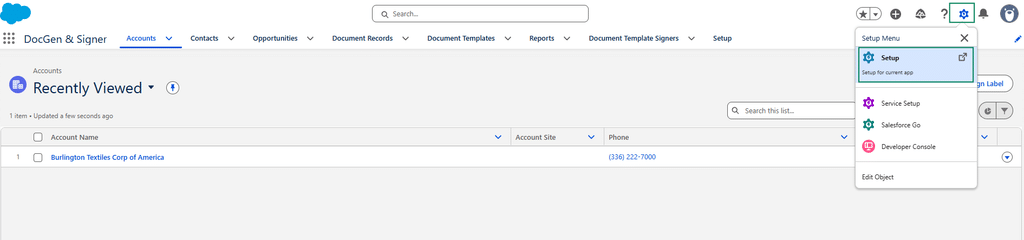
2. In the Quick Find box, search for Scheduled Jobs.
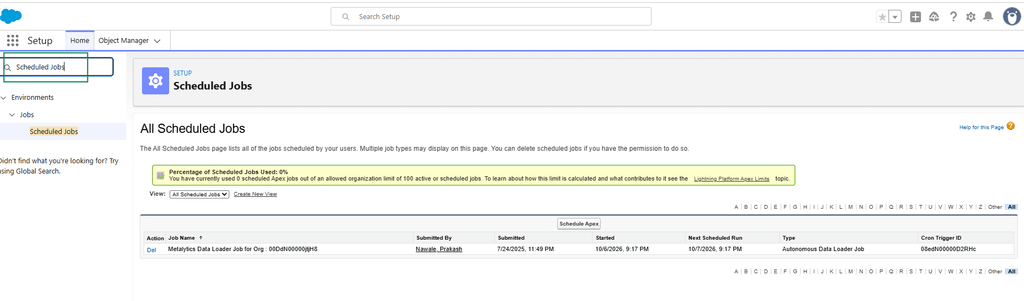
3. Select Scheduled Jobs from the search results.
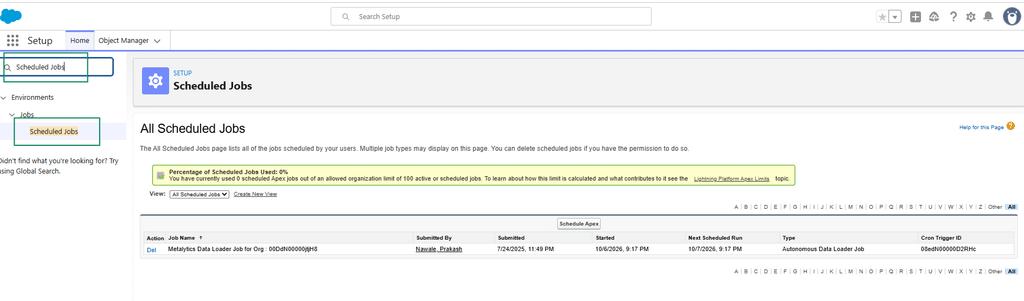
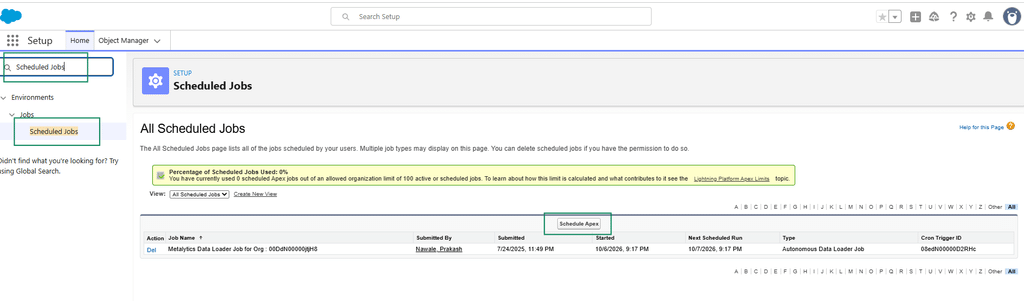
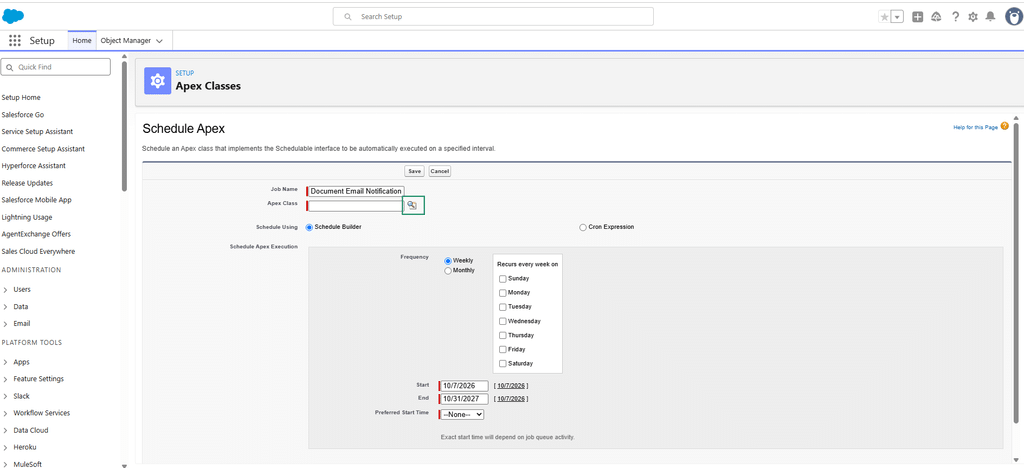
4. Click Schedule Apex.
5. Enter a Job Name, for example, Document Email Notification.
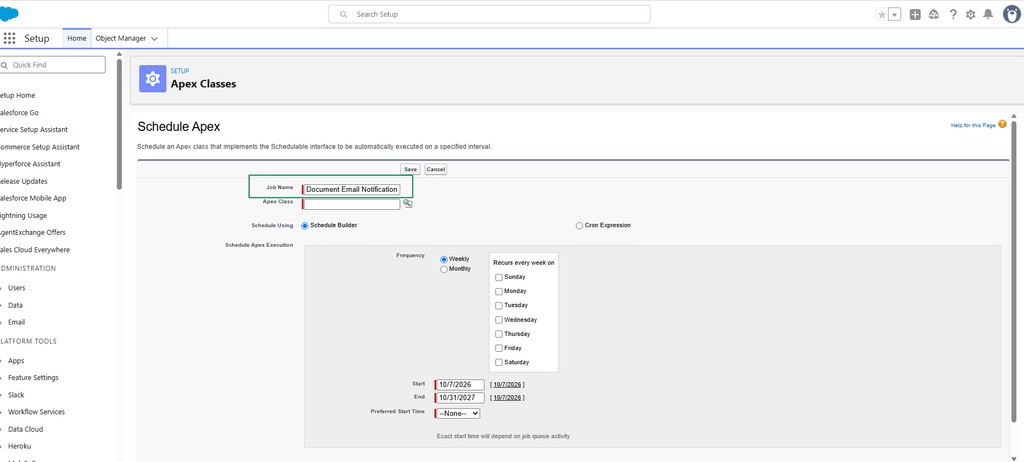
6. In the Apex Class field, click the Search icon.
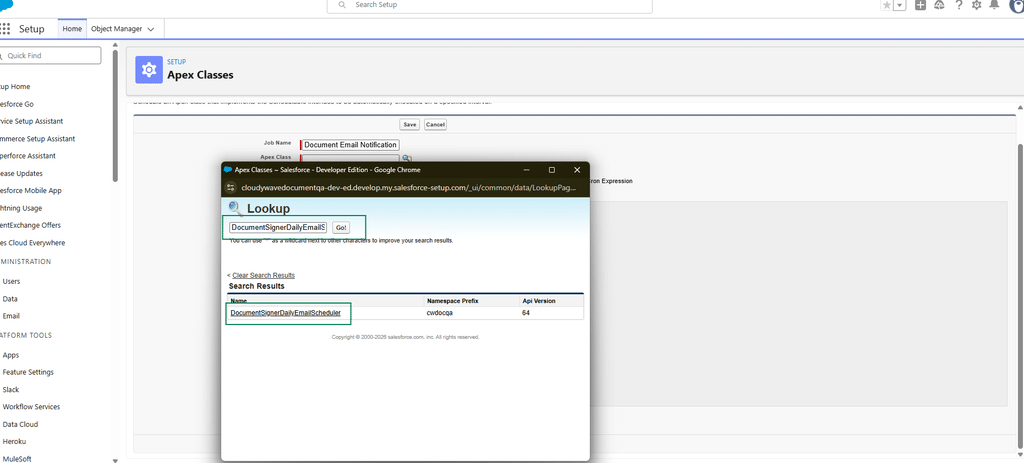
7. Search for and select DocumentSignerDailyEmailScheduler.
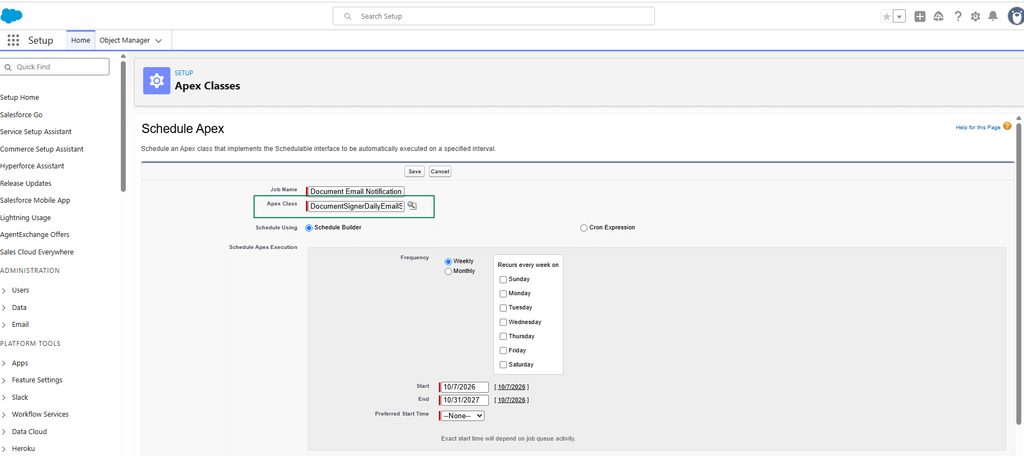
8. Under Schedule Apex Execution, select Schedule Builder.
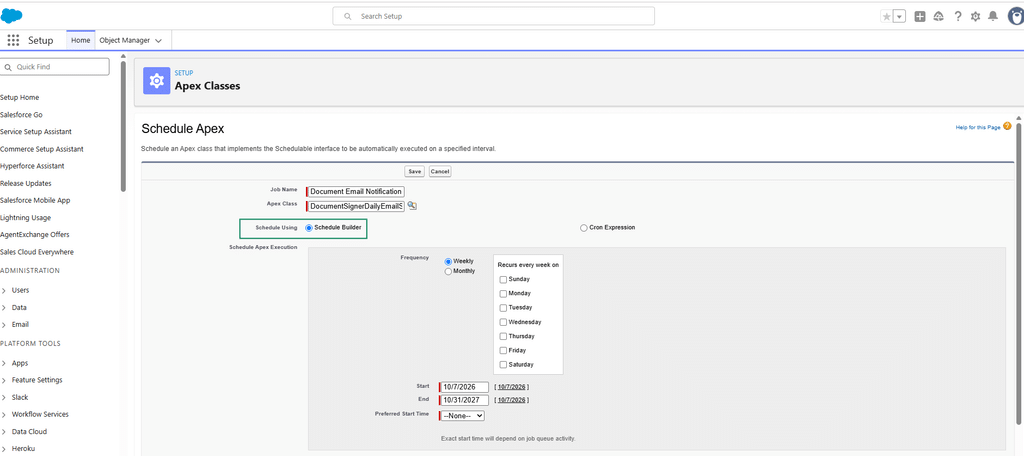
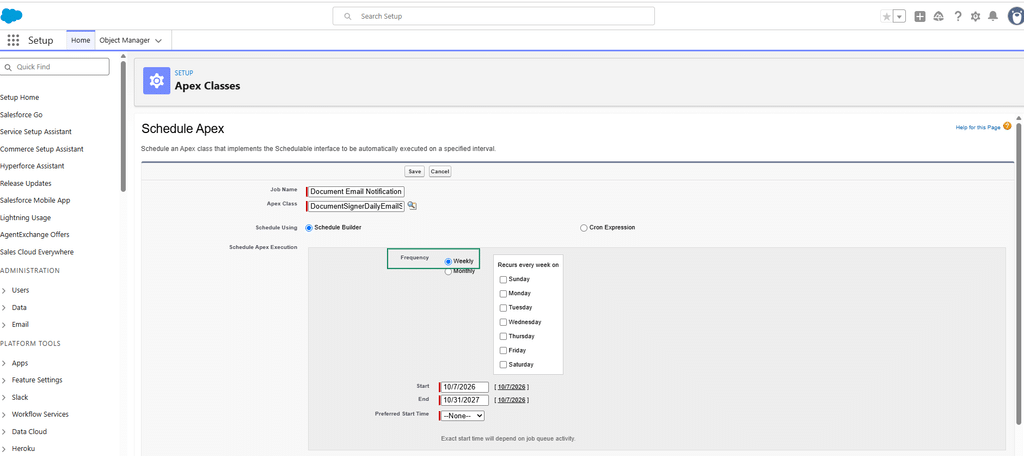
9. Under Frequency, select Weekly.
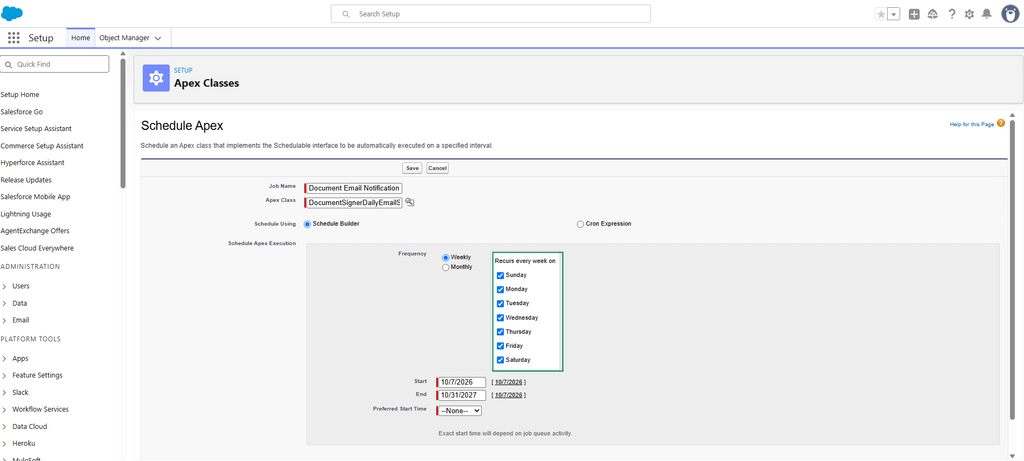
10. Under Recurs every week on, select all days to run the batch daily.
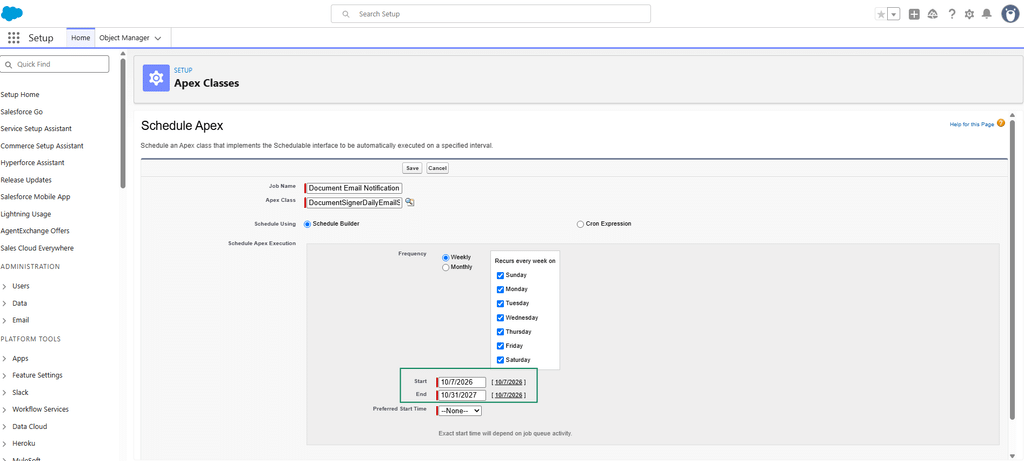
11. Specify the required Start Date and End Date.
- Start Date: The date on which the scheduled batch execution should begin.
- End Date: The date on which the recurring batch execution should stop.
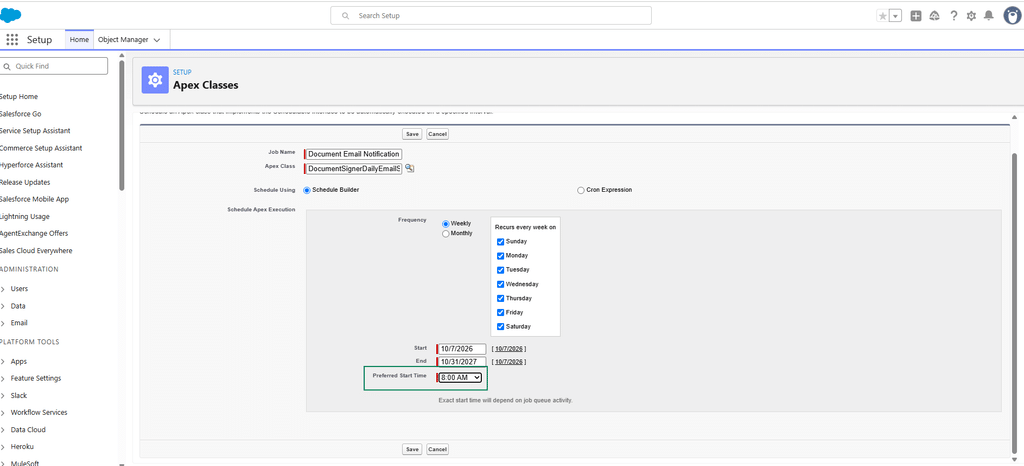
12. Select the required Start Time.
- Start Time: The time at which the batch should run each day.
13. Review the configured schedule to ensure that the frequency, days, dates, and start time are correct.
14.Click Save.
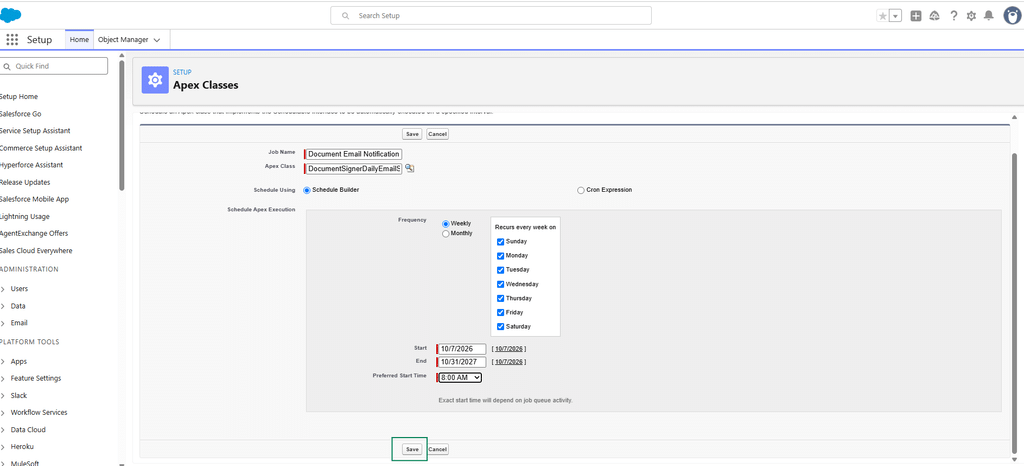

Note: To automatically send signature reminder and expiration notifications when the configured dates match the current date, the DocumentSignerDailyEmailScheduler batch must be scheduled.
Sign Image Setting
| Fields | Description |
| Signer Image Width | Allows users to configure the width of the signature image. The default width is 100 px, and the maximum supported width is 200 px. . |
| Signer Image Height | Allows users to configure the height of the signature image. The default height is 50 px, and the maximum supported height is 200 px. |
| Capture Each Signature Separately | Allows users to control how multiple signature fields are handled when the same signer is assigned to multiple signature fields. When enabled, the signer can provide a separate signature for each signature field. When disabled, the same signature is applied to all signature fields assigned to that signer. |
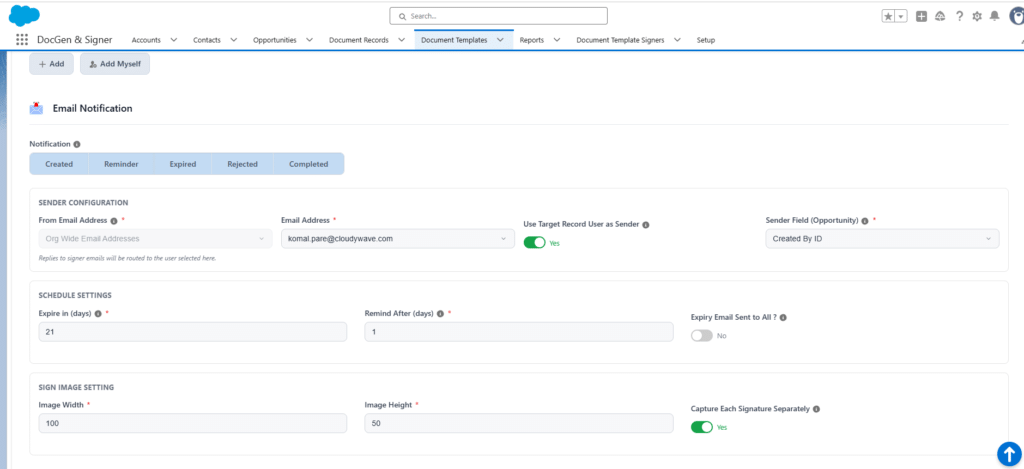
Email Notification Templates
Configure automated email notifications for signers at different stages of the signing process.
Notifications can be triggered for the following events:
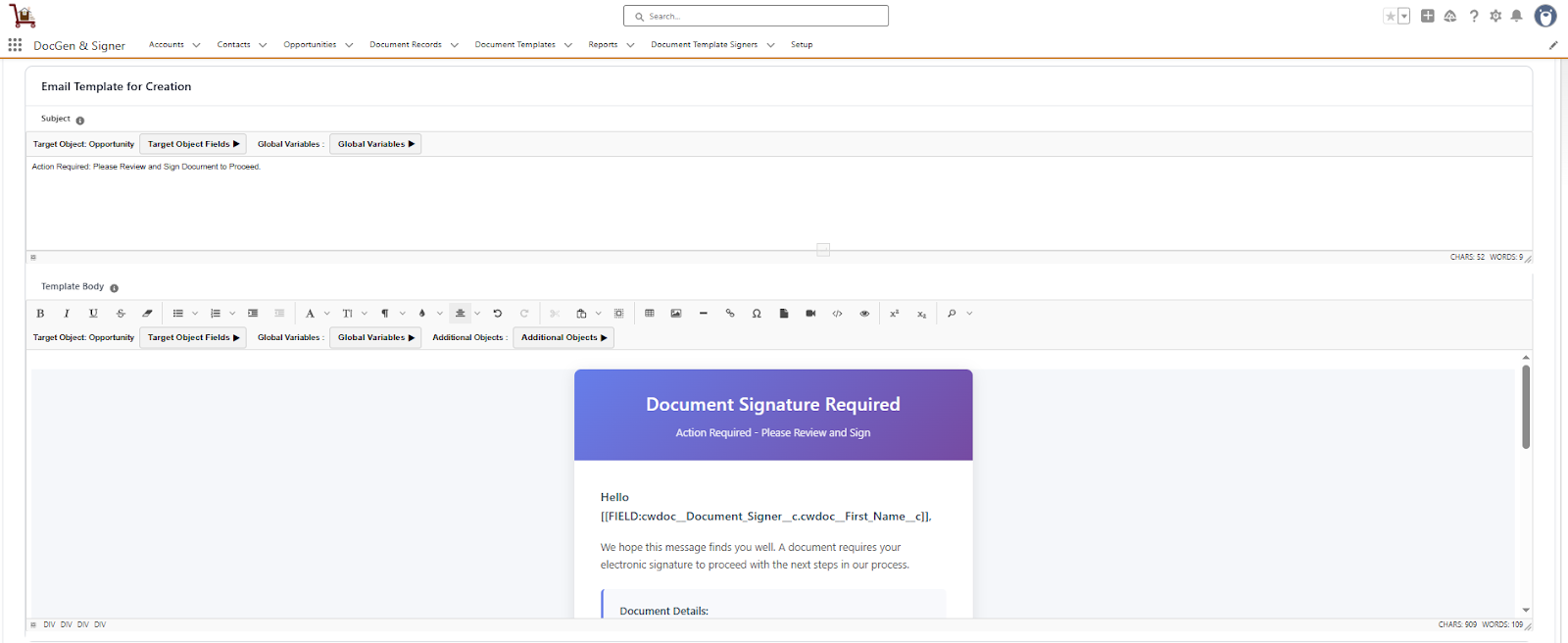
- Email Template for Creation: This template is used when sending a new document to signers for the first time. It serves as the initial notification that a document requires their review and signature.
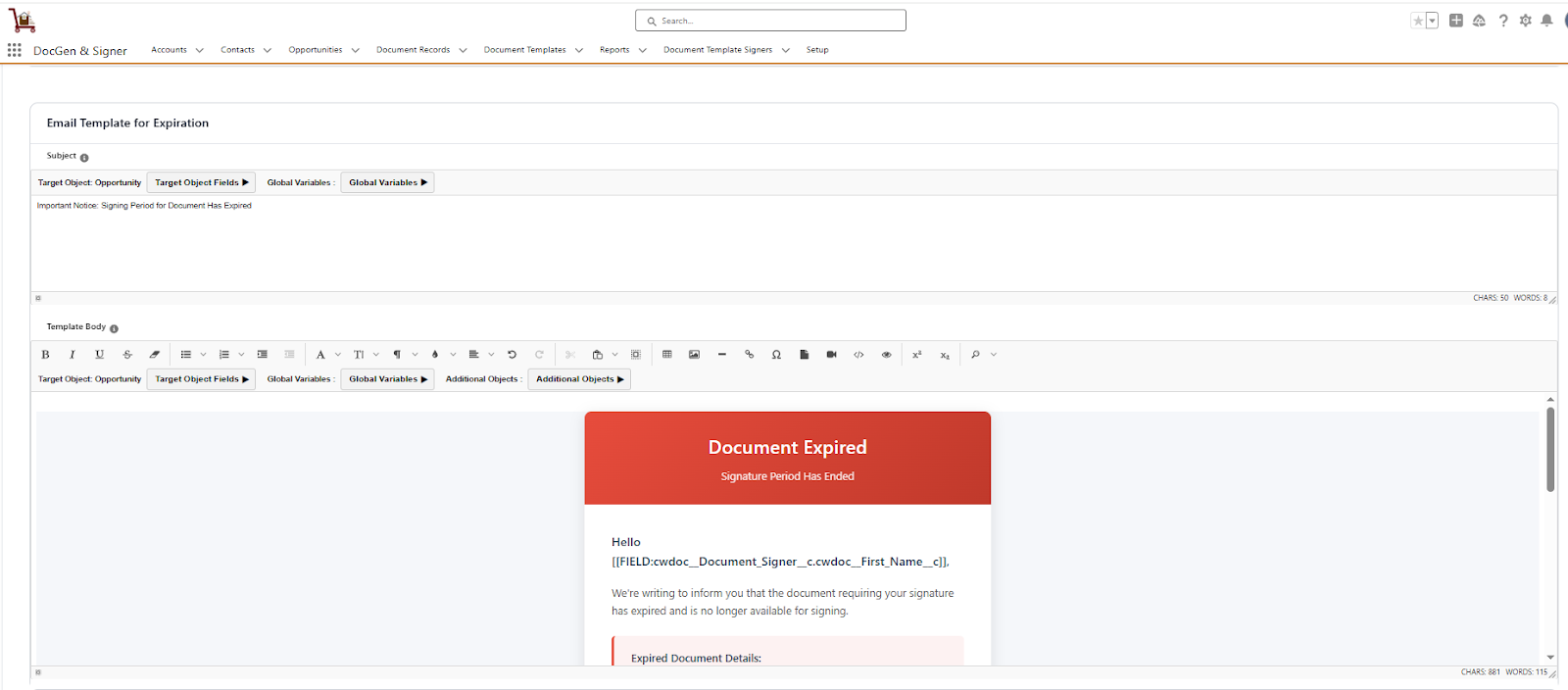
- Email Template for Expiration: This template is automatically sent when a document reaches its expiration date without being signed. It notifies all relevant parties that the document is no longer valid for signing.
- Email template Rejection : This template is triggered when any signer declines to sign the document. It informs all involved parties that the document has been rejected and provides the reason for rejection if one was given.
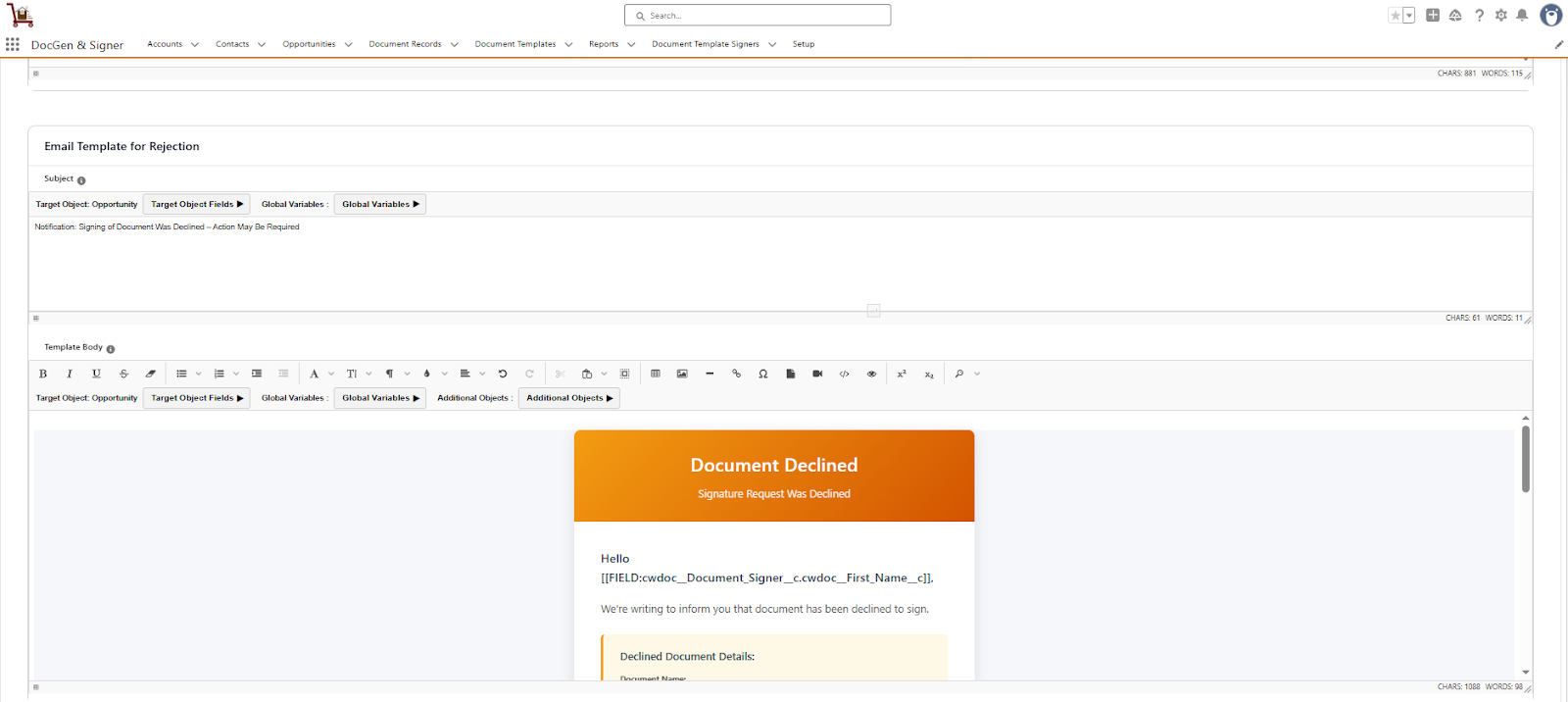
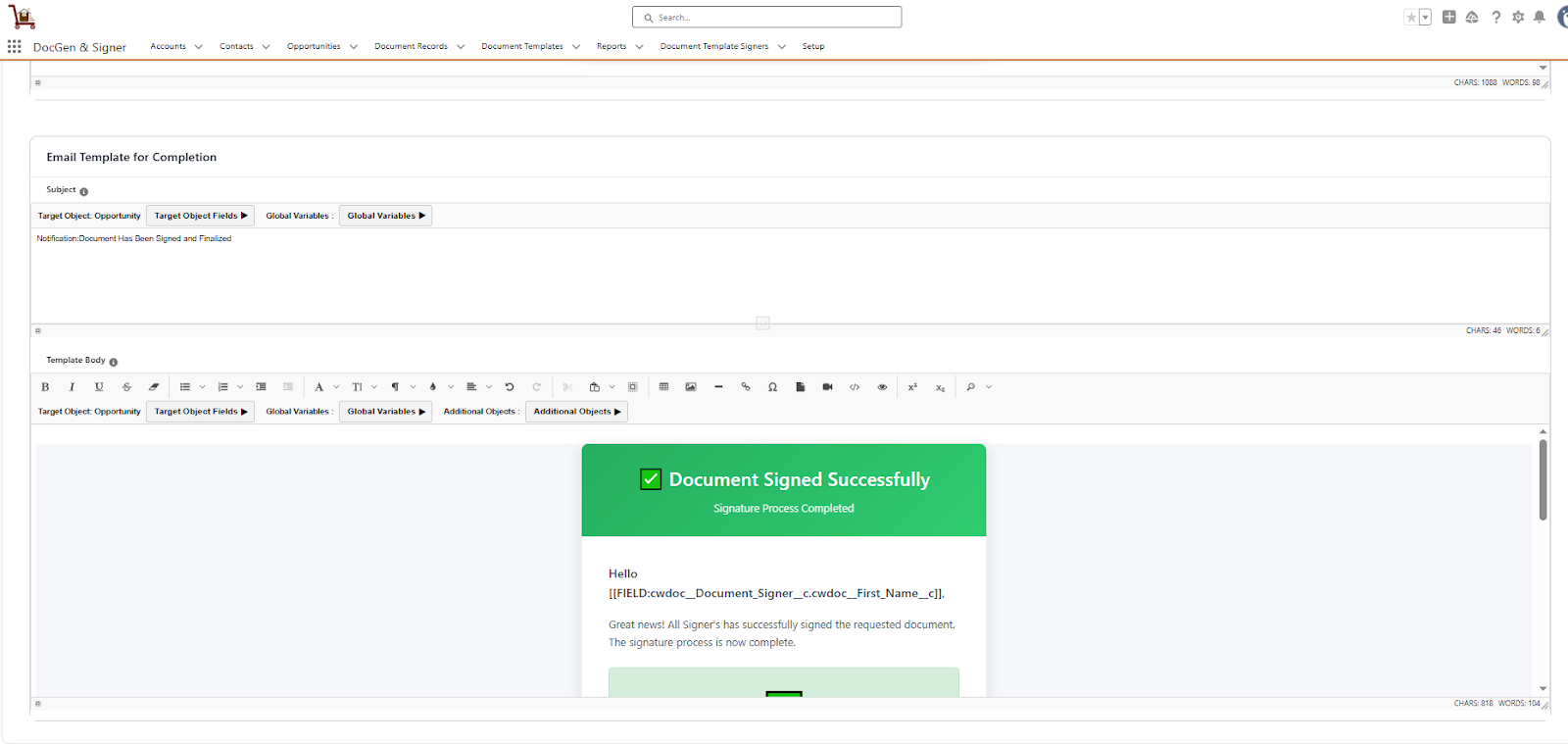
- Email template Completion: This template is sent to all signers and relevant parties when a document has been fully executed by all required signers. It typically includes a copy of the completed document and confirms the successful signing process.
Navigation Buttons
| Buttons | Description |
| Save | Saves the configuration and stays on the current screen. |
| Save and Next | Saves data and proceeds to the next tab (e.g., Template or Preview). |
| Reset | Clears any unsaved entries. |
| Previous | Returns to the prior section. |
Note: When the Enable Signature option is turned off, the Welcome Page and OTP Verification settings under General Settings are hidden, and the Site Settings tab is not displayed. The Site Settings tab becomes visible only when the Enable Signature option is turned on and at least one signer is added.
After clicking Save and Next, you will be navigated to the Template Section.
 SEE ALSO :
____👉Template section Creation