





 Salesforce ERP
 ERP + CRM Platform
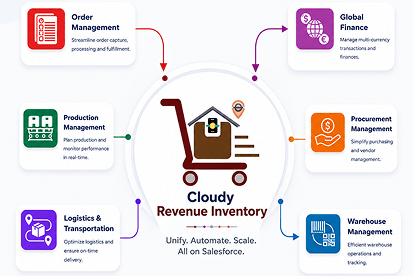
  Inventory Management
  Warehouse Management
  Order Management
  Vendor Management
  Logistics Management
  BOM Management
  Order Fulfillment
  Business Operations
  SaaS Platform for Operations
  Salesforce Cloud ERP Platform
  Xero
Xero
 Zoho books
 Quickbooks
 Shopify
 Acumatica
 SAP
SAP
 Odoo
Odoo
 NetSuite
 Microsoft Dynamics 365
 Sage
Sage



 Agentforce Revenue Management
 Agentforce Revenue Management + Billing
  Salesforce CPQ
 Salesforce Advanced Billing
  Migrate from CPQ to ARM
  Managed Services
 Salesforce Implementation
 Revenue Cloud Implementation
 ServiceNow Consulting Services
 Zoho CRM implementation
 MuleSoft Integration
 Workato Integration
 Microsoft
 Data Cloud
 Tableau
 Document Template Signer
The Document Template Signer defines the individuals or entities required to sign a document generated from a template. It allows administrators to pre-configure signers, specify the signing order, and set up email notifications, ensuring a structured and automated signing Workflow.
How the Object Represents in Cloudy DocGen & Signer
The Document Template Signer object represents a signer associated with a Document Template in Cloudy DocGen & Signer.
It stores the signer’s identity, contact information, relationship to the Salesforce record, signing order, notification status, and current signing status. The object can associate a signer with records such as an Account, Contact, or Lead and connect the signer to the applicable Document Template.
This object supports the management of individuals involved in the document signing process and tracks their progress from document delivery through completion, expiration, or rejection.
Why is it Used?
The Document Template Signer object is used to define and manage the individuals who participate in a document signing workflow.
It helps Cloudy DocGen & Signer identify:
- Who needs to sign the document?
- Which Salesforce record the signer is associated with.
- The signer’s contact information.
- The order in which signers should complete the document.
- What notifications are associated with the signer.
- The current status of the signer’s signing activity.
This provides a structured way to manage multiple signers and their signing progress for a document template.
Key Features
👤 Signer Management
Maintain signer information including name, email, phone, title, and associated Salesforce records.
📄 Document Template Association
Associate signers with a specific Document Template to define who participates in the signing process.
🔗 Salesforce Record Association
Connect a signer with an Account, Contact, or Lead to maintain the relationship between the signer and the Salesforce business record.
🔢 Signing Sequence
Define the signer’s order using the configured Signing Order Type and Order Number.
📧 Notification Management
Track signer-related notifications such as Created, Reminder, Expired, Rejected, and Completed.
📊 Signing Status Tracking
Track the signer’s progress through statuses such as Sent, Waiting, Completed, Expired, and Rejected.
🏢 Relationship Classification
Identify the signer’s relationship to the associated business record through Relationship Type.
📋 Signer Type
Identify the type of signer or communication method associated with the signer.
Key Field Functionality
| Field | Purpose |
| Account | Associates the signer with the relevant Salesforce Account. |
| Contact | Associates the signer with the relevant Salesforce Contact. |
| Document Template | Identifies the Document Template for which the signer is configured. |
| Stores the signer’s email address used for document-related communication and signing activities. | |
| First Name | Stores the signer’s first name. |
| Last Name | Stores the signer’s last name. |
| Lead | Associates the signer with the relevant Salesforce Lead. |
| Notification | Identifies the notification events associated with the signer, such as Created, Reminder, Expired, Rejected, and Completed. |
| Order Number | Defines the signer’s position in the signing sequence when an ordered signing process is used. |
| Phone | Stores the signer’s phone number. |
| Relationship Type | Defines the signer’s relationship with the associated Salesforce record. |
| Signing Order Type | Defines how the signer participates in the signing sequence, such as ordered or non-ordered signing. |
| Status | Indicates the current signing status of the signer, such as Sent, Waiting, Completed, Expired, or Rejected. |
| Title | Stores the signer’s business title or designation. |
| Type | Identifies the signer type configured for the signing process. |
| User | Associates the signer with a Salesforce User when applicable. |
Purpose & Use:
- Pre-defines who must sign a document, reducing manual setup for each new document.
- Controls the signing workflow by setting the order and role of each signer.
- Automates notifications to keep signers informed and ensure timely completion.
- Ensures compliance and clarity in multi-signer workflows, especially for contracts and approvals.
Example Business Scenario
Scenario: Multi-Signer Customer Agreement
A company needs to send a customer agreement for electronic signature. The agreement requires signatures from both the customer contact and an internal sales representative.
A Document Template Signer record is created for each signer and associated with the appropriate Document Template. The customer is linked through the Contact field, while the internal signer can be associated with the relevant User.
The administrator configures the Signing Order Type and Order Number to determine how the document moves between signers. The signer’s email, phone, name, title, and relationship information are maintained in the signer record.
As the signing process progresses, the Status reflects whether the signer has been sent the document, is waiting to sign, has completed signing, or the request has expired or been rejected. Relevant Notification events can also be tracked.
Outcome:
Document Template Signer provides a centralized way to manage who signs a document, in what order, how they are notified, and the current status of their signing activity.
 SEE ALSO :
____👉Template Section