





 Salesforce ERP
 ERP + CRM Platform
  Inventory Management
  Warehouse Management
  Order Management
  Vendor Management
  Logistics Management
  BOM Management
  Order Fulfillment
  Business Operations
  SaaS Platform for Operations
  Salesforce Cloud ERP Platform
  Xero
Xero
 Zoho books
 Quickbooks
 Shopify
 Acumatica
 SAP
SAP
 Odoo
Odoo
 NetSuite
 Microsoft Dynamics 365
 Sage
Sage



 Agentforce Revenue Management
 Agentforce Revenue Management + Billing
  Salesforce CPQ
 Salesforce Advanced Billing
  Migrate from CPQ to ARM
  Managed Services
 Salesforce Implementation
 Revenue Cloud Implementation
 ServiceNow Consulting Services
 Zoho CRM implementation
 MuleSoft Integration
 Workato Integration
 Microsoft
 Data Cloud
 Tableau

 Preview the document
The Document Preview functionality allows users to review the generated document at different stages of the document lifecycle. Users can preview the document before sending it for signing, a document without signers, and after the document has been sent for signing.
The preview allows users to verify the document content, related list data, and signer information.
There are three ways to preview a document:
1. Preview a Document Without Signers
If the document template does not have any signers configured, users can directly preview the generated document.
Steps Preview a Document Without Signers:
1.Configure the document template and ensure that it is Activated.
2.Make sure that the template does not have any signers configured.
3.Navigate to the required Target Object record.
4.Click Generate Document.
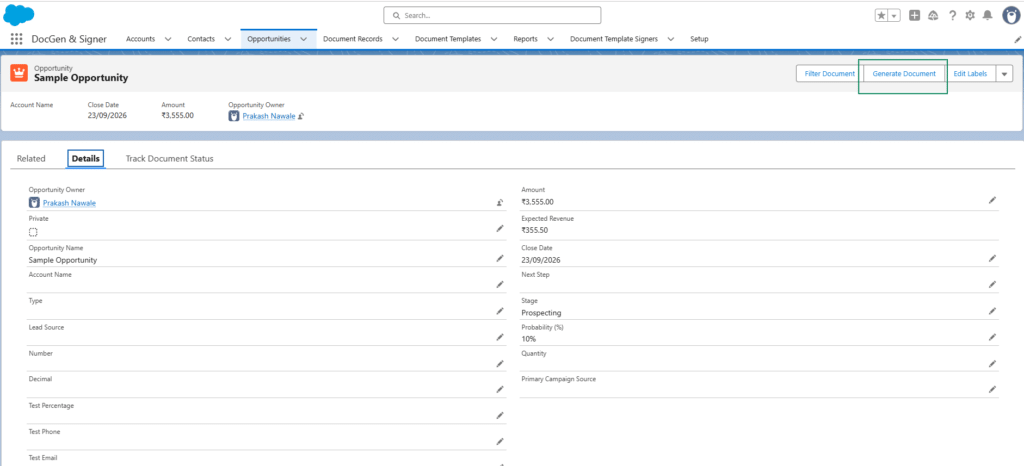
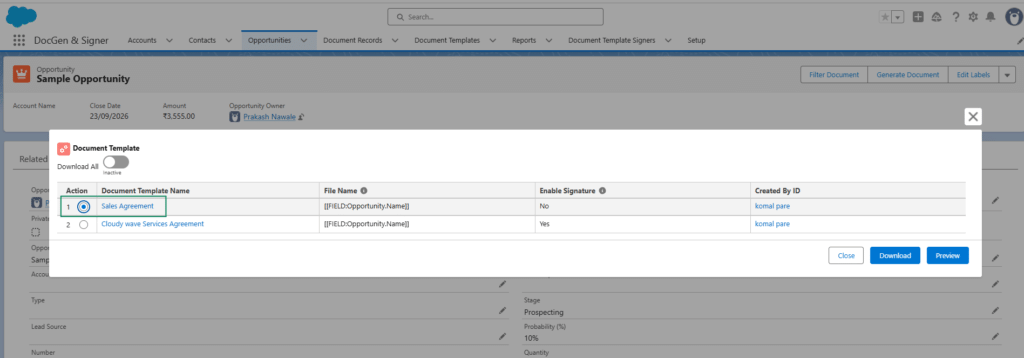
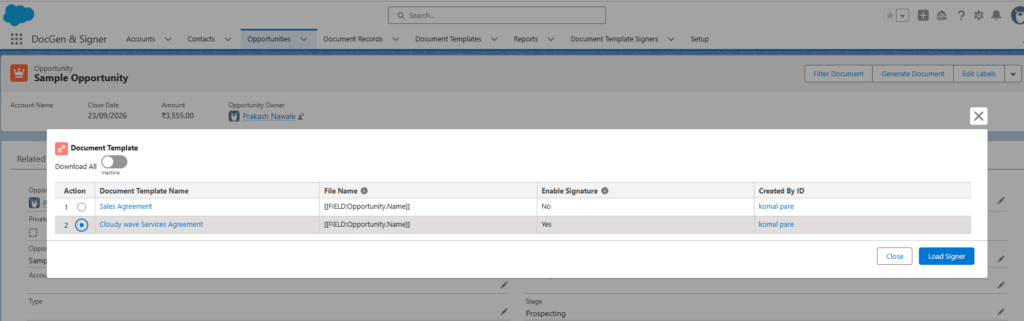
5.Select the required document template.
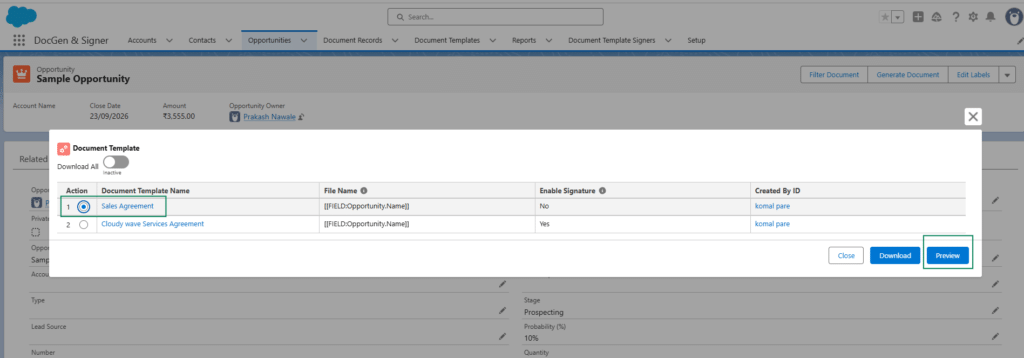
6.Click Preview to view the generated document.
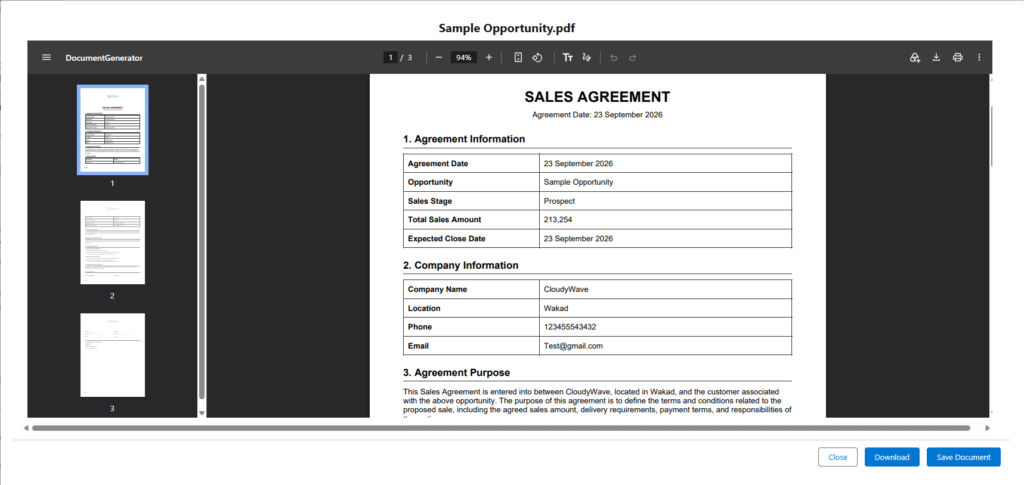
2. Preview a Document With Signers Before Sending for Signing
If the document template has signers configured, users can preview the document before sending it to the signers.
Steps Preview a Document With Signers Before Sending for Signing :
1.Configure the document template and ensure that it is Activated.
2.Make sure that the template has signers configured.
3.Navigate to the required Target Object record.
4.Click Generate Document.
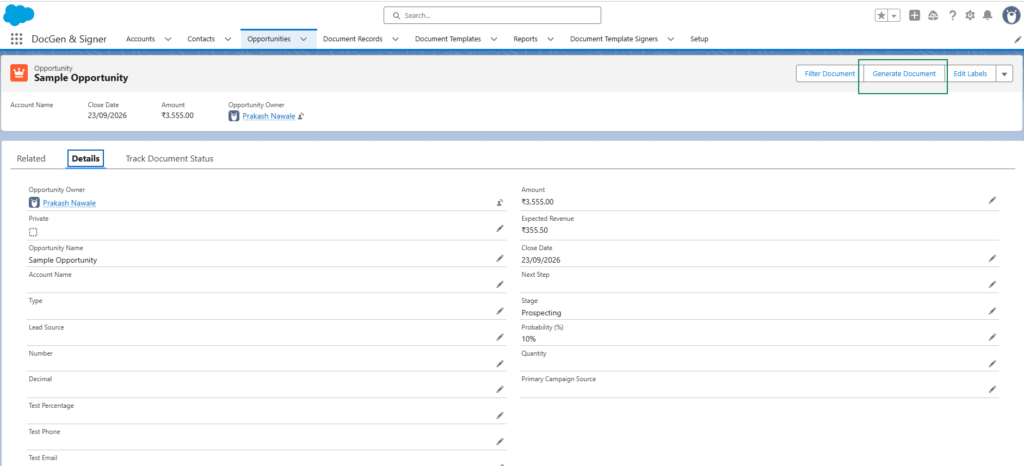
5.Select the required document template.
6.Click Load Signer.
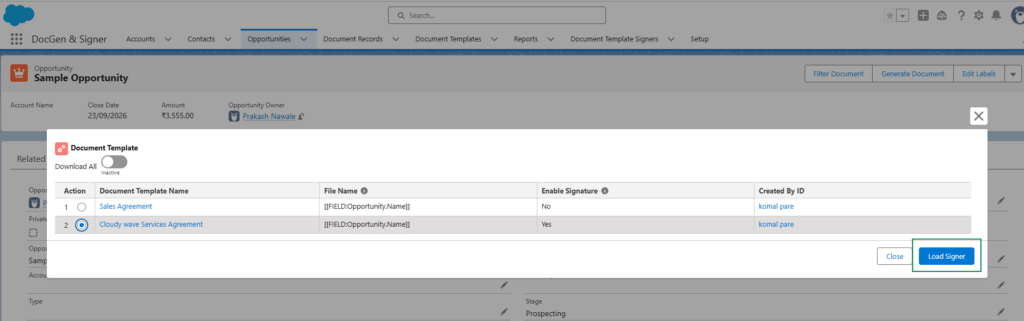
7.Preview the generated document to verify the content and signer information before sending it for signing.
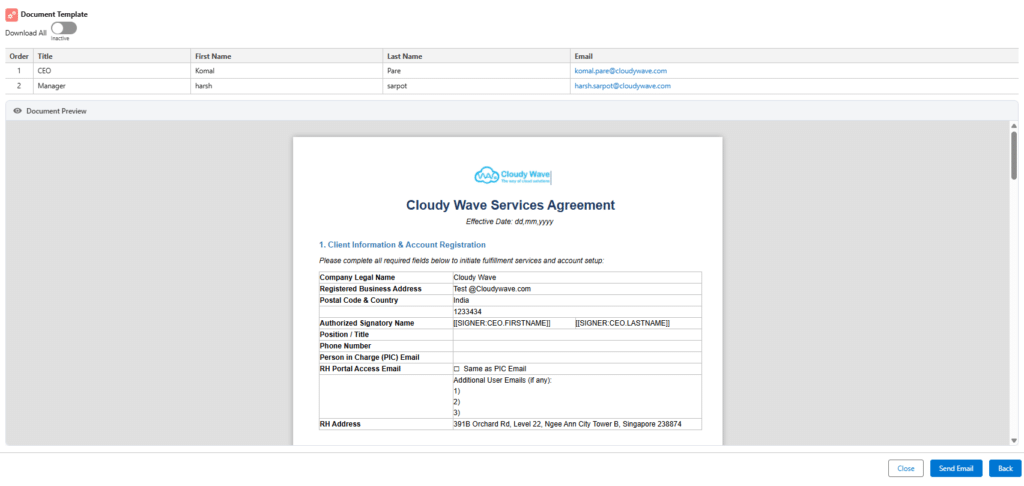
3. Preview a Document After Sending It for Signing
Users can also preview a document after it has been successfully sent to the signers.
Steps Preview a Document After Sending It for Signing :
1.Navigate to the Target Object
Go to the Target Object selected in the Template Information tab and open the desired record.

2.Generate the Document
Click on Generate Document.
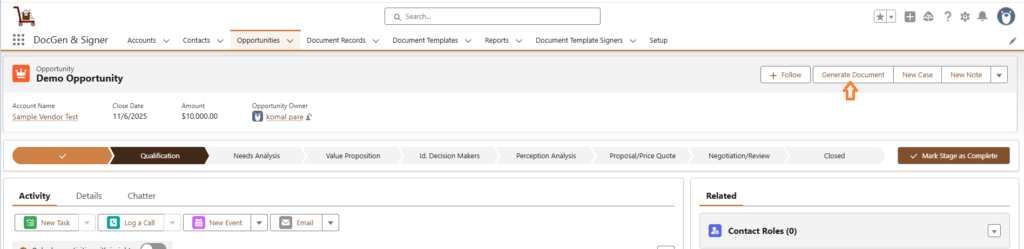
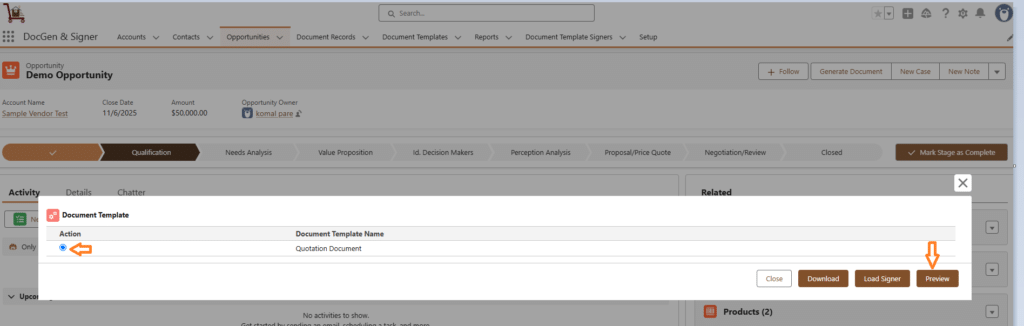
3.Preview the document
To preview the document select the document and click on Preview.
4.You will see the records and select the record to preview.
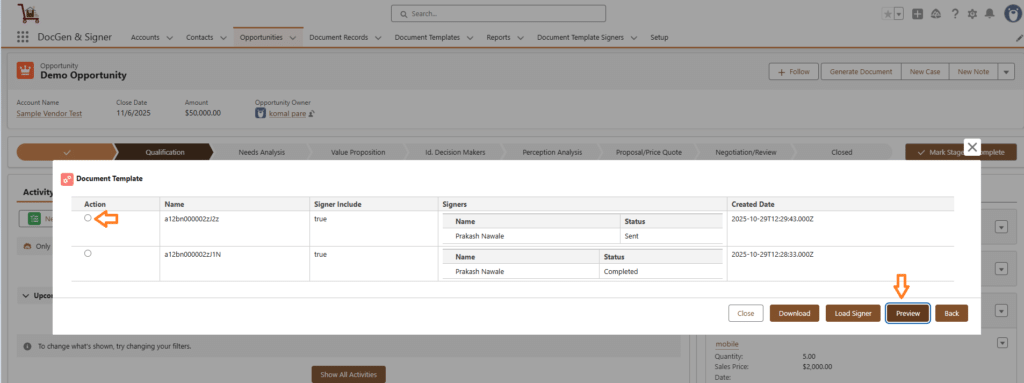
5.Document look likes
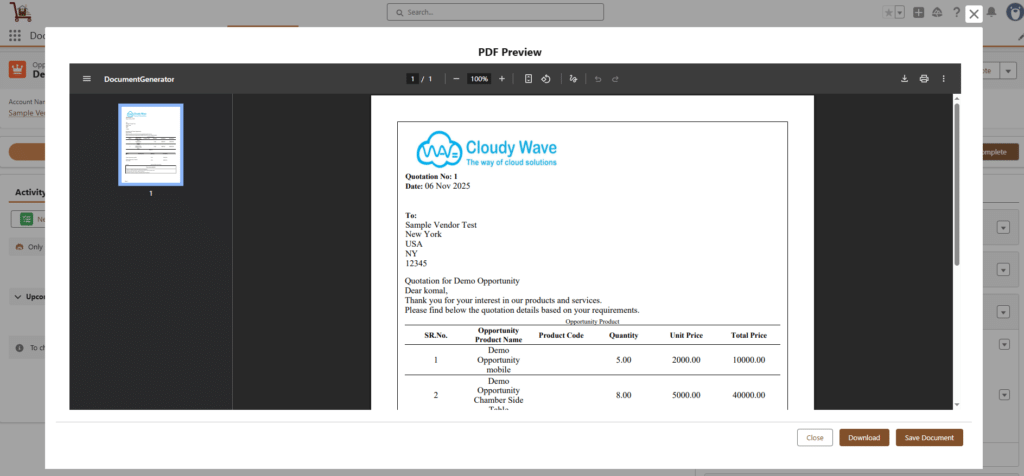
6.After clicking on Save document it will save in target object notes and attachments.

7.After clicking on download it will save on the local device.
 SEE ALSO :
____👉Download document