





 Salesforce ERP
 ERP + CRM Platform
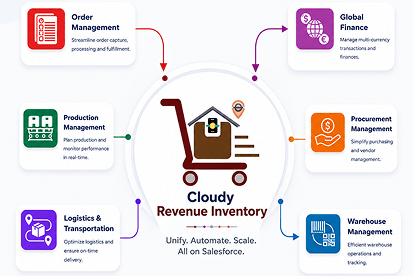
  Inventory Management
  Warehouse Management
  Order Management
  Vendor Management
  Logistics Management
  BOM Management
  Order Fulfillment
  Business Operations
  SaaS Platform for Operations
  Salesforce Cloud ERP Platform
  Xero
Xero
 Zoho books
 Quickbooks
 Shopify
 Acumatica
 SAP
SAP
 Odoo
Odoo
 NetSuite
 Microsoft Dynamics 365
 Sage
Sage



 Agentforce Revenue Management
 Agentforce Revenue Management + Billing
  Salesforce CPQ
 Salesforce Advanced Billing
  Migrate from CPQ to ARM
  Managed Services
 Salesforce Implementation
 Revenue Cloud Implementation
 ServiceNow Consulting Services
 Zoho CRM implementation
 MuleSoft Integration
 Workato Integration
 Microsoft
 Data Cloud
 Tableau

 General Settings
The General Settings tab provides centralized control over the security, branding, and output behavior of your document generation process. Here, you can define how users interact with and access the final document.
The options Enable Welcome Page (Optional) and Enable Verification Code (Optional) are available only if the document template includes signers. When enabled, the site header and footer will be displayed accordingly.
- Default Select For Download All → This checkbox is available only for document templates that do not contain any signers. When enabled, the document template is selected by default when the user uses the Download All functionality.
- Enable Welcome Page (Optional) → Activate this setting to display a customizable landing page before the document is opened.
- Welcome Page Message (Optional) → This is the customizable content that appears on the Welcome Page.
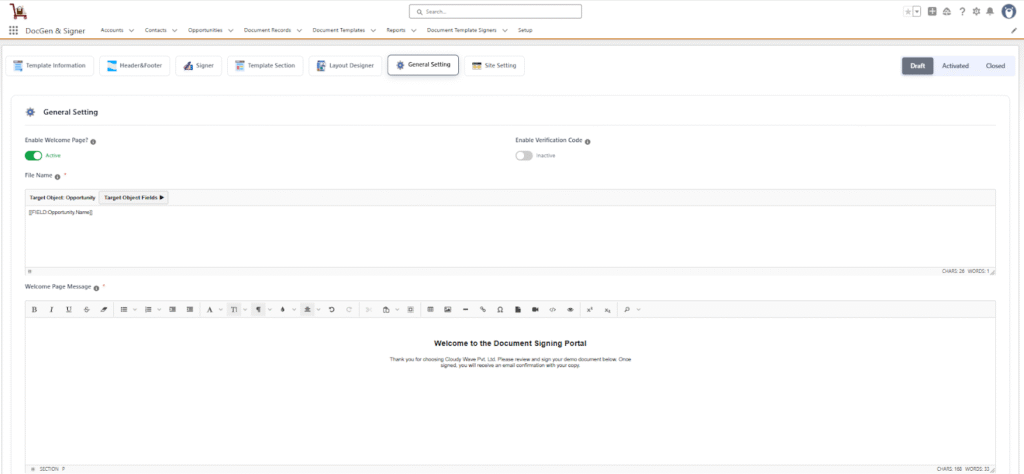
- Enable Verification Code (Optional) → Activate this setting to require users to complete an identity check before accessing the document.
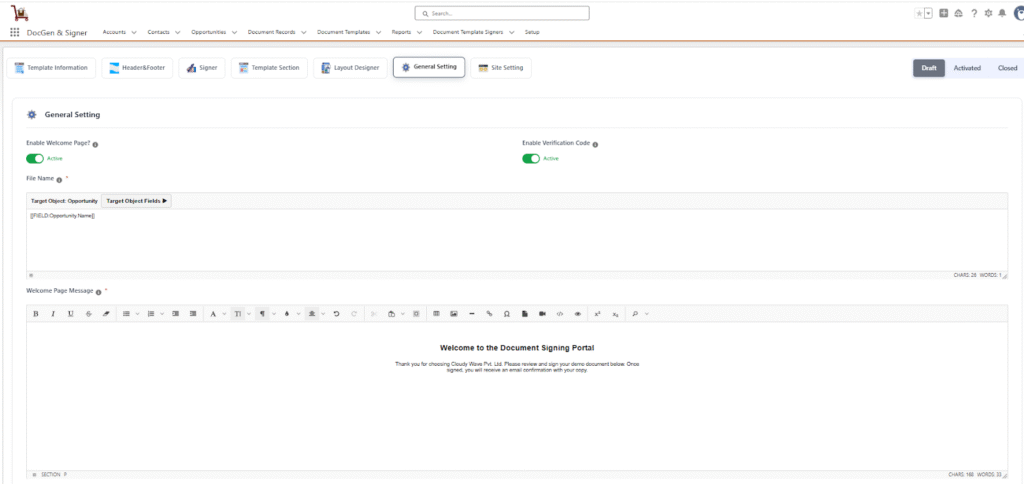
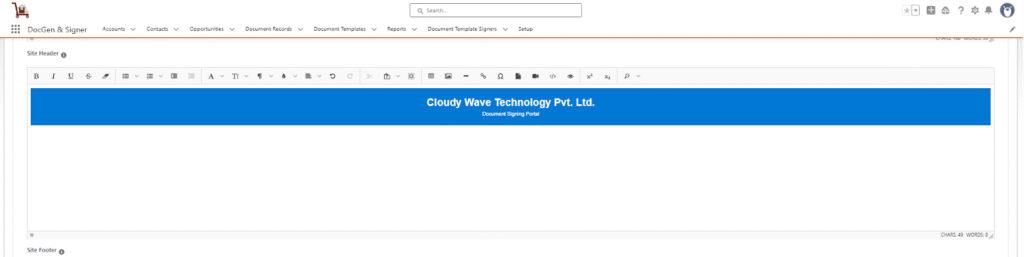
- Site Header → Allows users to design and customize the header for their site, including text formatting, adding HTML code, and adjusting the layout.
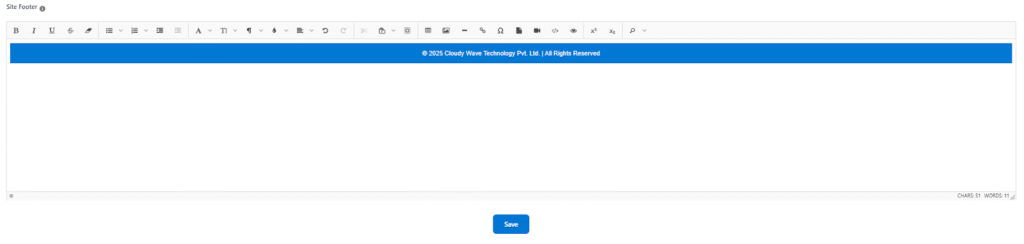
- Site Footer → Allows users to design and customize the footer for their site, including text formatting, adding HTML code, and adjusting the layout.
- File Name → You can change the file name for the document. This name will be applied automatically when the document is downloaded by a user.By default the file name is set to the target object name.

Go to the Site settings click on the Site settings and configure the required details.
 SEE ALSO :
____👉 Site settings
____👉 Document Generation