





 Salesforce ERP
 ERP + CRM Platform
  Inventory Management
  Warehouse Management
  Order Management
  Vendor Management
  Logistics Management
  BOM Management
  Order Fulfillment
  Business Operations
  SaaS Platform for Operations
  Salesforce Cloud ERP Platform
  Xero
Xero
 Zoho books
 Quickbooks
 Shopify
 Acumatica
 SAP
SAP
 Odoo
Odoo
 NetSuite
 Microsoft Dynamics 365
 Sage
Sage



 Agentforce Revenue Management
 Agentforce Revenue Management + Billing
  Salesforce CPQ
 Salesforce Advanced Billing
  Migrate from CPQ to ARM
  Managed Services
 Salesforce Implementation
 Revenue Cloud Implementation
 ServiceNow Consulting Services
 Zoho CRM implementation
 MuleSoft Integration
 Workato Integration
 Microsoft
 Data Cloud
 Tableau

 Configure Site Guest User Time Zone
The signer page uses the time zone configured for the Site Guest User to display date and date/time values.
Configure the Time Zone
Follow these steps to configure the time zone for the Site Guest User:
- Go to Setup → Sites.
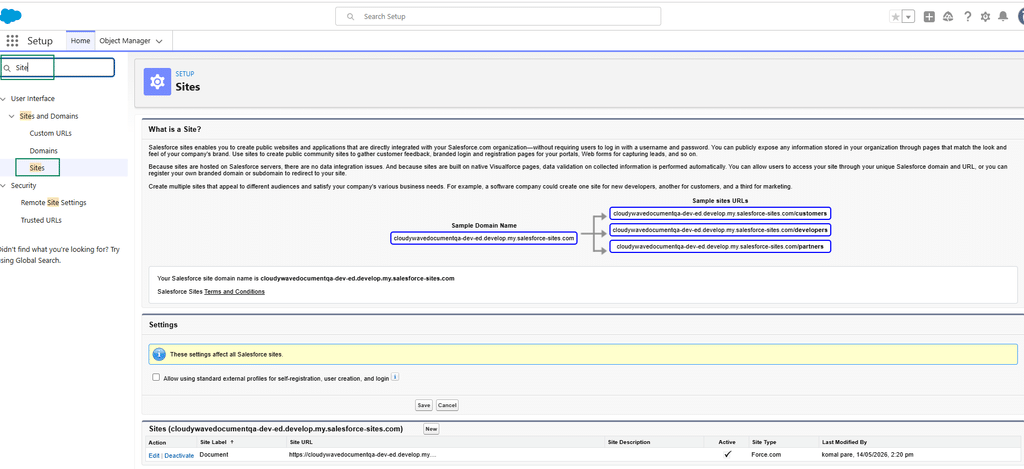
- Open the site used for Document Signing.
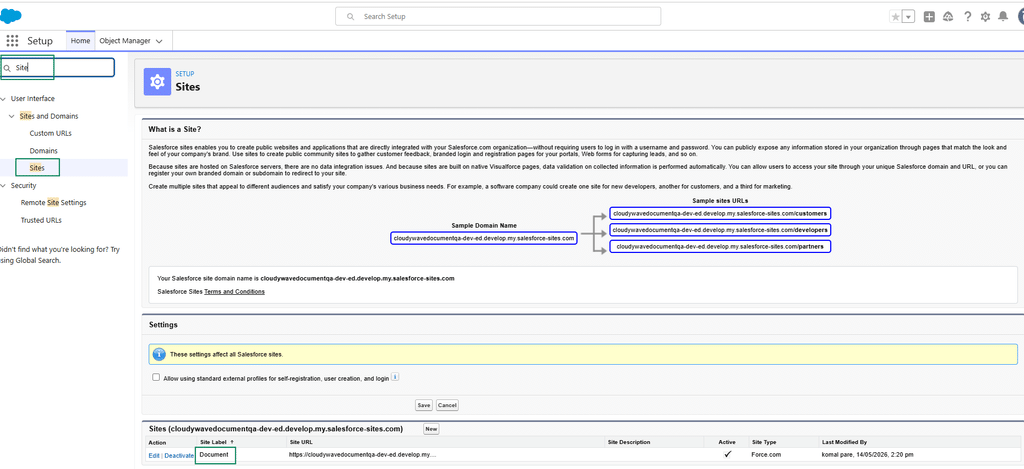
- Click Public Access Settings.
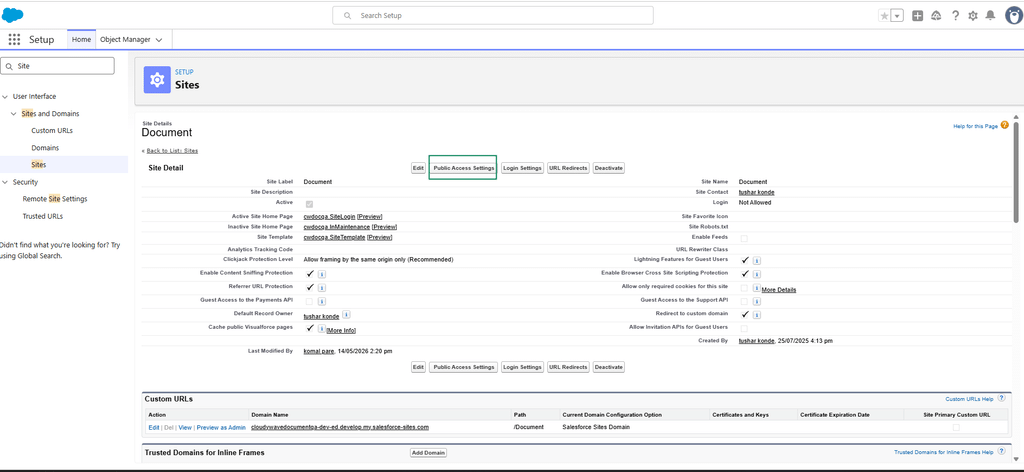
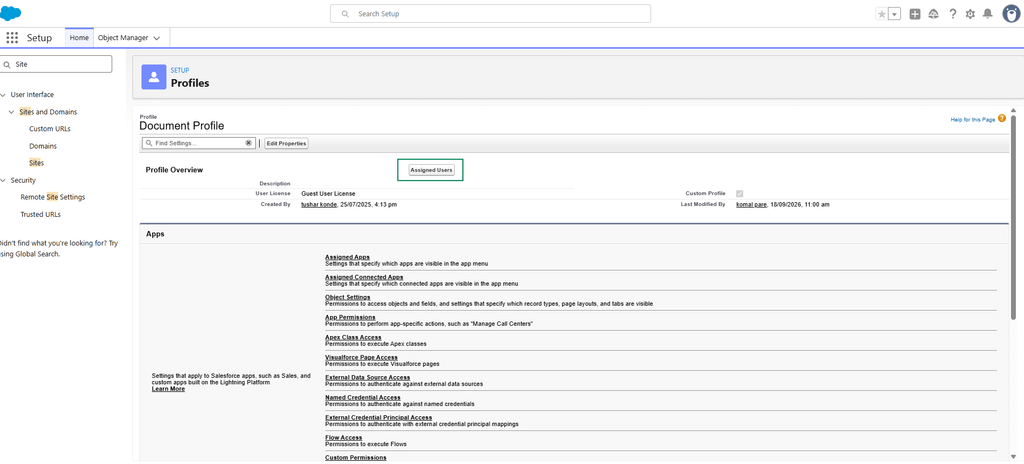
- Click Assigned Users.
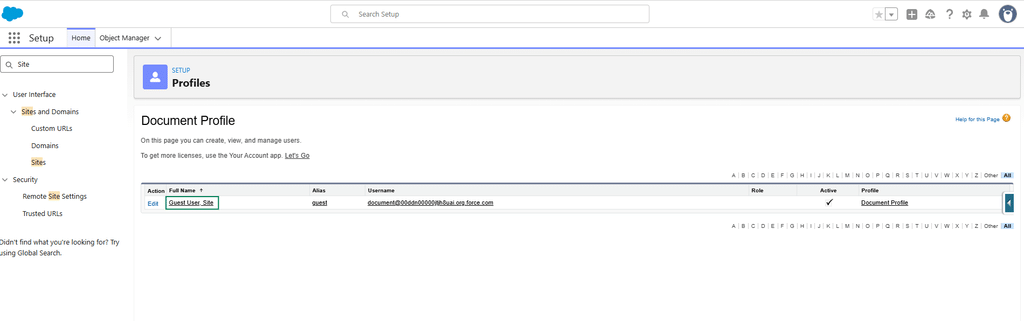
- Click the Guest User name.
- Click Edit.
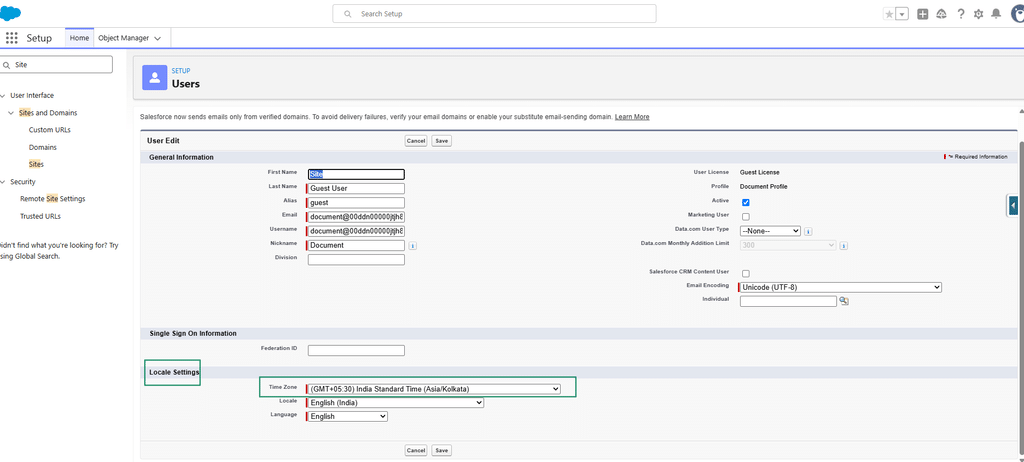
- Under Local Settings, select the required Time Zone based on your organization’s requirements.
- Click Save.
Example:
If the Site Guest User is configured with the Asia/Kolkata time zone, date and date/time values displayed on the signer page will be based on India Standard Time (IST).

Note: The time zone configured for the Site Guest User determines how date and date/time values are displayed on the signer page.