





 Salesforce ERP
 ERP + CRM Platform
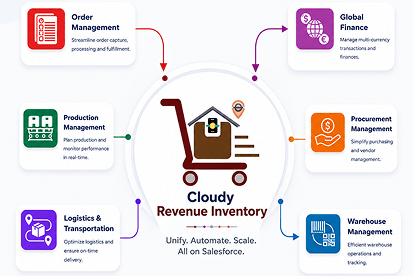
  Inventory Management
  Warehouse Management
  Order Management
  Vendor Management
  Logistics Management
  BOM Management
  Order Fulfillment
  Business Operations
  SaaS Platform for Operations
  Salesforce Cloud ERP Platform
  Xero
Xero
 Zoho books
 Quickbooks
 Shopify
 Acumatica
 SAP
SAP
 Odoo
Odoo
 NetSuite
 Microsoft Dynamics 365
 Sage
Sage



 Agentforce Revenue Management
 Agentforce Revenue Management + Billing
  Salesforce CPQ
 Salesforce Advanced Billing
  Migrate from CPQ to ARM
  Managed Services
 Salesforce Implementation
 Revenue Cloud Implementation
 ServiceNow Consulting Services
 Zoho CRM implementation
 MuleSoft Integration
 Workato Integration
 Microsoft
 Data Cloud
 Tableau
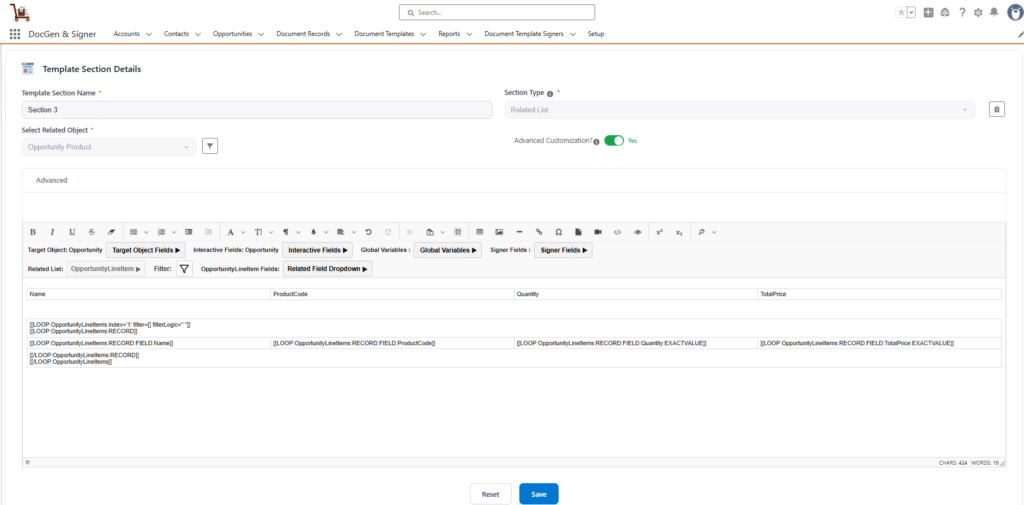
 Advanced Customization (Related List)
The Advanced Customization option provides full creative freedom to design your own template for displaying data. Instead of being restricted to a standard table, you can create a completely customized layout. This option is similar to the Content Section type but is limited to selecting a single child object.
To design your document, select Related List as the section type and enable the Advanced Customization.
- Target Object → The Salesforce object (e.g., Account, Opportunity) on which this template will be generated.The template can access all fields from this object, including reference (lookup) fields, and traverse relationship paths up to five levels deep to retrieve data from parent records (e.g., Opportunity.Account.Owner.Contact.LastModifiedBy.Email).
You use it to add formatted text, images and dynamic fields from the target object of your document (e.g., the Opportunity, Account). - Interactive Fields → Interactive Fields are special dynamic fields that allow end-users to update their values directly within the document generation and signing workflow. Users can configure interactive fields as Required or Optional, depending on their business requirements.
Required Fields: Users must provide a value before completing the document signing process.
Optional Fields: Users can leave the field blank if it is not required.
Failure Redirect URL
If a required field is missing from the document, the system displays a validation message during the signing process.
When a Failure Redirect URL is configured: After the user clicks OK on the validation message, the system redirects the user to the configured Failure URL.
When a Failure Redirect URL is not configured: The system displays the failure message configured in the template settings.
To successfully complete the signing process, the user must either add the required field to the document or mark the field as
Optional at the field level. After making the necessary changes, the user can reopen the signing URL and continue signing the document.
E.G.[[INPUT:FIELD:Opportunity.cwdocqa__Test_Date__c:MM/DD/YYYY:REQUIRED]]
- Global Variables → These are predefined system values that are dynamically inserted into the document. Common examples include the current date (TODAY), the name of the user generating the document (USER.Name), organization details.
- Related List → A Related List is a section type used to display data from child objects that are related to the target object. Users can also apply filters to the selected related list object.
- Signer Fields → These fields allow users to insert signer-related information into the document template. After selecting a signer, users can insert the available signer fields wherever signer information is required in the document. The following signer fields are available: Title, First Name, Last Name, Email, Phone, Name, Sign, and Sign Date.
The Sign Date field supports date and time formatting, allowing users to configure how the signer’s signing date and time are displayed in the generated document. Users can select the required date and time format based on their document requirements.
For Guest Users, the timezone should be configured according to the guest signer’s local timezone. The default timezone for guest users is GMT. Setting the appropriate timezone ensures that the signing date and time are displayed correctly based on the selected timezone.
- Serial Number – This option allows the user to add a serial number and is available when a related list object is selected.
 SEE ALSO :
____👉 Canvas