





 Salesforce ERP
 ERP + CRM Platform
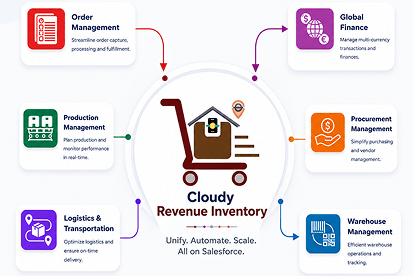
  Inventory Management
  Warehouse Management
  Order Management
  Vendor Management
  Logistics Management
  BOM Management
  Order Fulfillment
  Business Operations
  SaaS Platform for Operations
  Salesforce Cloud ERP Platform
  Xero
Xero
 Zoho books
 Quickbooks
 Shopify
 Acumatica
 SAP
SAP
 Odoo
Odoo
 NetSuite
 Microsoft Dynamics 365
 Sage
Sage


 Agentforce Revenue Management
 Agentforce Revenue Management + Billing
  Salesforce CPQ
 Salesforce Advanced Billing
  Migrate from CPQ to ARM
  Managed Services
 Salesforce Implementation
 Revenue Cloud Implementation
 ServiceNow Consulting Services
 Zoho CRM implementation
 MuleSoft Integration
 Workato Integration
 Microsoft
 Data Cloud
 Tableau
 Assign Package License
Assign the required package license to the Standard User or System Administrator to provide access to the application.
Only a System Administrator can assign the package license to other users.
Steps to Assign the license to the user:
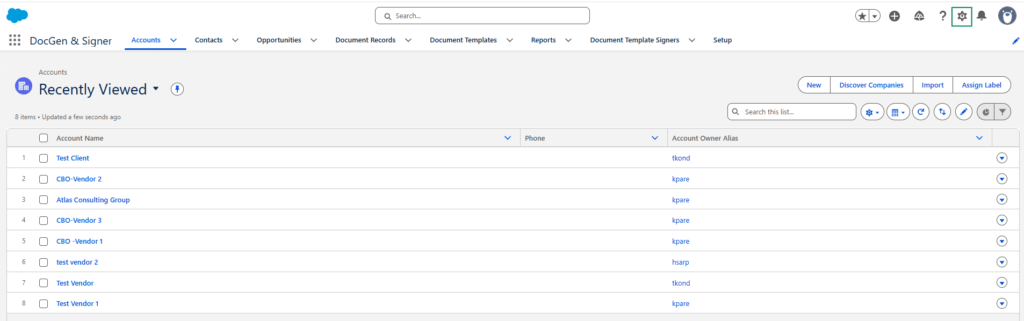
1. Click the Gear icon (⚙️).
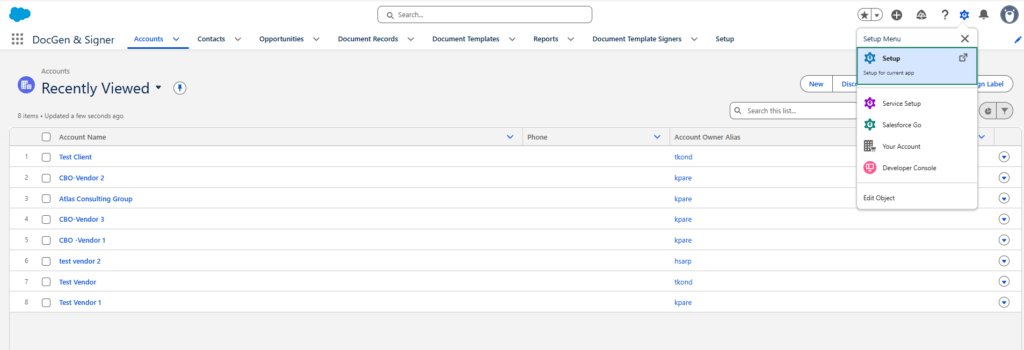
2. Select Setup.
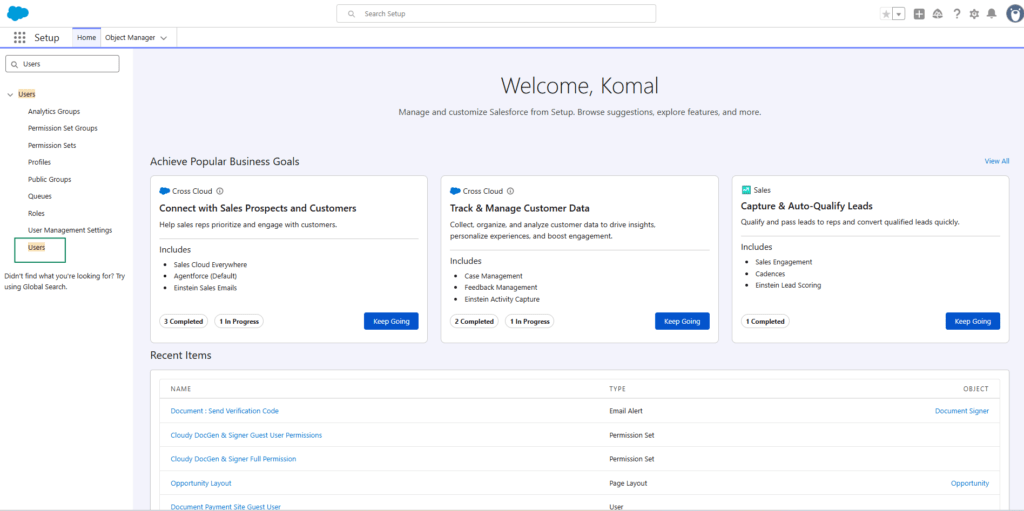
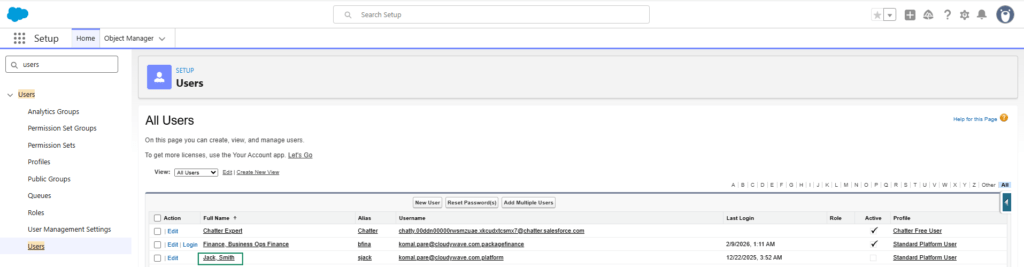
3. In the Quick Find box search user.
4. Click on Users
5. Click the user to whom you want to assign the license.
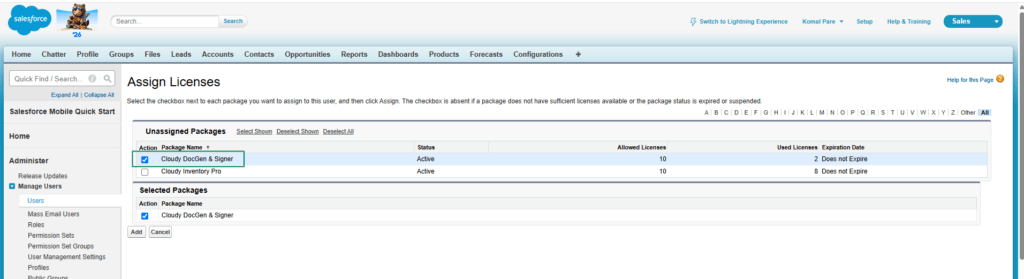
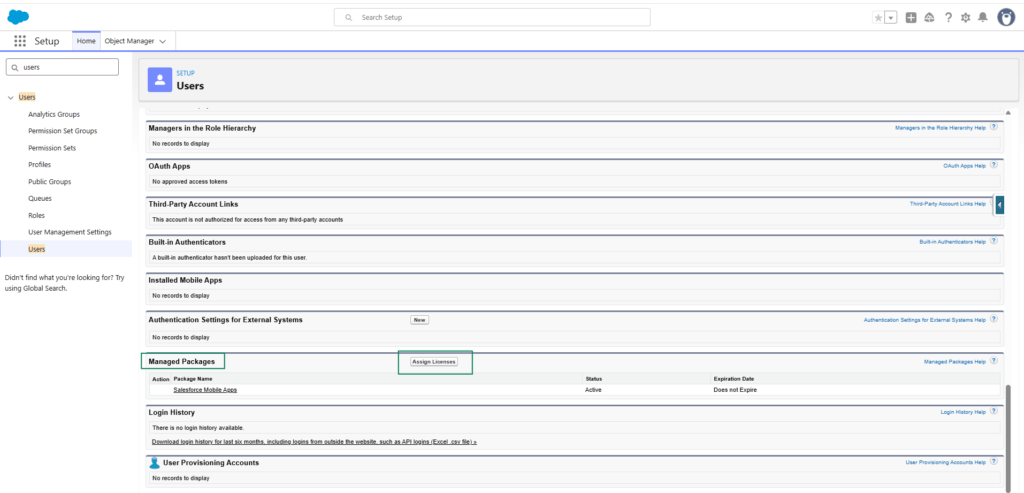
6. Scroll down to the Managed Packages section and click Add Licenses.
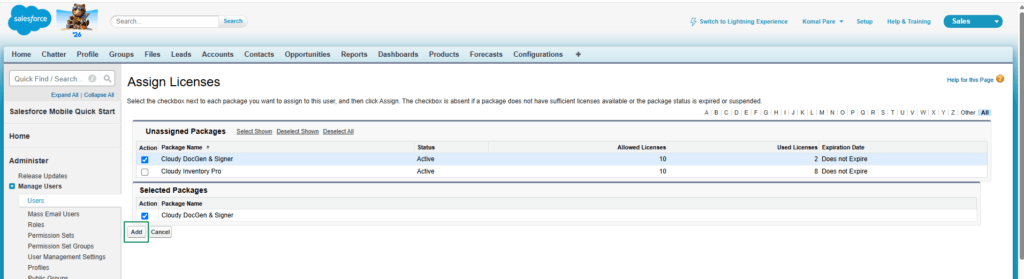
7. Select the package that you want to assign to the user.
8. Click on Add button
Assign License to a Guest User
To assign the package license to a Guest User, first assign the appropriate Guest User Permission Set and then assign the package license.
Steps:
- Navigate to Setup → Permission Sets.
- Select the required Guest User Permission Set. i.e. Cloudy DocGen & Signer Guest User Permission Set
- Click Manage Assignments.
- Click Add Assignments and select the required guest user.
- Click Next and then Assign.
- Navigate to the user’s Managed Packages section.
- Click Add Licenses.
- Select the required package license.
- Click Add to assign the license.