


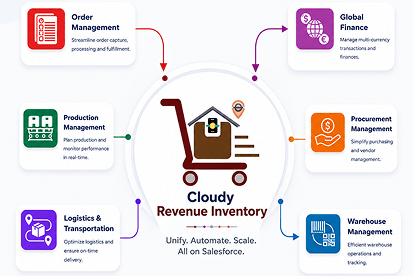


 Salesforce ERP
 ERP + CRM Platform
  Inventory Management
  Warehouse Management
  Order Management
  Vendor Management
  Logistics Management
  BOM Management
  Order Fulfillment
  Business Operations
  SaaS Platform for Operations
  Salesforce Cloud ERP Platform
  Xero
Xero
 Zoho books
 Quickbooks
 Shopify
 Acumatica
 SAP
SAP
 Odoo
Odoo
 NetSuite
 Microsoft Dynamics 365
 Sage
Sage



 Agentforce Revenue Management
 Agentforce Revenue Management + Billing
  Salesforce CPQ
 Salesforce Advanced Billing
  Migrate from CPQ to ARM
  Managed Services
 Salesforce Implementation
 Revenue Cloud Implementation
 MuleSoft Integration
 Microsoft
 Data Cloud
 Tableau
 Generate Document Using Flow with Filtered Templates
The Generate Document component supports displaying filtered document templates based on conditions defined in a Salesforce Flow.
Prerequisites
Before using this functionality, make sure the following requirements are met:
- A Document Template is created and activated.
- The required Target Object is configured in the document template.
- The user has the required Cloudy DocGen & Signer permissions and license.
- A Salesforce Flow is created for the required business condition.
- The Flow is activated.
- A Flow Action or button is configured to launch the Generate Document functionality from the target record.
How It Works
Users can configure a Flow to determine which document templates should be displayed based on specific business conditions. The Flow passes the relevant
The Generate Document component works based on the Document Templates passed from the Flow.
- If Document Templates are present, only the specified document templates are displayed.
- If no Document Templates are present, the system displays all available document templates.
Create an Action and Add It to the Page Layout
After creating and activating the Flow, create an action to launch the Flow from the target record page.
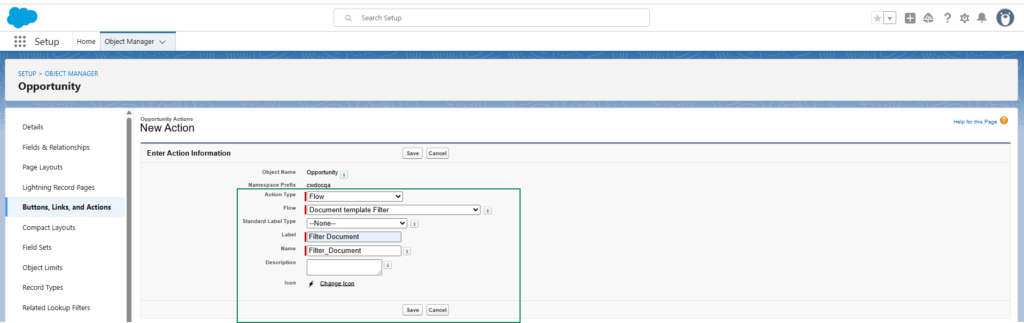
Step 1: Create an Action
- Go to Setup in Salesforce.
- In Quick Find, search for Object Manager.
- Select the required target object.
For example, select Opportunity. - Select Buttons, Links, and Actions.
- Click New Action.
- Enter the details:
- Action Type : Flow
- Flow : Your Flow Name (Document Template Filter)
- Label: Label name (Filter Document)
- Click Save.
Step 2: Add the Button to the Page Layout
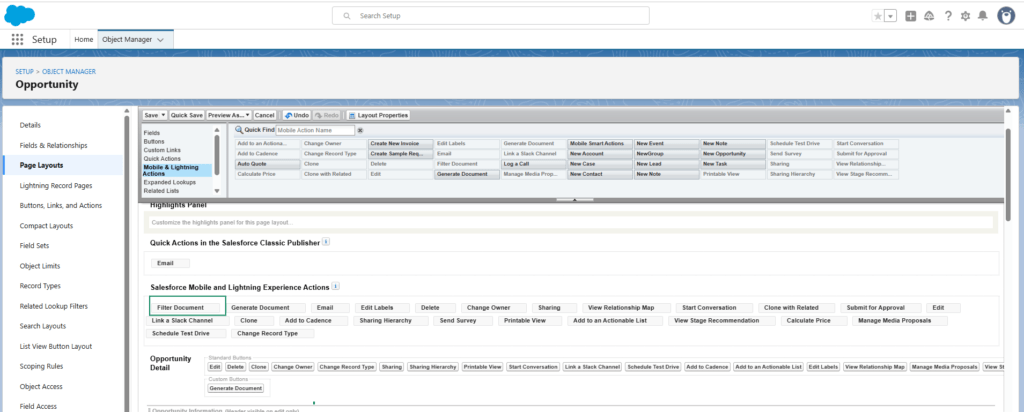
- In the Object Manager, open the required target object.
- Select Page Layouts.
- Open the page layout assigned to the required users.
- In the Mobile and lightning Actions section, locate the Filter Document action.
- Drag the FilterDocument action to the Salesforce Mobile and Lightning Experience Actions section.
- Click Save.
Step 3: Verify the Action
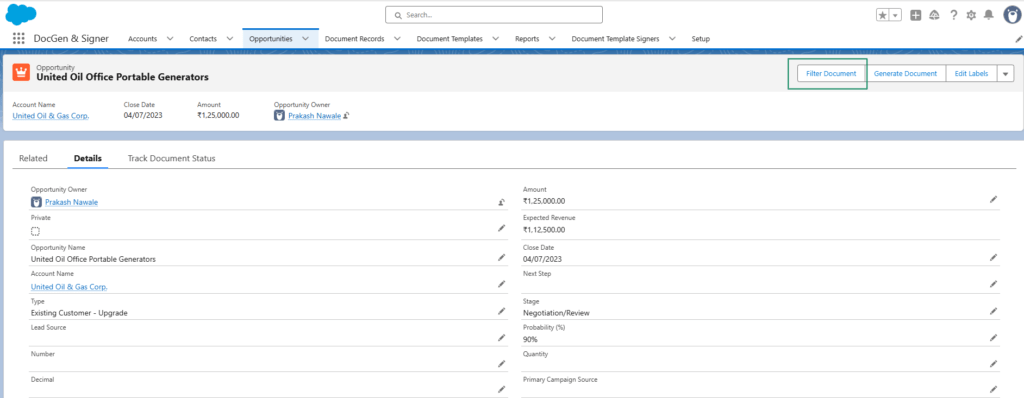
- Open a record of the configured target object.
For example, open an Opportunity record. - Check the Filter Document action.
Example
Suppose you want to display a specific Document Template that contains the keyword “Agreement.”
You can configure a Flow with the following condition:
Object: Document Template
Condition: Template Name contains “Agreement”
When the condition is satisfied, the filtered document templates are displayed; otherwise, all available document templates are displayed.
 SEE ALSO :
____👉 Preview document
____👉 Download document
____👉 Document Tracking
____👉 Generate Document Using Lightning Experience
____👉 Authentication or Document Access Troubleshooting
____👉 Email Delivery Issues