


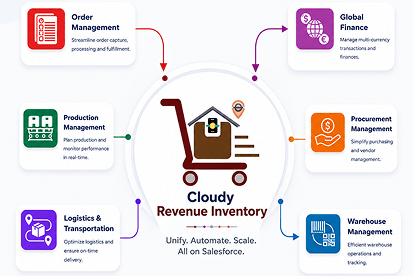



 Salesforce ERP
 ERP + CRM Platform
  Inventory Management
  Warehouse Management
  Order Management
  Vendor Management
  Logistics Management
  BOM Management
  Order Fulfillment
  Business Operations
  SaaS Platform for Operations
  Salesforce Cloud ERP Platform
  Xero
Xero
 Zoho books
 Quickbooks
 Shopify
 Acumatica
 SAP
SAP
 Odoo
Odoo
 NetSuite
 Microsoft Dynamics 365
 Sage
Sage



 Agentforce Revenue Management
 Agentforce Revenue Management + Billing
  Salesforce CPQ
 Salesforce Advanced Billing
  Migrate from CPQ to ARM
  Managed Services
 Salesforce Implementation
 Revenue Cloud Implementation
 MuleSoft Integration
 Microsoft
 Data Cloud
 Tableau
 Authentication or Document Access Troubleshooting
Troubleshooting Authentication or Document Access Issues After Clicking the Sign Link :
If you encounter an authentication error or a document access issue after clicking the Sign link, follow the steps below to troubleshoot and resolve the problem.
Step 1: Create a New Permission Set
In this step, you will create a new Permission Set in Salesforce to define what level of access a user — in this case, the Guest User — should have for specific objects. These are the target objects that were selected during document creation.
Permission Sets allow you to grant additional access to users without modifying their profiles, ensuring flexibility and security when managing permissions.
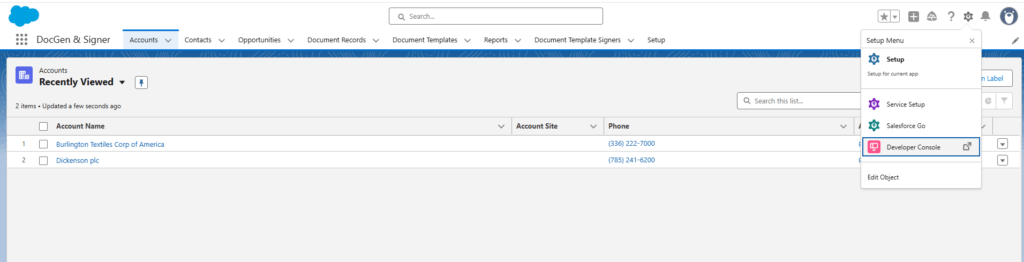
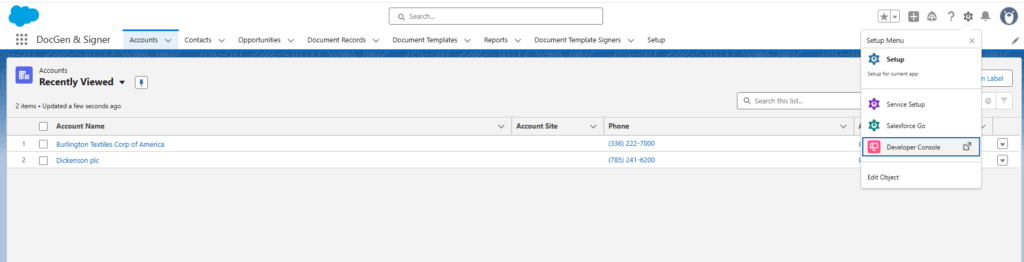
- Go to Setup (⚙️ Gear icon).
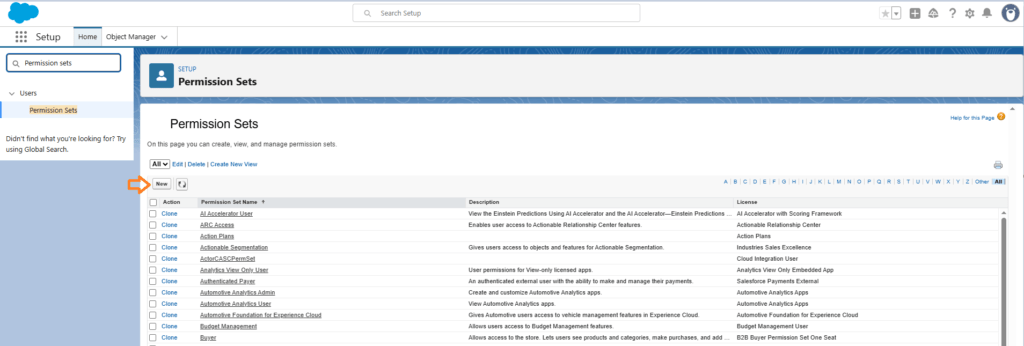
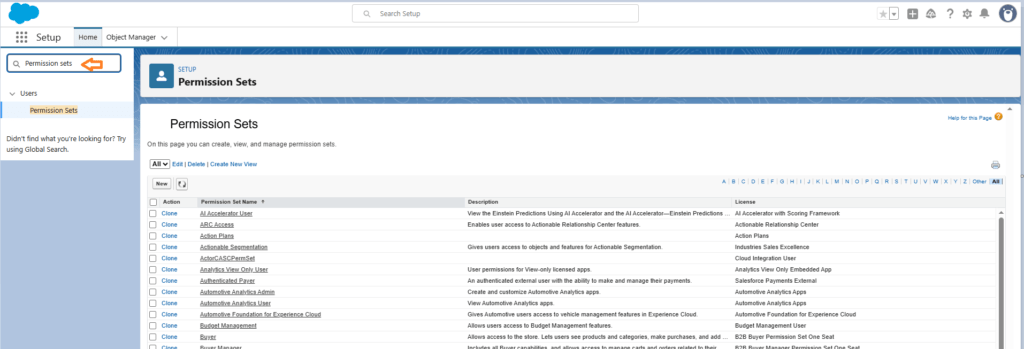
- In the Quick Find box, type Permission Sets and select it.
- Click New to create a new permission set.
- Enter a Label for the permission set. (Standard User Permissions) .The API Name will be automatically populated.
- Click Save.
- On the permission set details page, click Object Settings.
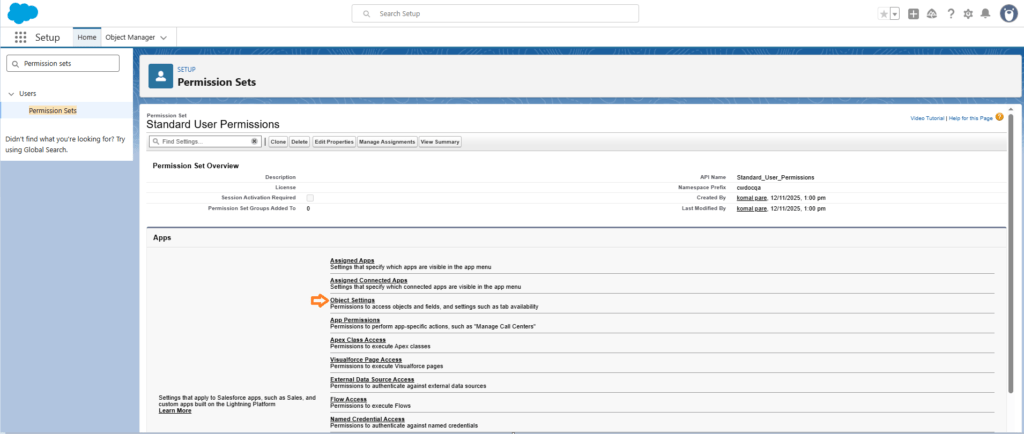
- Select the object for which you want to assign permissions (the target object used during document creation). And Click on Edit.
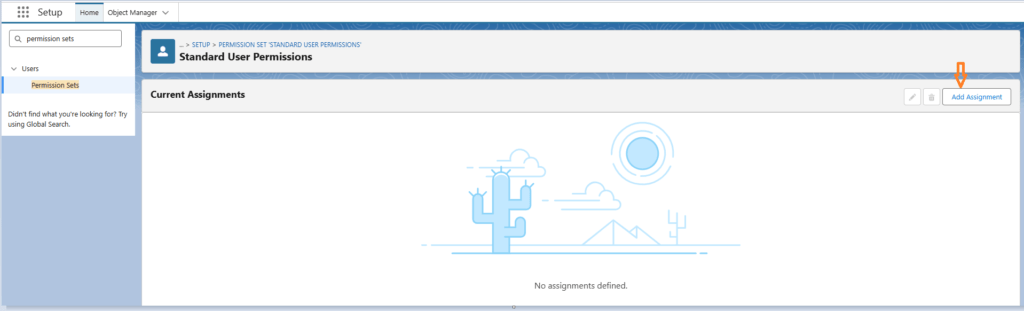
- Enable the Read and Edit access checkboxes.
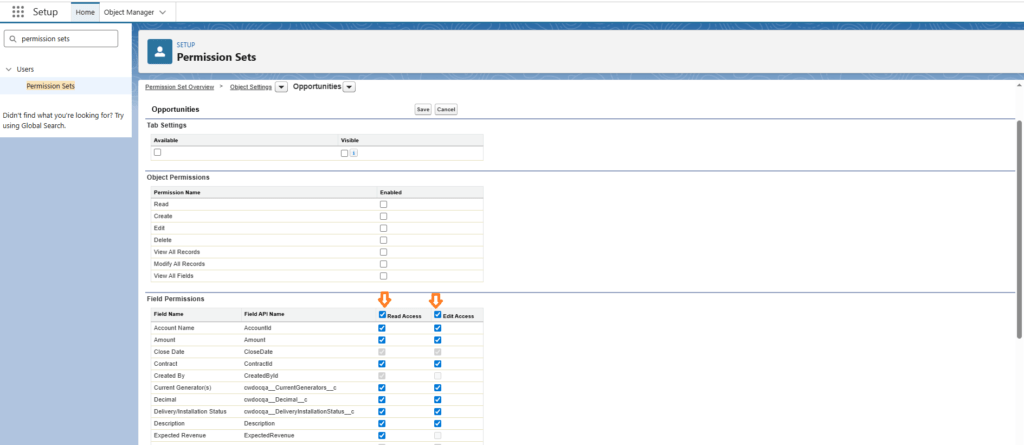
- Click Save.
- Click Manage Assignments.
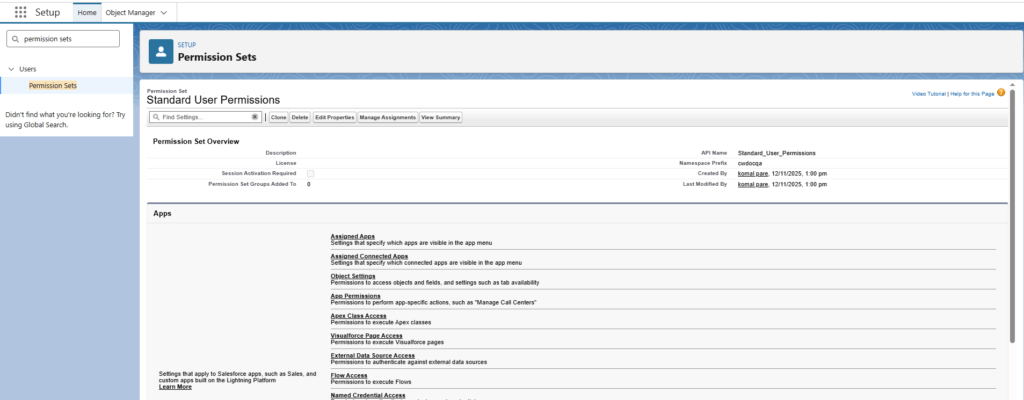
- Click Add Assignments.
- From the list view, select All Users.
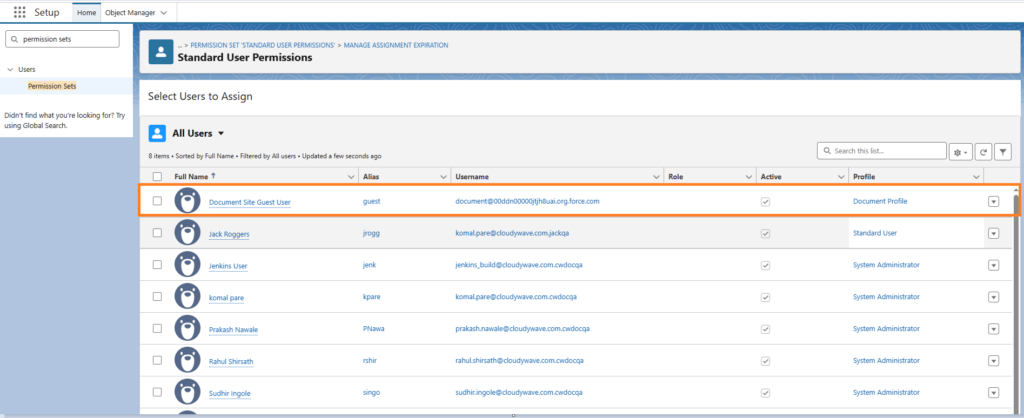
- Select the checkbox next to the Guest User. Also assign this to other users listed in below The guest user is automatically created by Salesforce when the site is created.
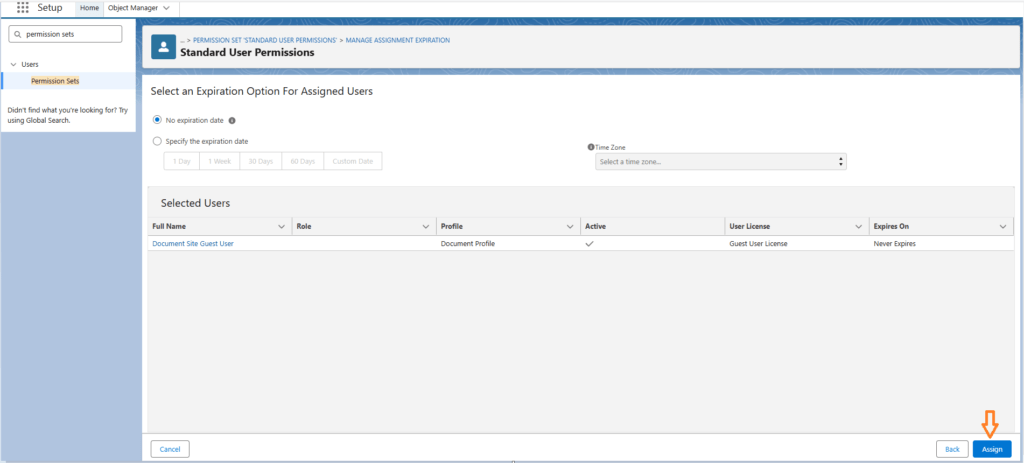
- Click Next, then click Assign.
- Refresh the org.
Step 2: Assign the Guest User Permission Set (Cloudy DocGen & Signer)
- Go to the Setup tab.
- In the Quick Find box, type Permission Sets and select it.
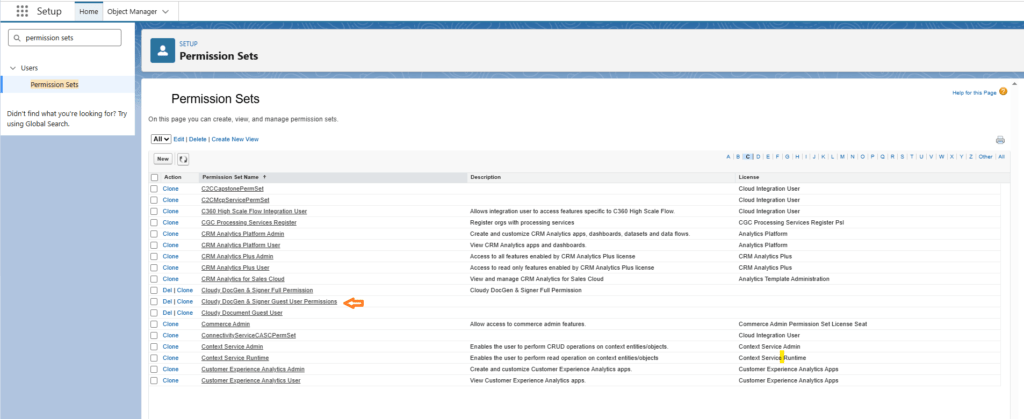
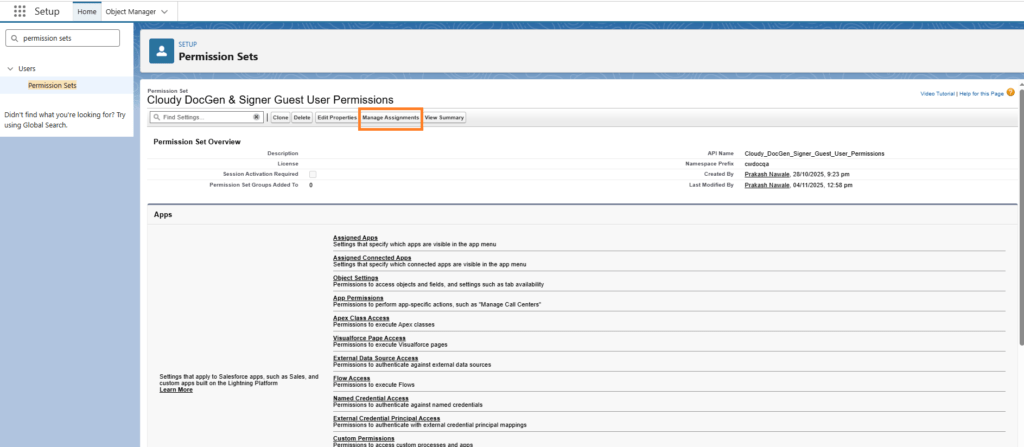
- Locate and open the Cloudy DocGen & Signer Guest User Permissions permission set.
- Click Manage Assignments.
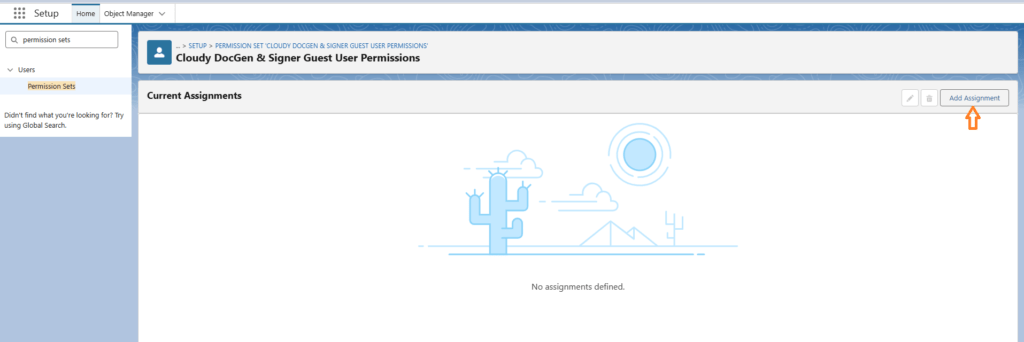
- Click Add Assignments.
- From the list view, select All Users.
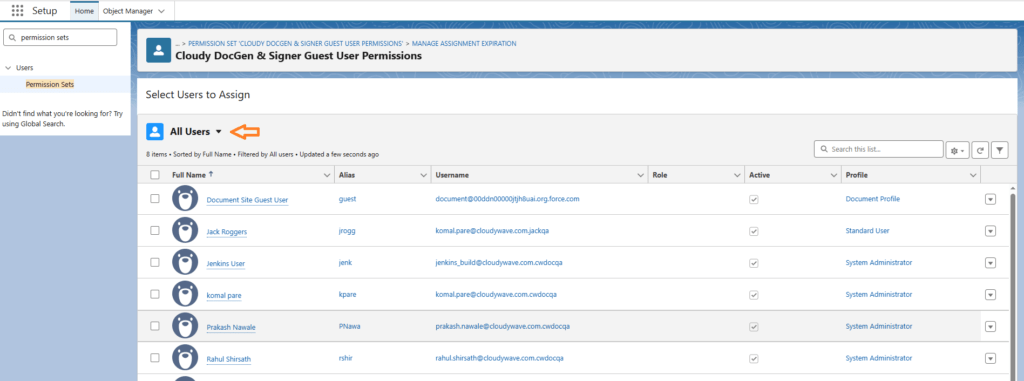
- Select the checkbox next to the Guest User. This user is automatically created by Salesforce when the site is configured.
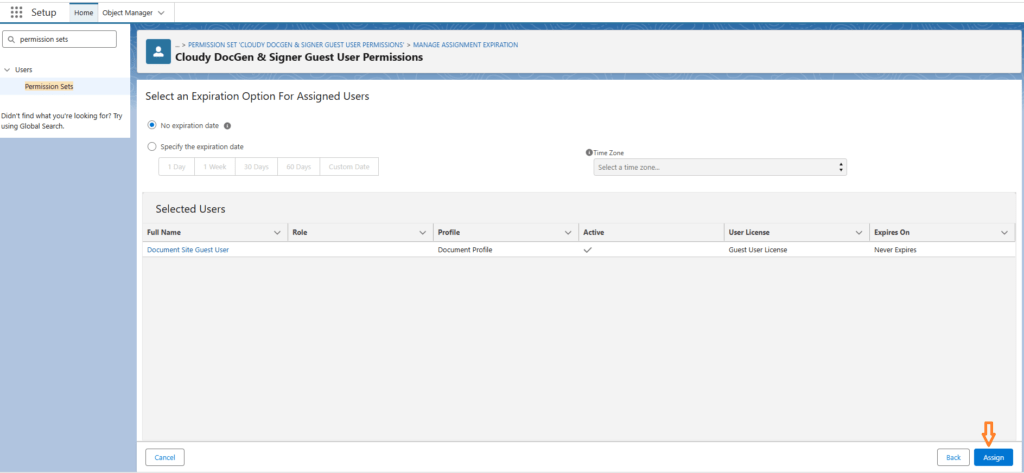
- Click Next, then click Assign.
- Refresh the org.
Step 3: Verify Access
Once the permission sets are assigned:
- Click the link provided in the email again.
- Verify that the document template is now accessible and that the authentication or access issue is resolved.