You just closed a big deal. The customer is thrilled. Then your warehouse calls: the item’s been out of stock for a week. Nobody told sales. Now you’re refunding, apologizing, and watching a hard-won relationship wobble.
This scenario plays out every day in businesses that keep their stock data in one system and their customer data in another. The fix is to bring them together. Learning how to setup inventory in Salesforce turns your CRM into a single source of truth where sales, service, and warehouse teams all see the same real-time numbers.
But there’s nuance here. Salesforce isn’t a warehouse management system out of the box. This guide shows you exactly what it can do natively, which AppExchange apps fill the gaps, and how to connect everything so your inventory finally feels live.
Can Salesforce Handle Inventory Management?
Short answer: yes, but not on its own. As Cleverence’s CRM playbook notes, core Salesforce is exceptional at customer, order, and workflow orchestration — it stores product catalogs, prices, quotes, orders, and returns with rich security and automation. What it lacks natively are deep warehouse functions like wave picking, license plates, lot and serial tracking, directed put-away, and sub-second scanning.
So when people ask how to setup inventory in Salesforce, they’re really choosing between three paths:
- Native platform build — add custom objects and automations yourself.
- AppExchange managed package — install a Salesforce-native inventory or ERP app.
- ERP/WMS as system of record — keep stock in an external system and sync it into Salesforce.
We’ll cover all three. First, the native foundation.
How To Setup Inventory in Salesforce Using Native Objects
Salesforce gives you building blocks. According to guidance from Salesforce development specialists at Wildnet Edge, several standard features provide a starting point before any customization.
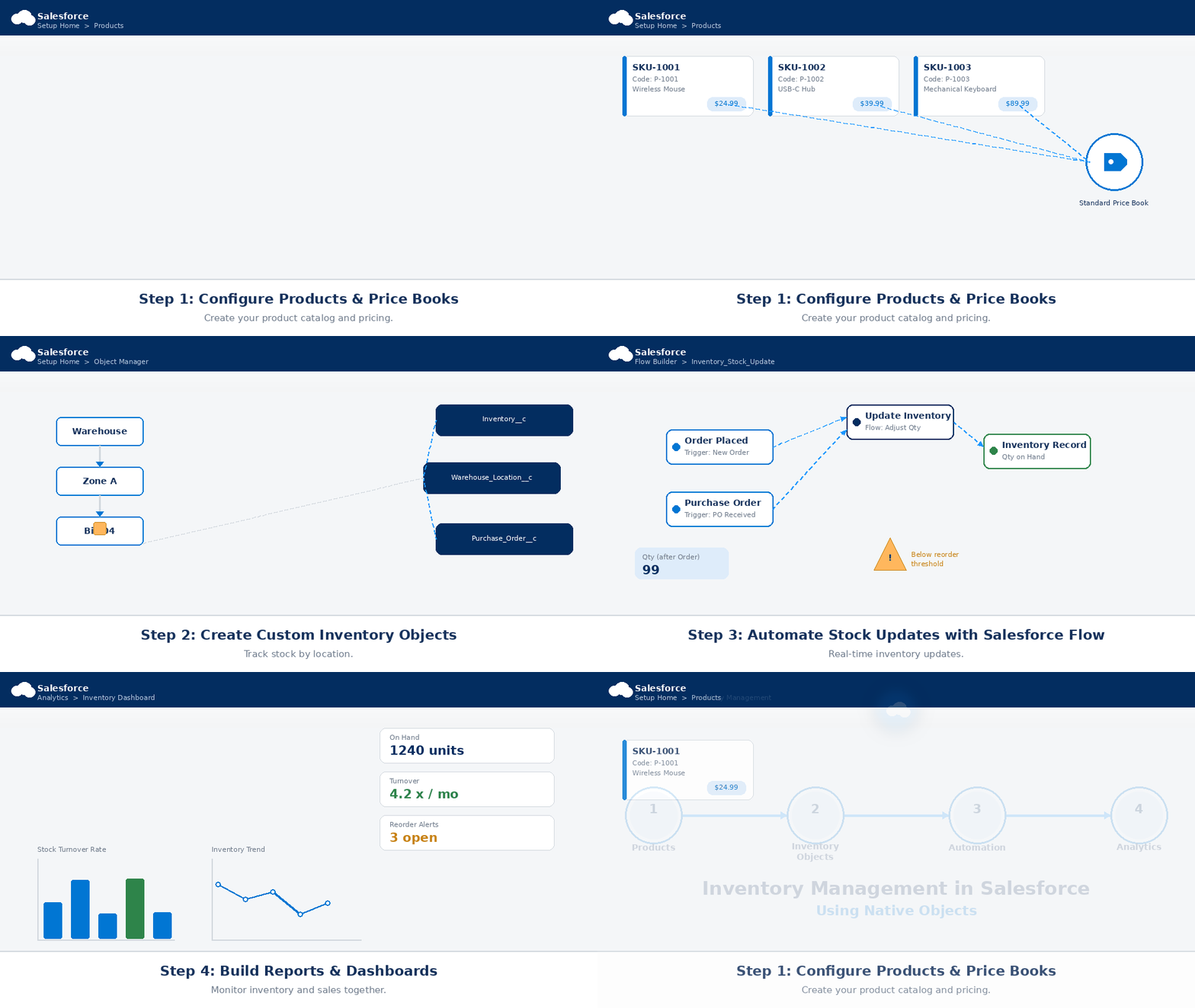
Step 1: Configure Products and Price Books
Products and Price Books define what you sell and how much it costs.
- Go to Setup → Object Manager → Product.
- Create product records for each item (SKU, description, product code).
- Set up Price Books to manage standard and custom pricing, including multiple currencies if you sell internationally.
This is the catalog every quote and order will pull from.
Step 2: Create Custom Inventory Objects
Standard Salesforce has no dedicated “stock level” object, so you build one. Most teams create custom objects such as:
- Inventory / Stock Balance — ties a product to a location and a quantity on hand.
- Warehouse Location — models sites, zones, and bins.
- Purchase Order — tracks incoming stock from vendors.
A practical hierarchy is site → zone → bin. Resist the urge to over-model. As Cleverence advises, every extra level adds complexity to cycle counting, picking logic, and reporting — add depth only as your processes mature.
Step 3: Automate Stock Updates with Flow
This is where inventory becomes real-time. Use Salesforce Flow to:
- Decrease stock balance automatically when an Order is fulfilled.
- Increase stock when a Purchase Order is received.
- Trigger low-stock alerts when a balance drops below a threshold.
Step 4: Build Reports and Dashboards
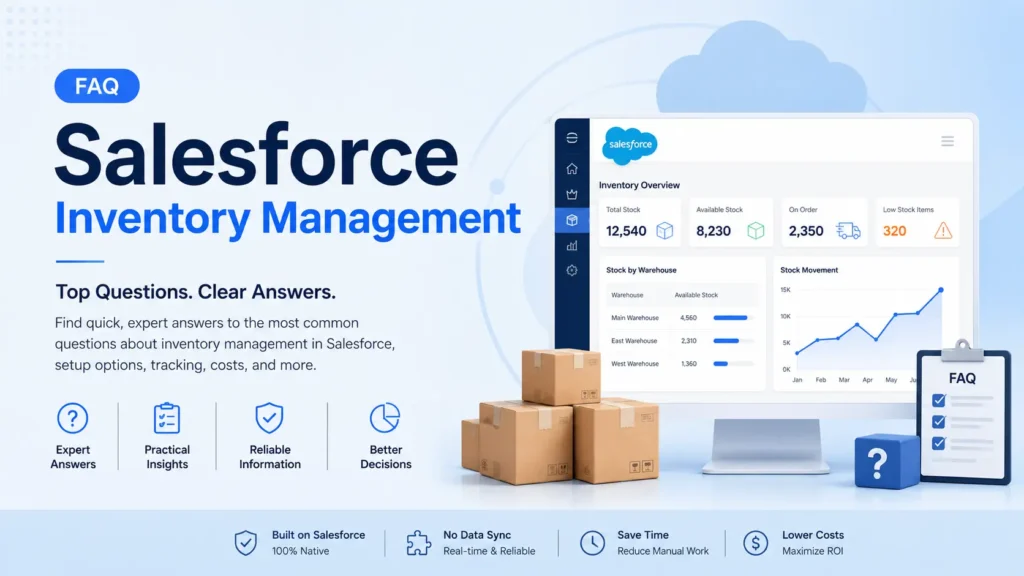
Finally, surface the data. Native Reports and Dashboards let you visualize stock levels, turnover rates, and reorder alerts — and because it’s all in Salesforce, you can combine inventory with your sales pipeline in a single view. That cross-object reporting is something no external system can easily match.
The Limits of a DIY Native Build
The native route is flexible and cost-effective for simple needs like basic availability checks and reservations. But teams routinely underestimate the effort for receiving, picking, returns, serial tracking, and audits — features mature systems already handle. When you hit that wall, it’s time to look at apps.
Best Salesforce Inventory Management Apps (AppExchange)
Installing a Salesforce-native package keeps your inventory data close to your orders and customers, simplifies security, and skips the middleware. Here’s how the leading options compare.
| App | Best For | Native to Salesforce? | Notable Strength |
|---|
| Cloudy Business Ops 360 | SMBs to mid-market needing full ops | Yes | Inventory, orders, warehouse, billing in one app |
| Rootstock Cloud ERP | Manufacturing & distribution | Yes | Deep, full-ERP operations |
| Ascent ERP | Mid-market, order-to-fulfillment | Yes | Inventory, light manufacturing |
| Arka Inventory | Multi-location cost management | Yes | 4.79★ rating, costing focus |
| Cleverence Inventory | Mobile/warehouse scanning | Integration layer | Offline-first barcode/RFID |
Why Native Beats Integrated
A native app is built entirely on the Salesforce platform — using Salesforce objects, security, and UI — so your data lives inside Salesforce with no sync required. An integrated app is a separate system connected via API, which introduces sync delays, duplication risk, and extra failure points.
As Cloudy Wave’s inventory solution guide puts it, the key question to ask any vendor is simple: does our inventory data live in Salesforce objects, or in your separate database? Native solutions offer better performance, simpler administration, and eliminate the hidden cost of maintaining API integrations.
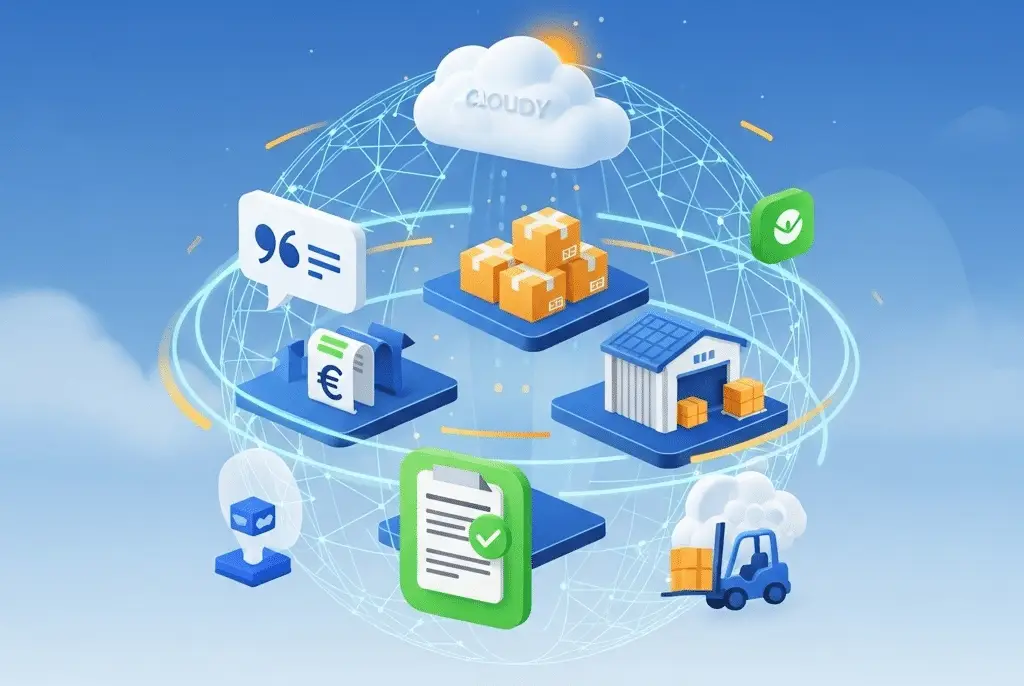
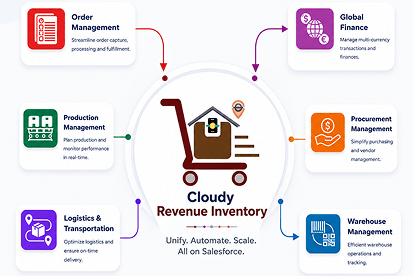
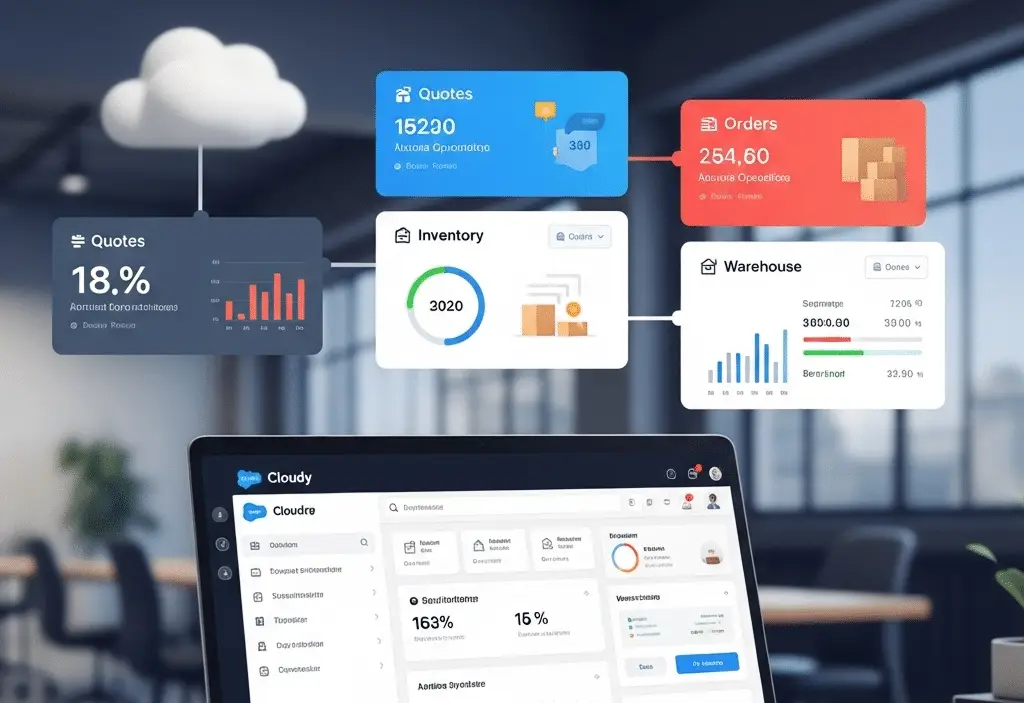
For teams that want stock, orders, warehouse, and finance unified from day one, a native suite like Cloudy Business Ops 360’s inventory management system tracks inventory across multiple warehouses, automates replenishment, and gives every team the same real-time numbers — from purchase to delivery.
Integration: Connecting Salesforce to Your ERP or WMS
If you already run a heavyweight ERP or WMS, you likely don’t want Salesforce originating stock balances. Instead, Salesforce mirrors them so sales reps see accurate availability.
The Golden Rule: Single Source of Allocation Truth
Cleverence’s playbook stresses one principle above all: if your ERP makes final allocations, Salesforce should reflect the allocation state, not originate it independently. Deciding who owns the “truth” for each data point prevents the silent data drift that causes overselling.
How To Make Inventory Feel “Live”
Salesforce offers powerful tools to keep synced data current:
- Change Data Capture (CDC) — streams record changes so Salesforce updates when ERP stock moves.
- Platform Events — a messaging backbone for near-real-time inventory events.
- External Services / APIs — connect to your WMS or accounting platform.
A real-world example from Wildnet Edge shows the payoff: after building a bi-directional integration between an ERP and Sales Cloud — with custom fields showing real-time available quantity — one company saw instances of selling out-of-stock items drop by over 95%, with faster quotes and higher customer satisfaction.
Don’t Forget Accounting
Inventory data touches finance. Align early on where costs live and what triggers a financial posting. Connecting stock movements to your books through a native Salesforce–QuickBooks integration keeps valuations and reconciliation accurate without manual re-entry.
Best Practices for Salesforce Inventory Setup
Whichever path you choose, these principles separate smooth rollouts from painful ones:
- Start pragmatic. Model site + zone + bin first; add complexity only when your process demands it.
- Enforce least-privilege access. Lock down inventory objects and related flows to the right roles.
- Build exception dashboards. Reports for negative stock, duplicate serials, and over-receipts catch drift before it becomes a crisis.
- Give sales an ATP signal. When a rep sees available-to-promise confidence on a quote, they sell smarter and cancel less.
- Plan for mobile. Warehouse teams need barcode scanning and offline capability, not desktop-only screens.
Key Takeaways
Setting up inventory in Salesforce is about matching the right approach to your complexity:
- Salesforce isn’t a WMS out of the box — but it’s an excellent hub for inventory visibility.
- Native objects + Flow give you a working foundation for simple stock tracking.
- AppExchange apps like Cloudy Business Ops 360, Rootstock, and Ascent add depth without leaving the platform.
- Native beats integrated for reliability, speed, and lower maintenance.
- If you keep an external ERP, use Change Data Capture and Platform Events to mirror stock live, and respect a single source of allocation truth.
Knowing how to setup inventory in Salesforce ends the disconnect between what you sell and what you have. Start with your data model, pick the path that fits your complexity, and give every team one accurate view of stock. Your next big deal deserves a warehouse that can actually fulfill it.





 Salesforce ERP
 ERP + CRM Platform
  Inventory Management
  Warehouse Management
  Order Management
  Vendor Management
  Logistics Management
  BOM Management
  Order Fulfillment
  Business Operations
  SaaS Platform for Operations
  Salesforce Cloud ERP Platform
  Xero
Xero
 Zoho books
 Quickbooks
 Shopify
 Acumatica
 SAP
SAP
 Odoo
Odoo
 NetSuite
 Microsoft Dynamics 365
 Sage
Sage



 Agentforce Revenue Management
 Agentforce Revenue Management + Billing
  Salesforce CPQ
 Salesforce Advanced Billing
  Migrate from CPQ to ARM
  Managed Services
 Salesforce Implementation
 Revenue Cloud Implementation
 ServiceNow Consulting Services
 Zoho CRM implementation
 MuleSoft Integration
 Workato Integration
 Microsoft
 Data Cloud
 Tableau
 ·
July 9, 2026
·
7 min read
·
July 9, 2026
·
7 min read
ExoWatts, 11 July, 2026
Great content! Keep up the good work!
Saurabh Wankhede, 06 August, 2026
Thank you for your support! We’re committed to publishing practical Salesforce insights and implementation best practices. Stay connected for more valuable content.
Test User, 05 August, 2026
Check the comment