










 Clone Document Template
The Template Clone functionality allows users to quickly create a duplicate copy of an existing document template. This feature is especially useful when you need to create a new template based on an existing one without manually recreating its sections, configurations, and formatting.
When a user clones a template, the system generates a new template record with the same structure, settings, and content as the original template. Users can then modify the cloned version as needed without affecting the original template.
By default, the cloned template’s status is automatically set to “Draft”. This ensures that users can safely review and make any necessary modifications before activating or using the new template in the document generation process.
Key Features:
- Full Template Duplication → The clone process copies all sections of the original template, including Content, Related List, and Canvas sections, along with their respective configurations.
- Preserves Layout and Formatting → The entire layout design, styling, and formatting (fonts, colors, borders, and alignments) are retained in the cloned version.
- Copies Merge Fields and Dynamic References → All merge fields, global variables, and related object references used within the template are duplicated to maintain the same data mapping.
- Independent Editable Copy → The cloned template is fully independent, meaning any changes made to it will not impact the original template.
- Automatic Naming → By default, the cloned template name is prefixed with “Clone of” followed by the original template name. Users can edit this name as required.
- Supports Signer and Document Settings → If the original template includes signer fields or specific document settings (such as header or footer), these configurations are also carried over to the cloned template.
If the Clone button is not visible when accessing the application as a Standard User, the System Administrator needs to verify and enable the Flow User checkbox for that user.
Steps to Enable the Clone Button on Document Template
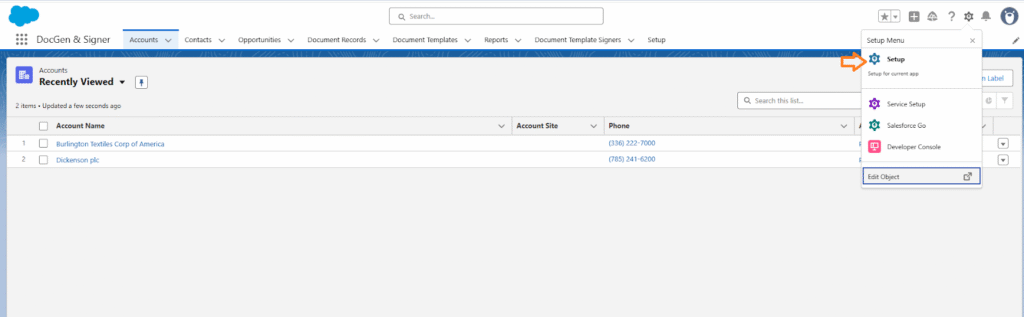
➢ Go to Setup in Salesforce.
➢ In the Quick Find box, type Users and select it.
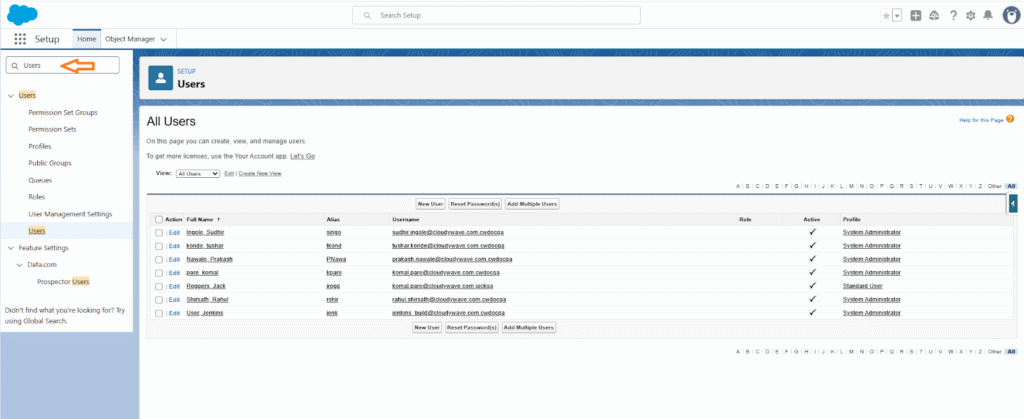
➢ Find and open the Standard User.
➢ Locate the Flow User checkbox.

➢ Click Save to apply the changes.
 SEE ALSO :
____👉 Generate Document