




 Salesforce ERP
 ERP + CRM Platform
  Inventory Management
  Warehouse Management
  Order Management
  Vendor Management
  Logistics Management
  BOM Management
  Order Fulfillment
  Business Operations
  SaaS Platform for Operations
  Salesforce Cloud ERP Platform
  Xero
Xero
 Zoho books
 Quickbooks
 Shopify
 Acumatica
 SAP
SAP
 Odoo
Odoo
 NetSuite
 Microsoft Dynamics 365
 Sage
Sage



 Agentforce Revenue Management
 Agentforce Revenue Management + Billing
  Salesforce CPQ
 Salesforce Advanced Billing
  Migrate from CPQ to ARM
  Managed Services
 Salesforce Implementation
 Revenue Cloud Implementation
 ServiceNow Consulting Services
 Zoho CRM implementation
 MuleSoft Integration
 Workato Integration
 Microsoft
 Data Cloud
 Tableau
 Document Tracking
Users can track the document signing status through the Document Record object and the corresponding Target Object selected during the document template creation process.
In this two tabs are present:
➢ Document Signer Status (on the Document Record object)
➢ Track Document Status (on the Target Object)
If the Track Document Status tab is not appearing on your target object (on which document is generated ) page, follow this configuration process:
Lightning Record Page Setup :
To add the Track Document Status tab to the target object on which the document is generated, follow the steps below:
Steps :
➢ Navigate to the target object on which the document is created.
➢ Click the (⚙Gear icon) and select Edit Object.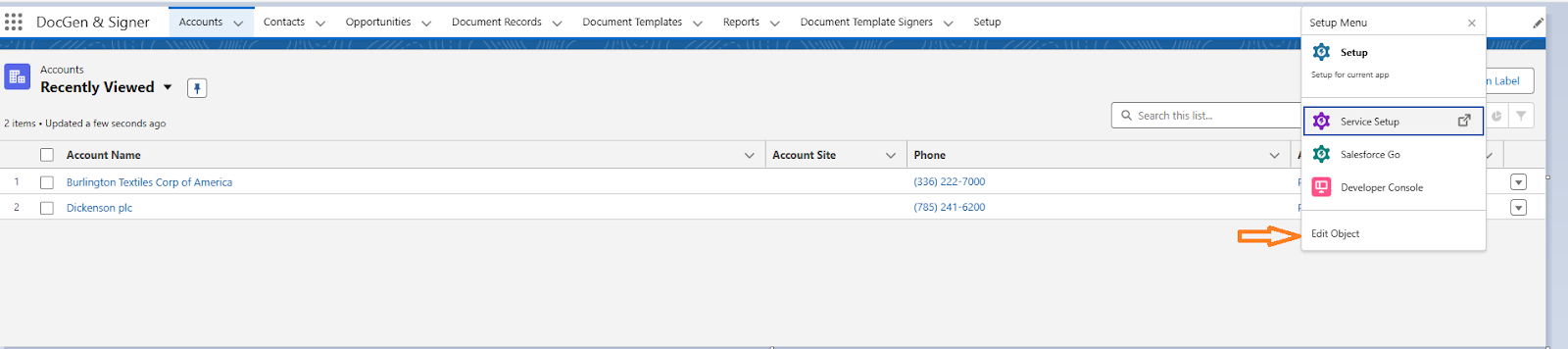
➢ Click on Lightning Record Pages from the left panel.
➢Click the New button to create a new custom Lightning Record Page.
➢ Select Record Page as the page type, then click Next.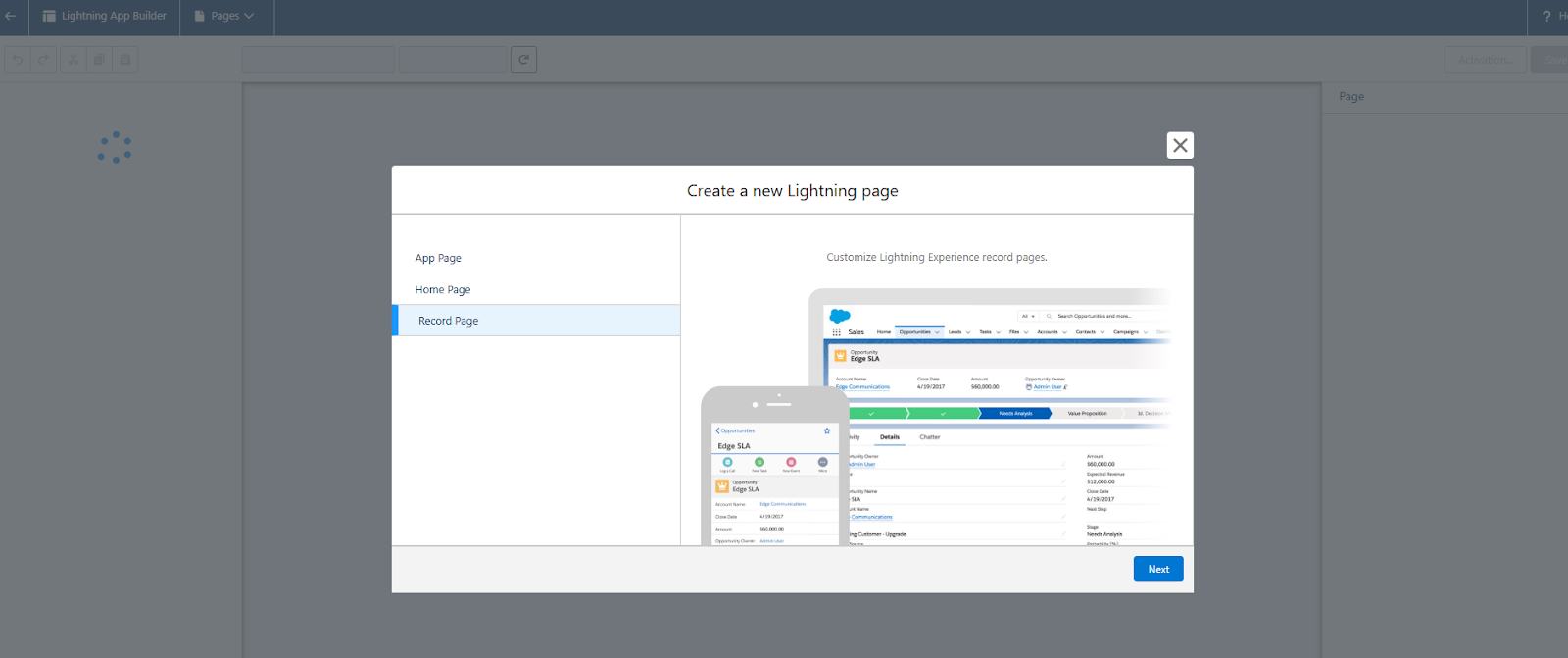
➢Click on Next.
➢Enter the Lightning Record Page Name and confirm the Object Name.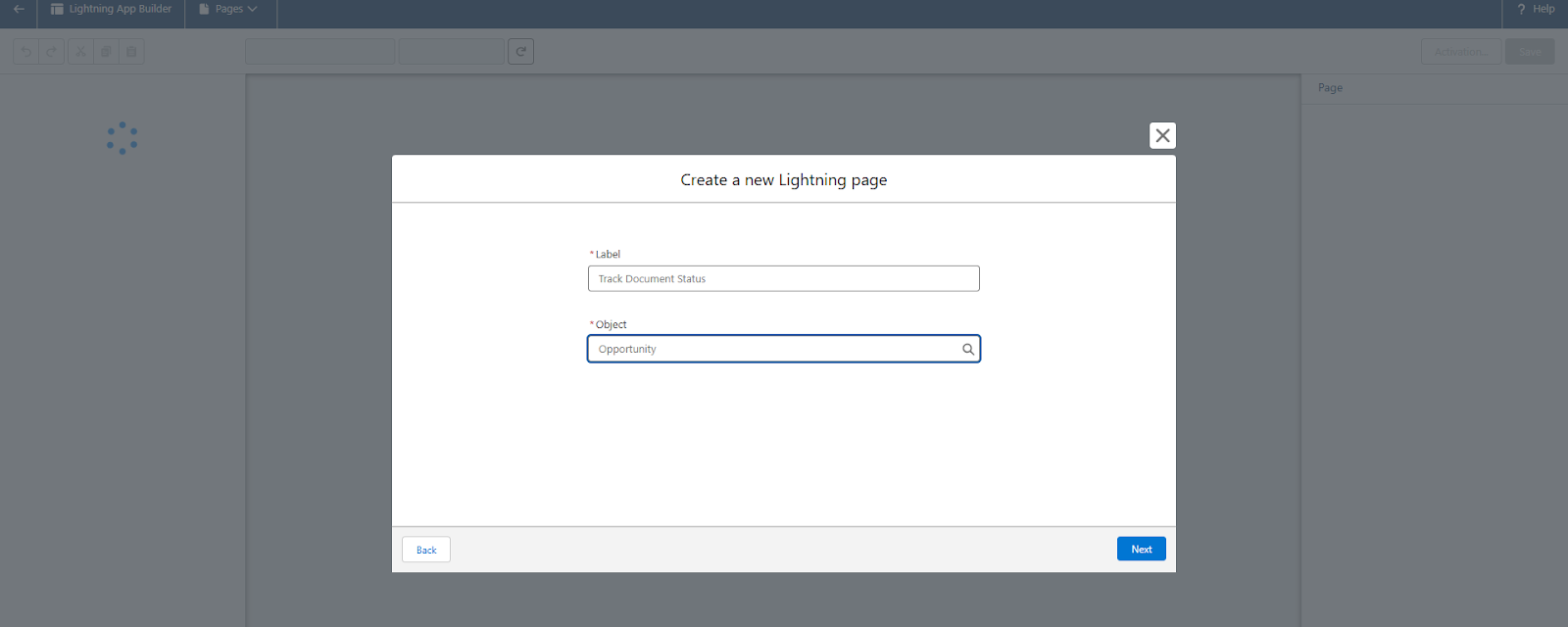
➢Click Next.
➢Choose a suitable Page Template, then click Done.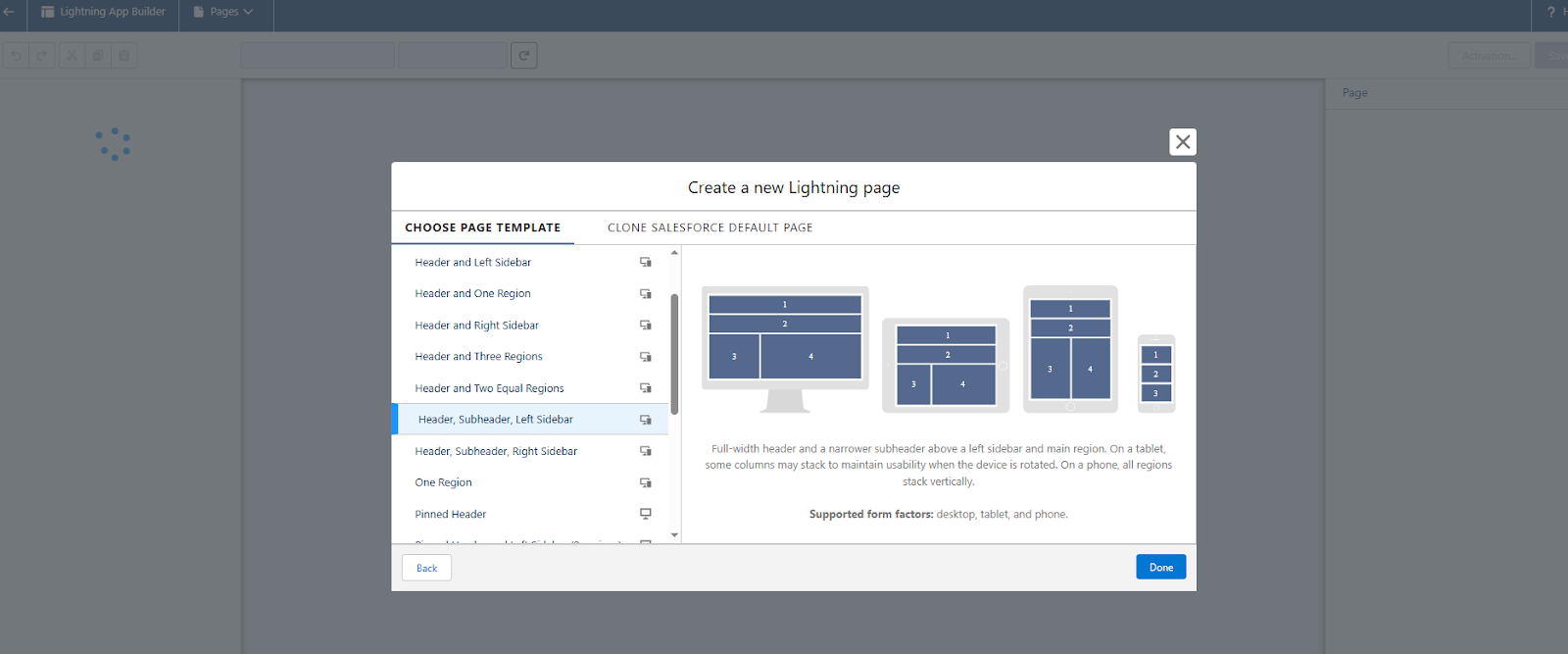
➢ Search for and drag the Highlights Panel component into the first section.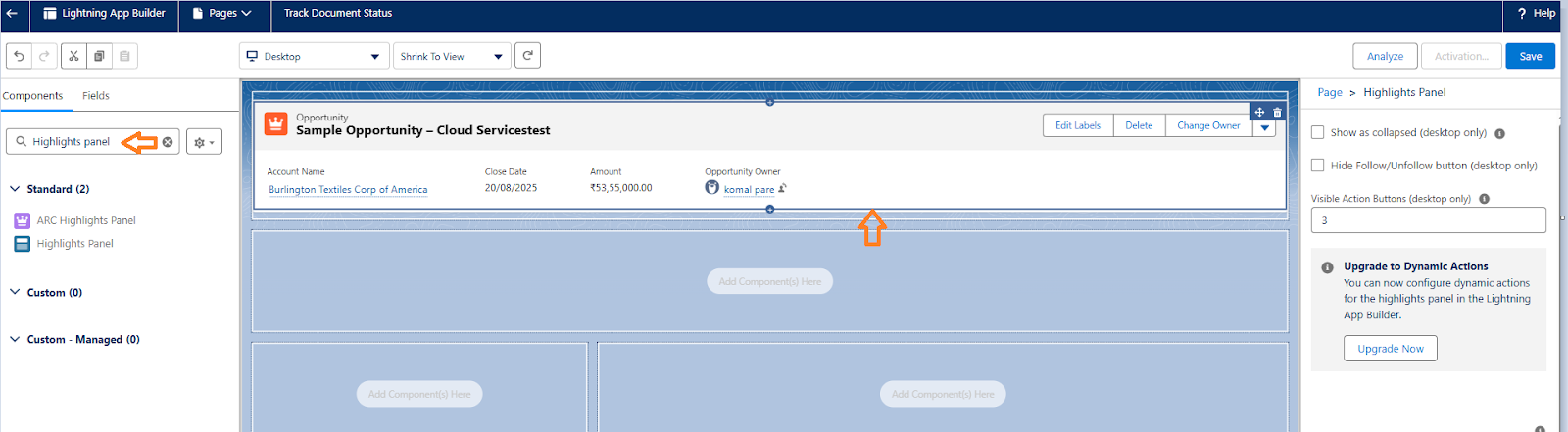
➢ Search for Tabs and add it to the layout.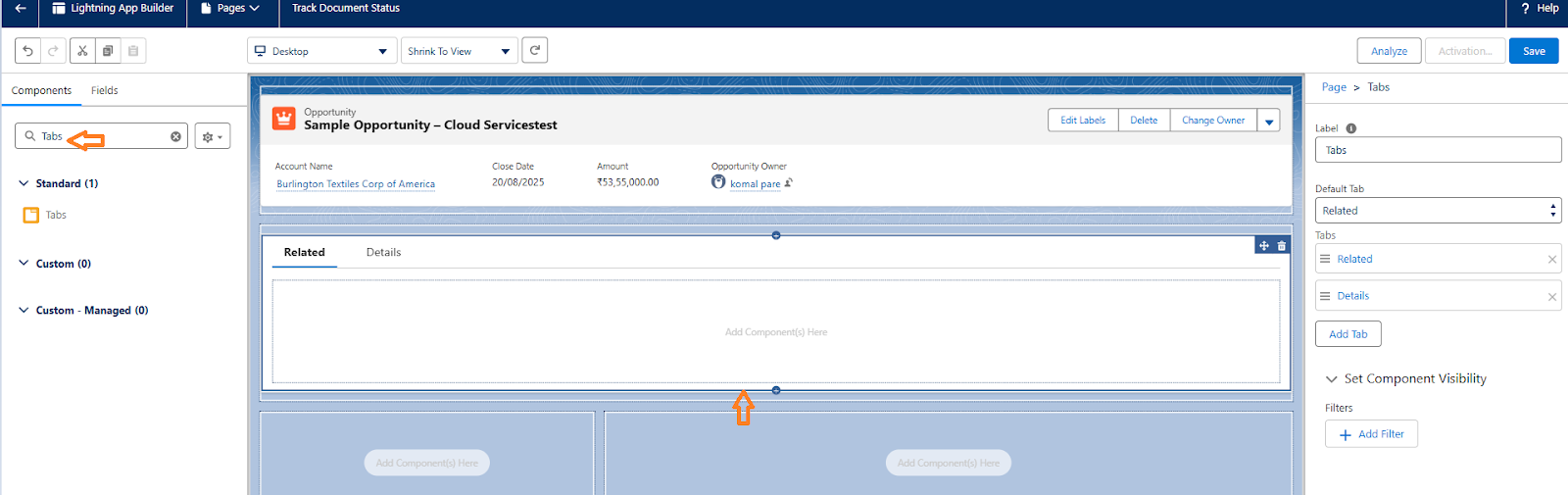
➢ Within the Tabs component Search and drag the Related Lists component into the Related tab.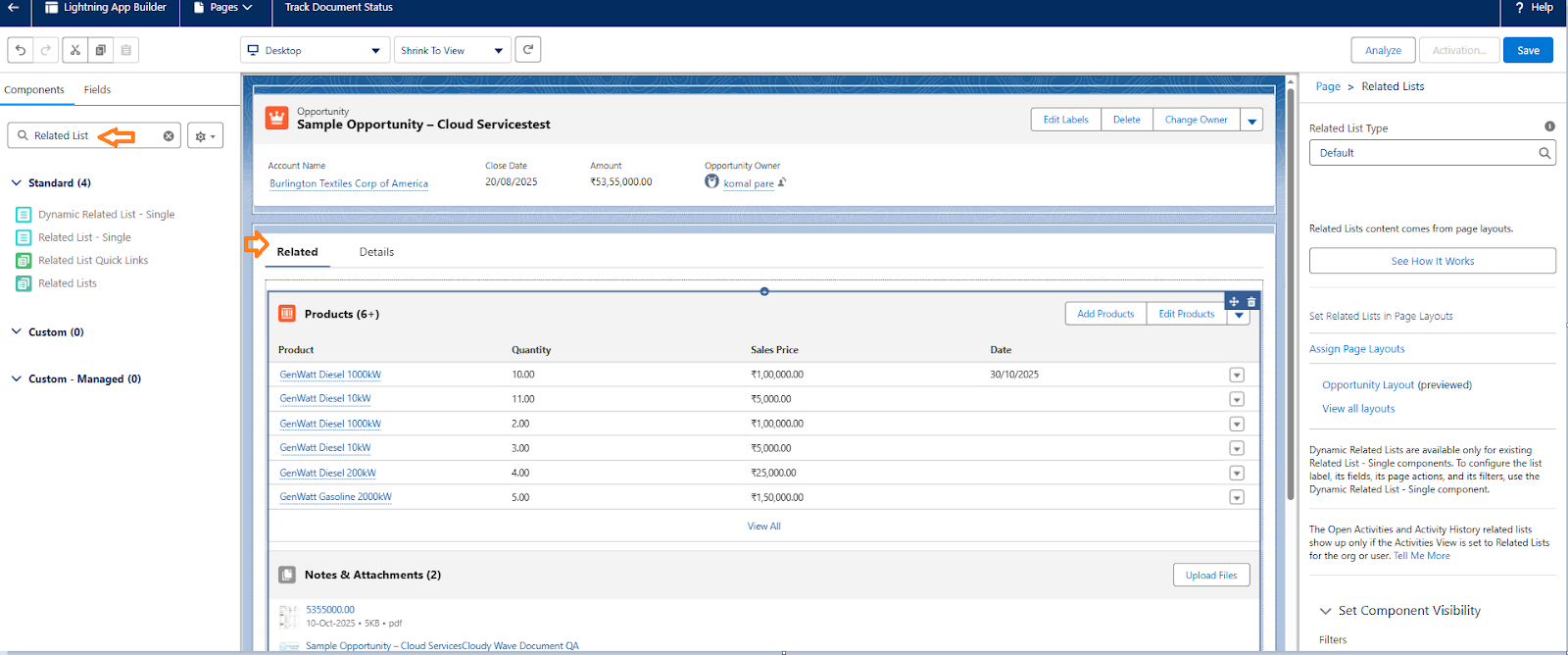
➢ Search for the Record Detail and drag it in the details tab.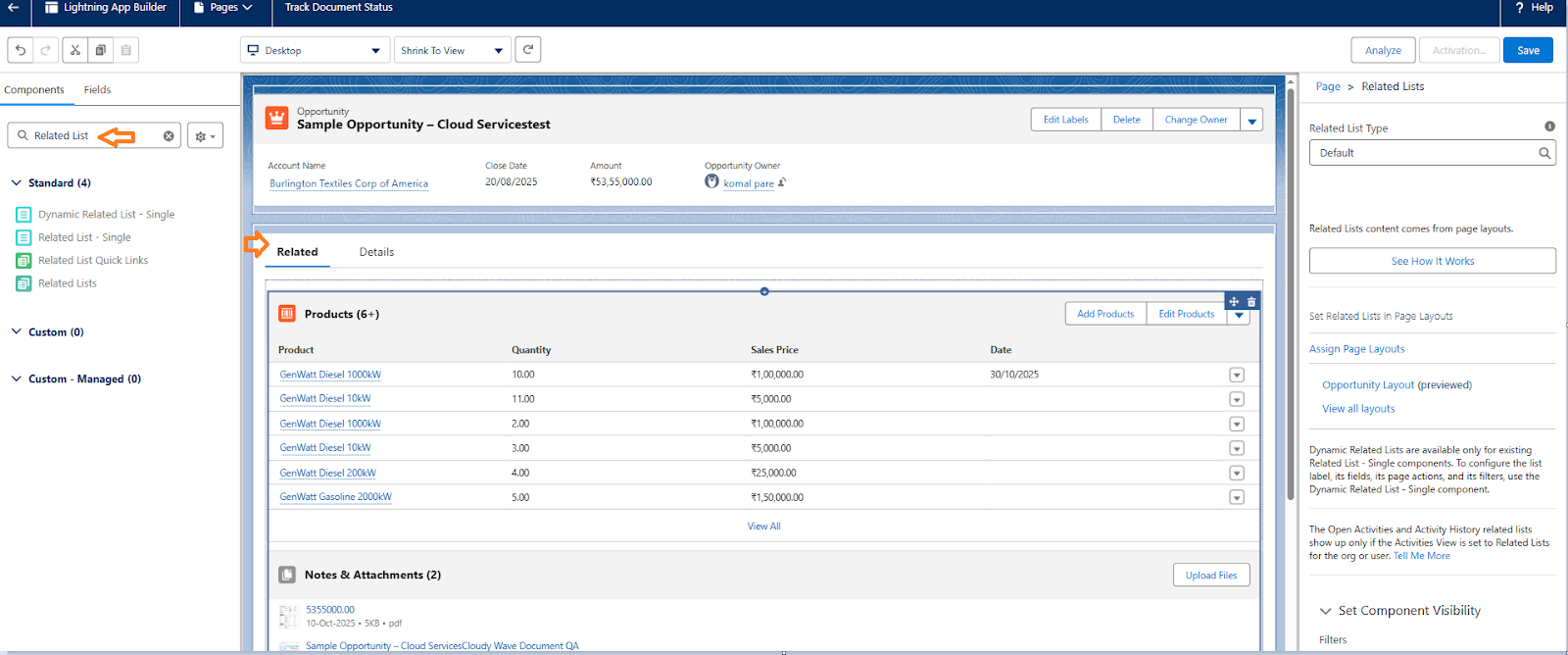
➢ Click Add Tab.
➢ From the dropdown, select Custom.
➢ Enter the tab name Track Document Status, then click outside the field to confirm.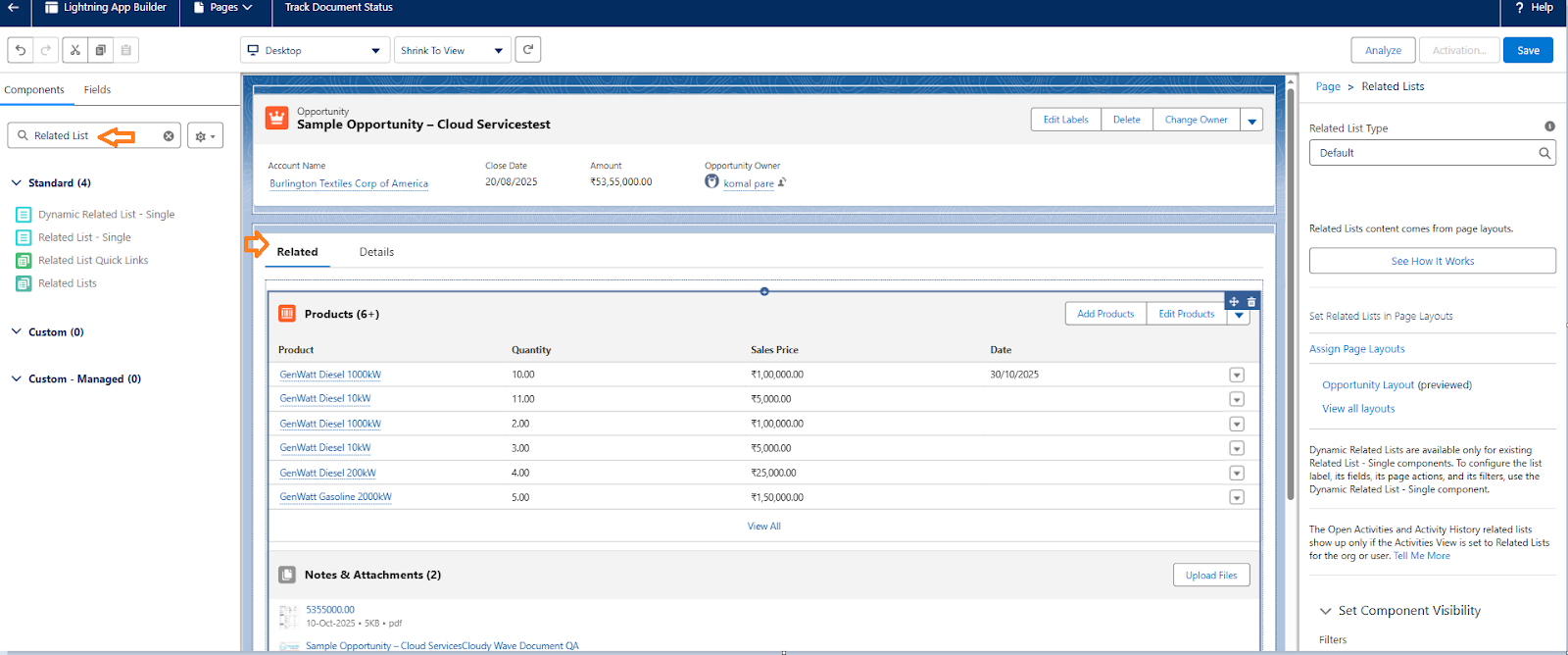
➢ Click on Done.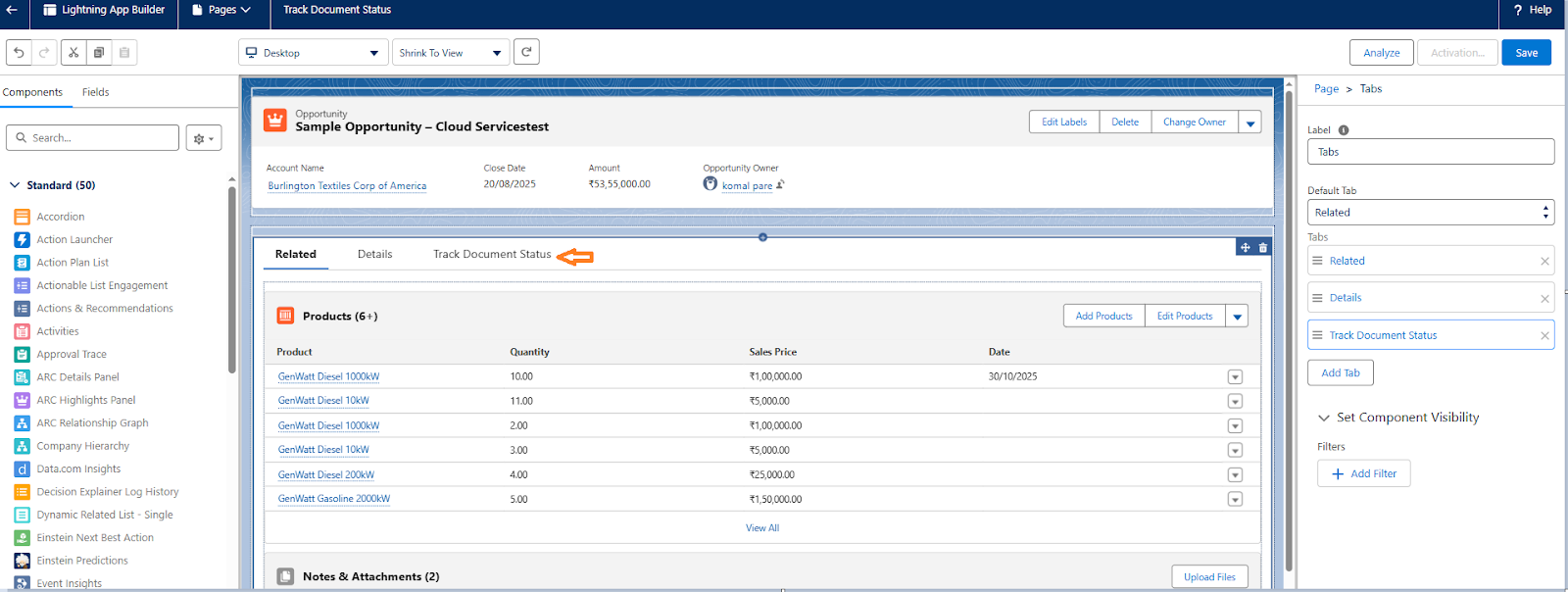
➢ Click Save.
➢ Click Activate.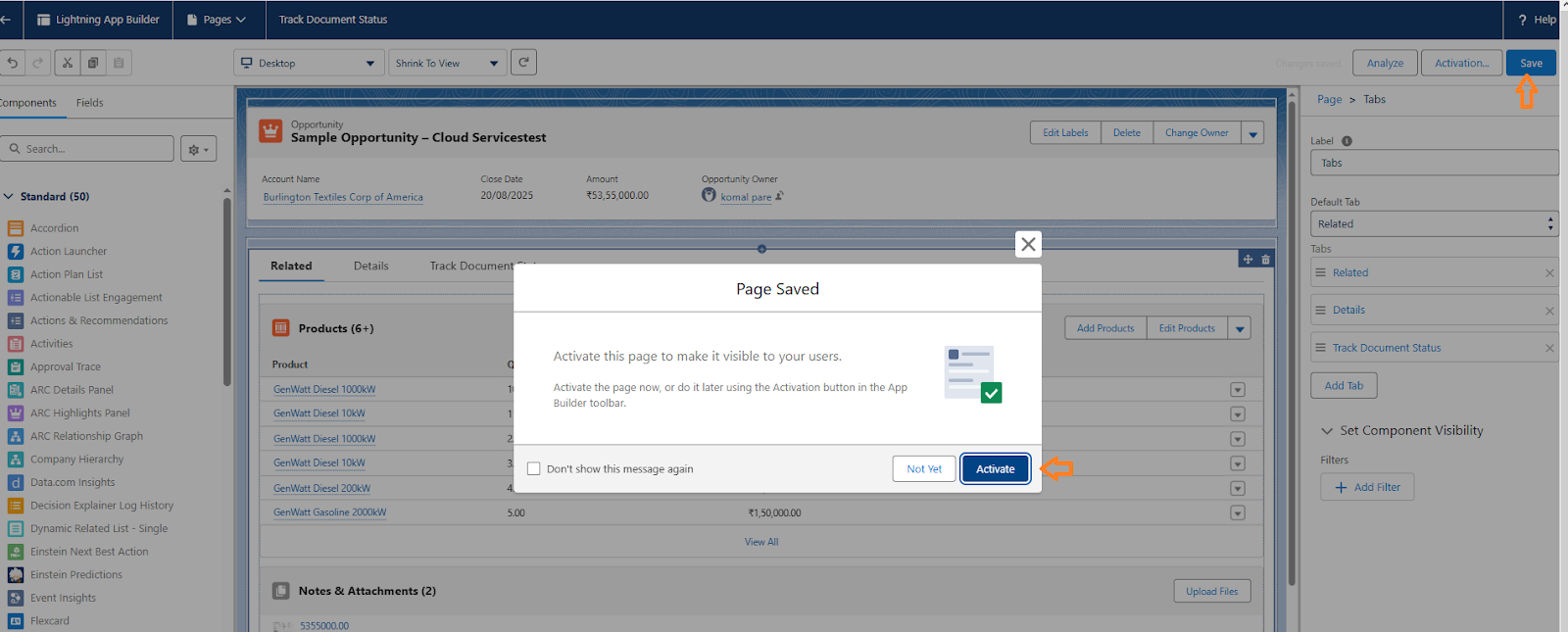
➢ Select Assign as App Default.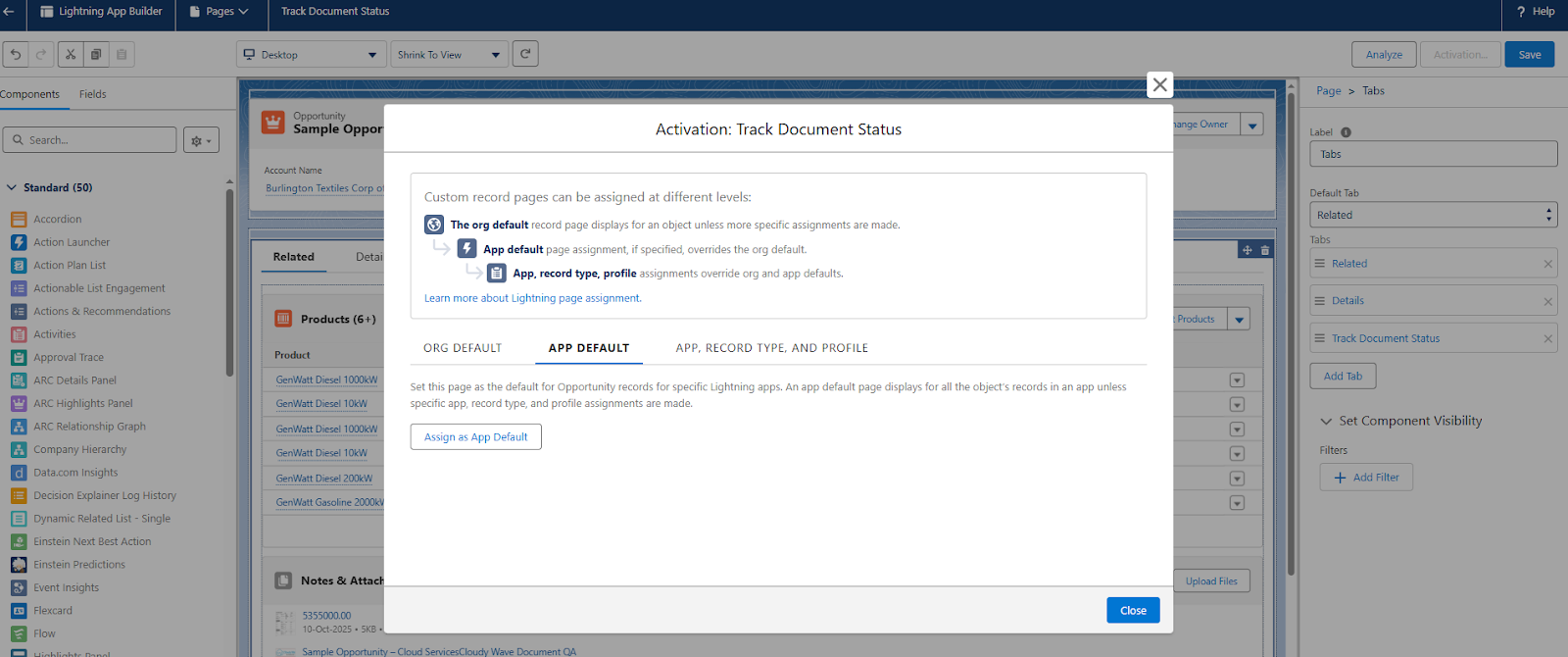
➢ Choose the app DocGen & Signer, then click Next.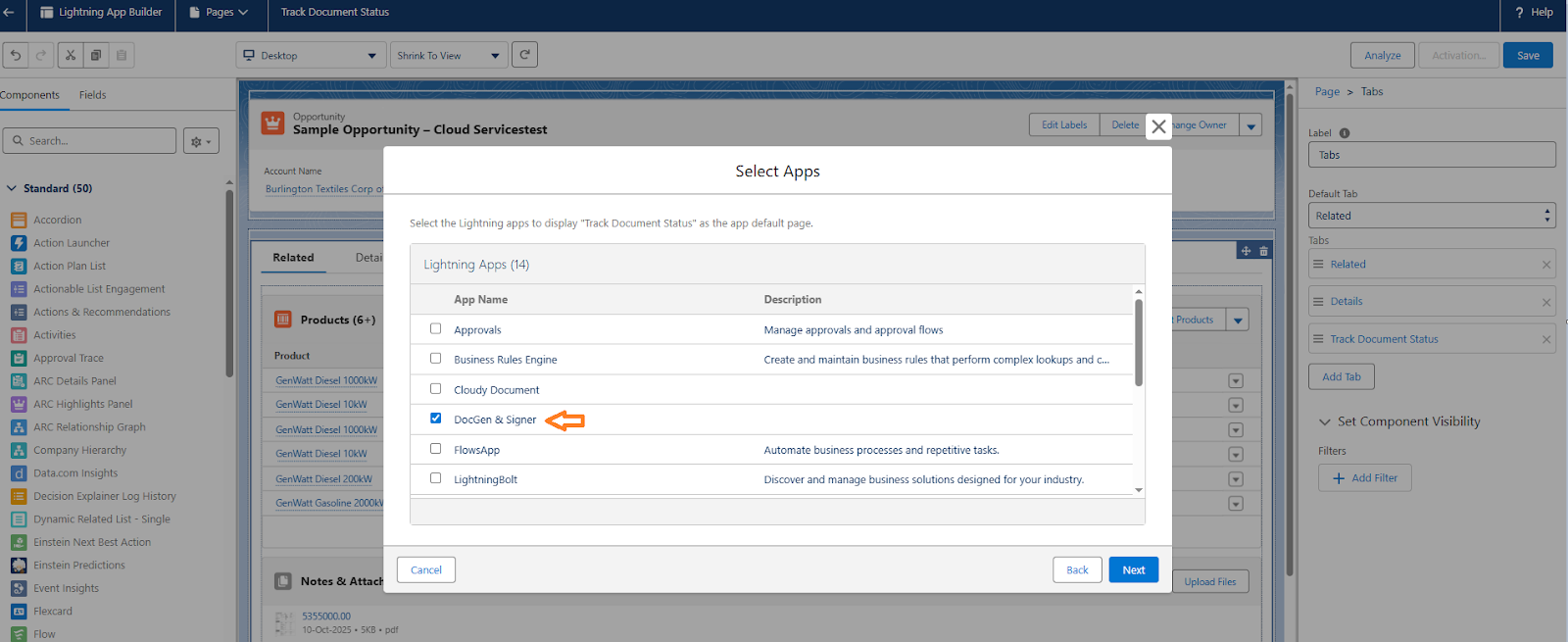
➢ Click Next again, then Save.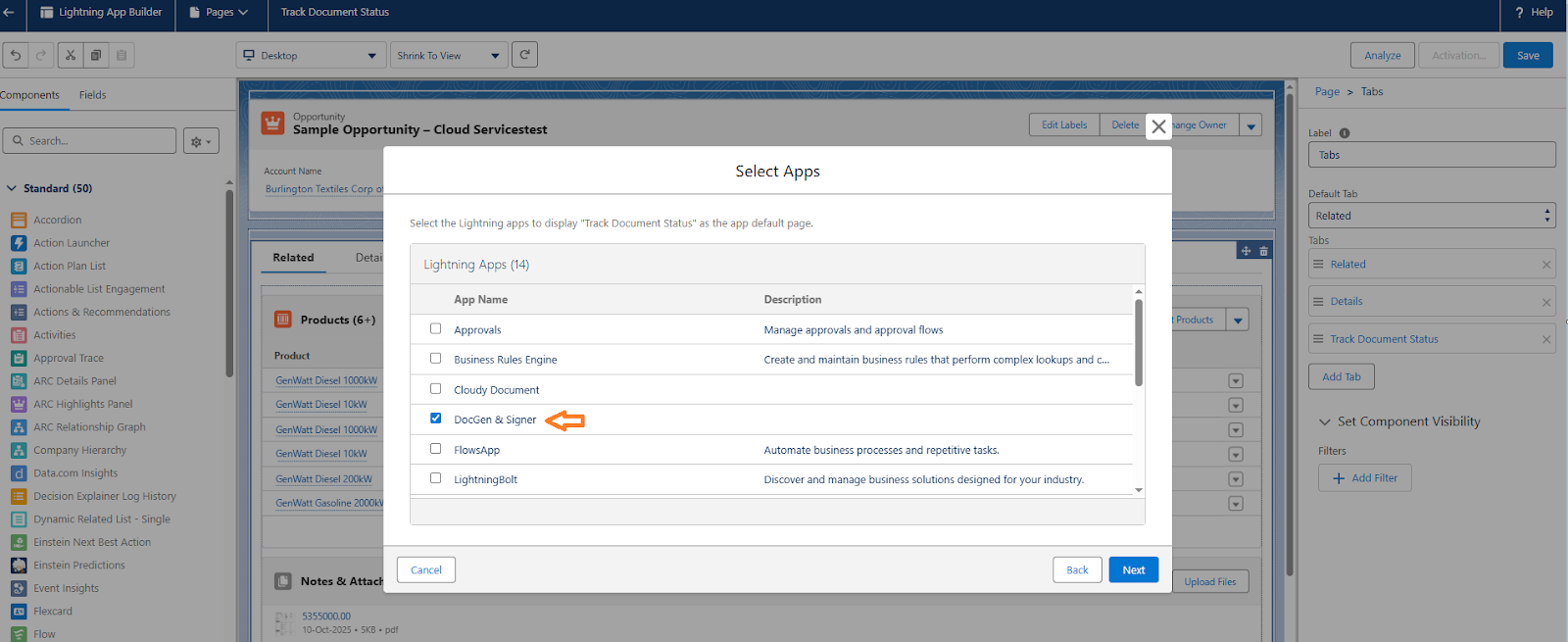
➢ Open the newly created tab Track Document Status.
➢ From the components list, drag and drop the documentRecordHierarchy component into the Track Document Status tab area.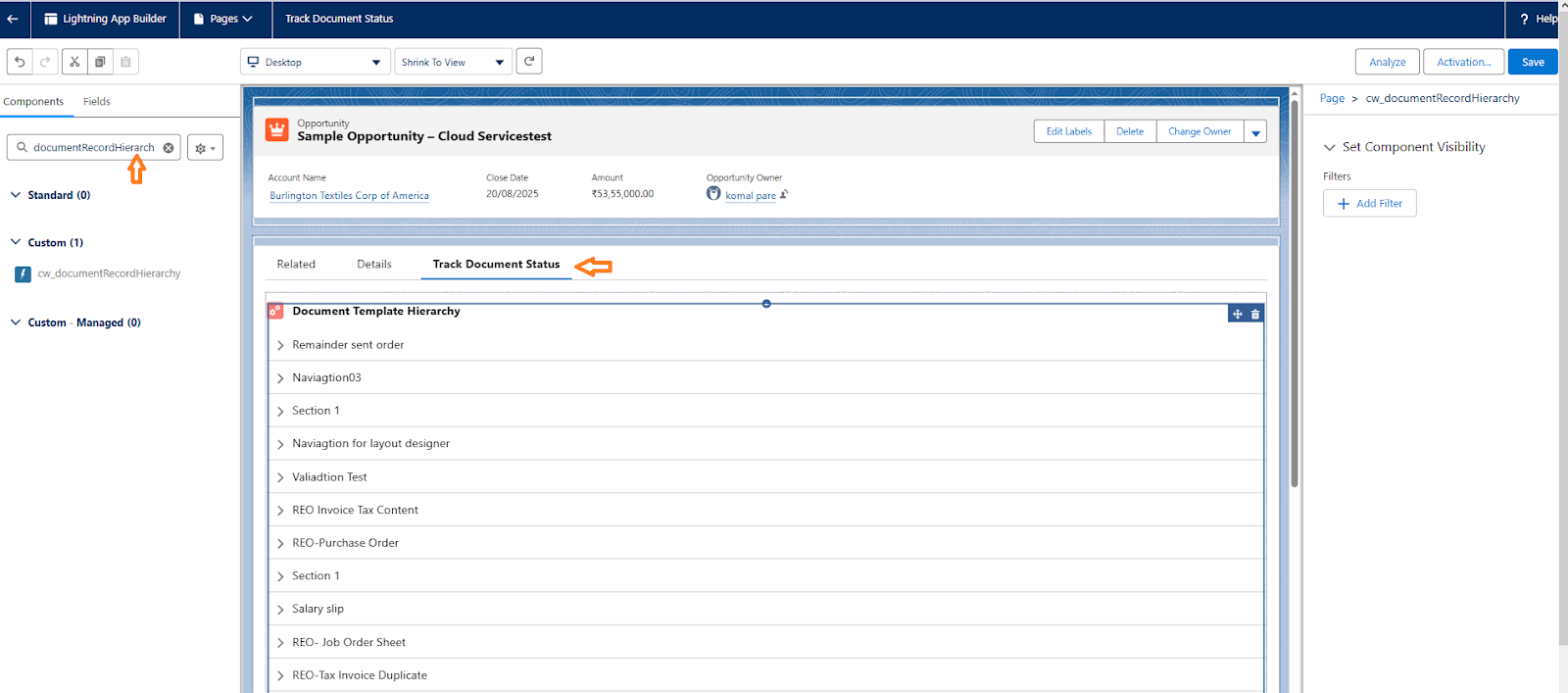
➢ Click Save again to apply changes.
➢ Go back to the object record, refresh the page, and verify that the Track Document Status tab appears and functions correctly.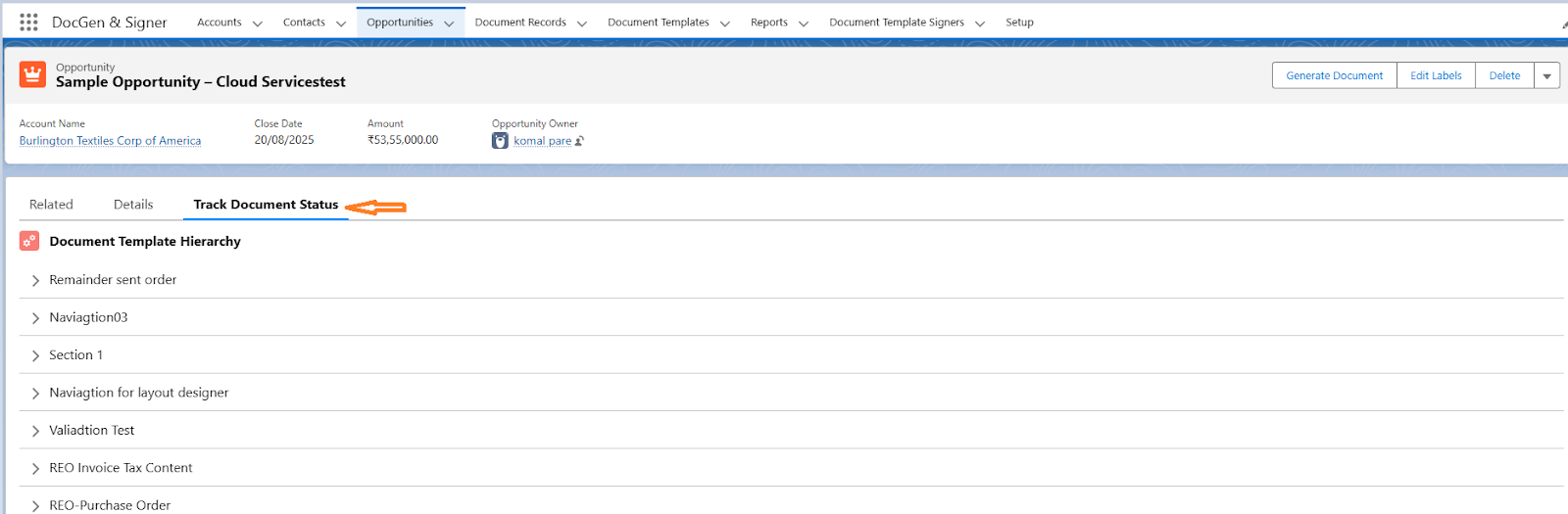
In this tab, you will see all document templates associated with the target object, along with their corresponding document records.
These tabs provide detailed insights into the document’s signing progress and related actions
- Sent: Indicates that a document sign request has been sent to the signer.
- Waiting: Shows that the signer has not yet signed the document.
- Expired: Displays when a document has expired and is no longer available for signing.
- Cancelled : Displays that the document signing request has been cancelled.
- Remind: Allows the user to send a reminder to signers who have not yet signed the document.
- Time Tracking: Enables tracking of the time when the document was sent for signing and when signers completed the signing process.
- View Signer: Provides signer details through the “View Signer” option.
- View reason : If any signer rejects the document, the user can view the provided rejection reason by clicking the View Reason button.
- Preview Document: Allows users to preview the document. If user want to closed the preview window then click on the refresh button.
- Download Document: Enables users to download the document.
- Refresh : Updates the document status.
- Cancel Document: Allows users to cancel a document record. This option is enabled only when the document status is In Progress and some signers are not signing the document.
Upon clicking Cancel Document having the options :
- Notify Signer :
➢ Send to All Signers : Sends a cancellation notification to all signers associated with the document.
➢ Send to Signers Who Received the Document : Sends a cancellation notification only to signers who have already received the document. - Cancel Document Reason : Requires the user to provide a reason for cancelling the document.
- Send Email : Sends an email notification to the selected signers informing them that the document has been cancelled.
- Close : Closes the Pop up without performing any action.
- Notify Signer :

Note: If the document is cancelled and a signer later opens a previously sent link for that document, a message will be displayed showing the cancellation reason.
Document Record Page:
The Document Signer Status tab within the Document Record Page provides signer-specific details, including the current signing status, time tracking, and available actions such as sending reminders, viewing signer information, viewing rejection reasons, or cancelling the document if required.
Steps :
➢ Navigate to the Document Record object.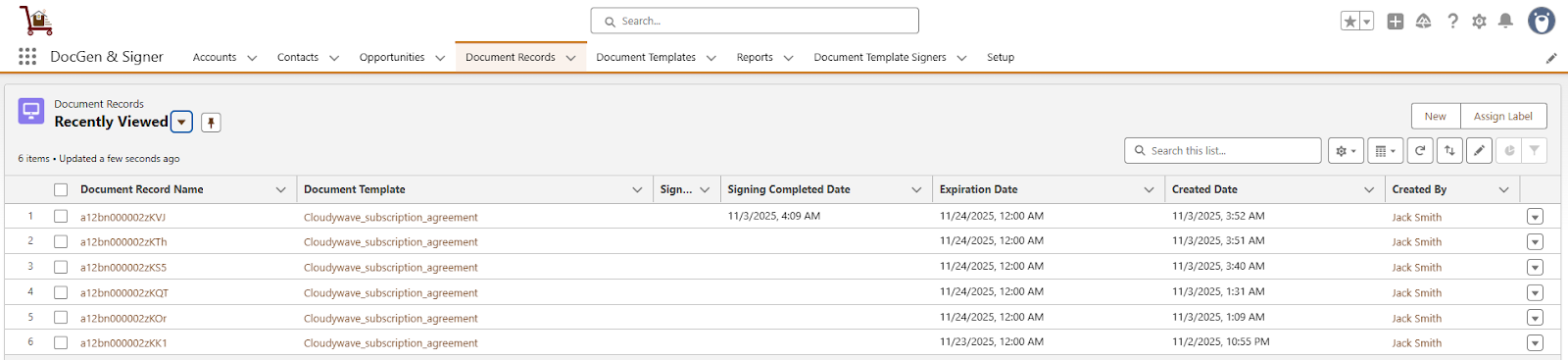
➢ Select the document record you created.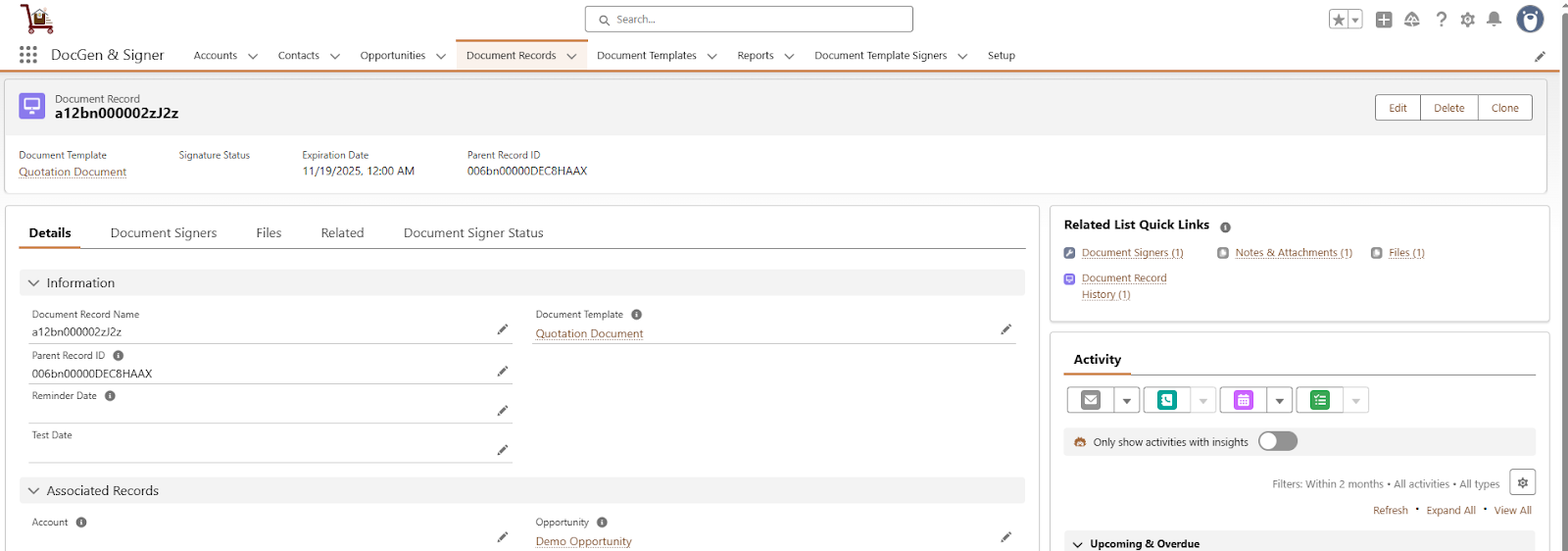
➢ Click on the Document Signer Status tab to view the signer details and current signing status. 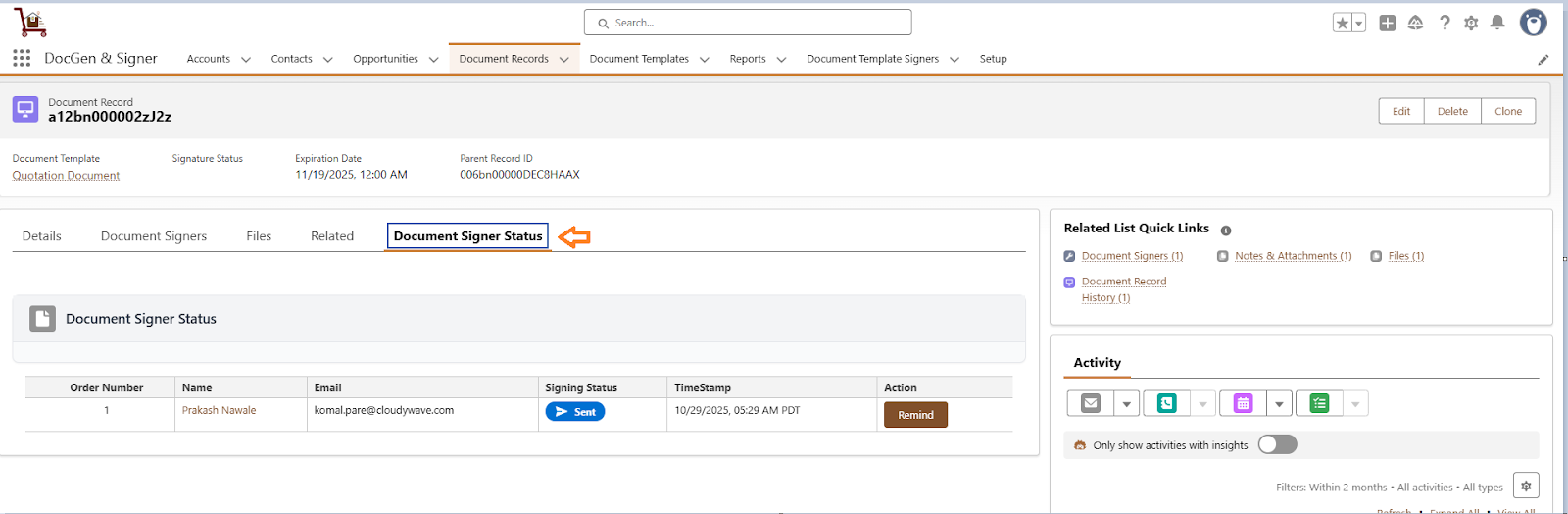
Target Object record page:
The Track Document Status tab on the Target Object Page displays all document templates and their associated document record details related to the selected target object. It allows users to track the status of documents generated for that record, view signer information, preview or download documents, send reminders, and manage the entire signing process directly from the target object. If the Track Document Status tab is not available then click to setup. (After click on this link check the Lightning Record Page Setup)
Steps :
➢ Navigate to the Target Object selected during the document creation process.
➢ Select the specific Target Object Record.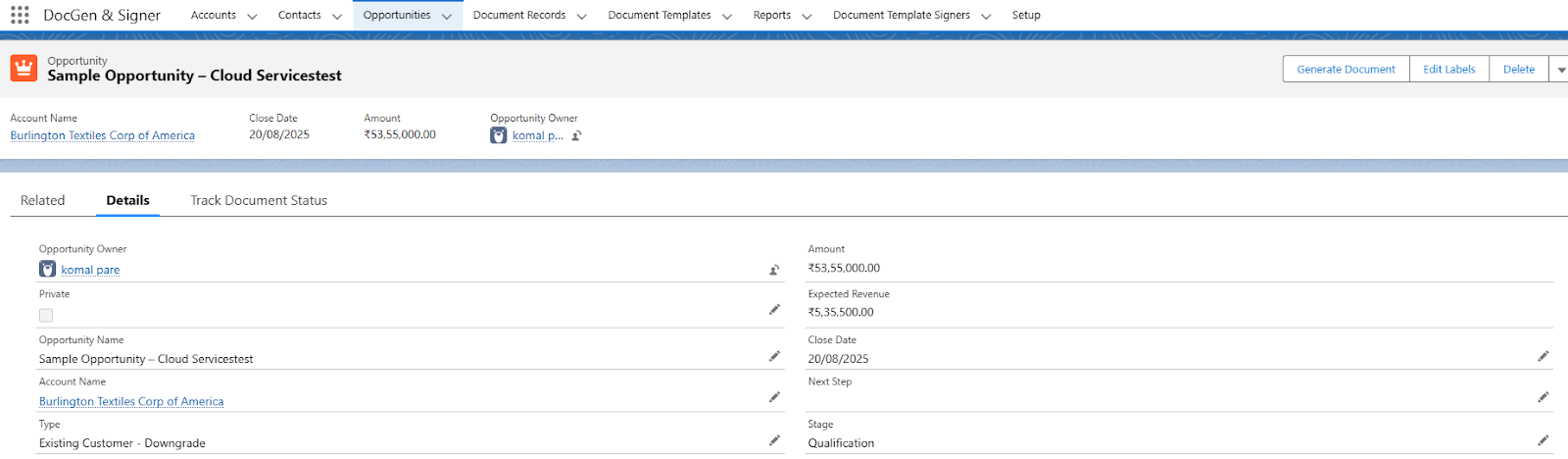
➢ Click on the Track Document Status tab to view the related document records and their signing status.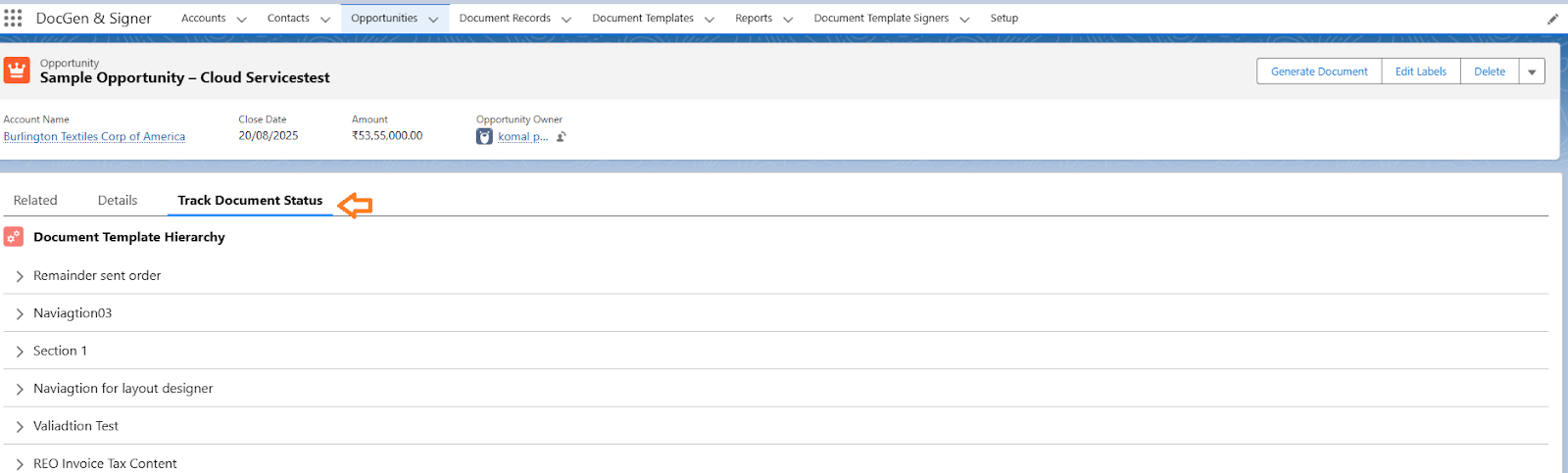
After opening the Document Record under the Document Template, the screen will appear as shown below.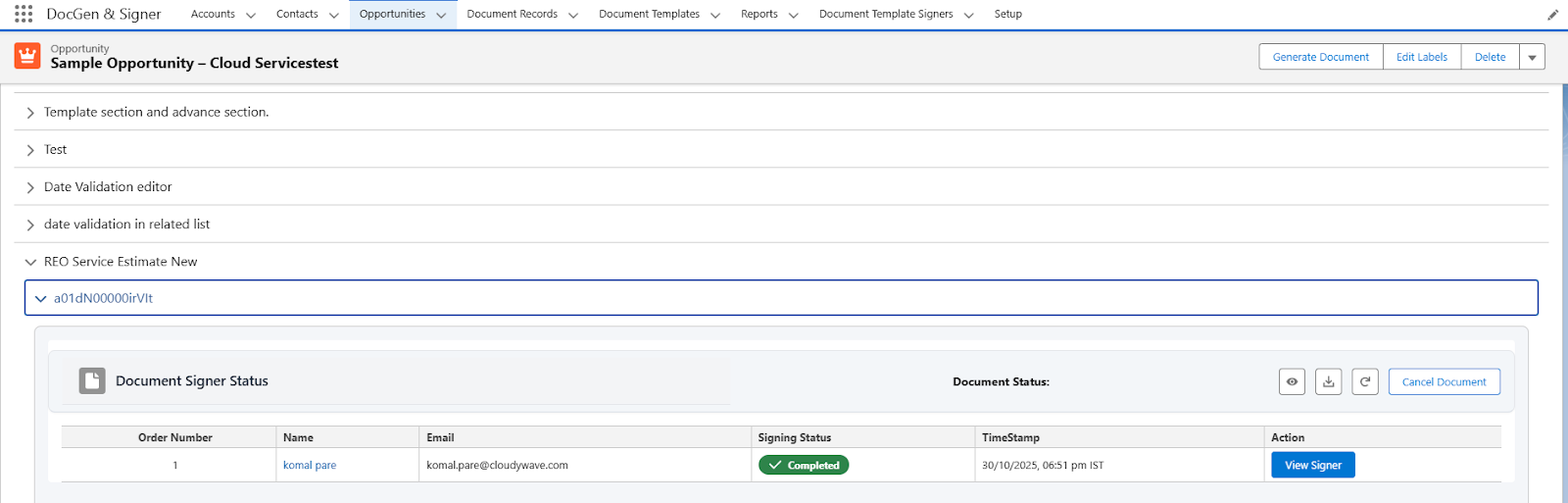
 SEE ALSO :
____👉DocGen & Signer Limitations
____👉Automation Service