





 Salesforce ERP
 ERP + CRM Platform
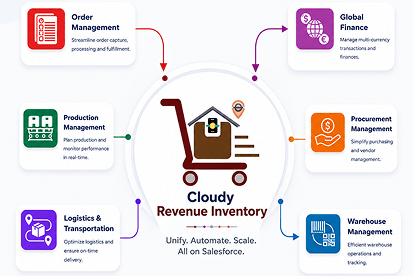
  Inventory Management
  Warehouse Management
  Order Management
  Vendor Management
  Logistics Management
  BOM Management
  Order Fulfillment
  Business Operations
  SaaS Platform for Operations
  Salesforce Cloud ERP Platform
  Xero
Xero
 Zoho books
 Quickbooks
 Shopify
 Acumatica
 SAP
SAP
 Odoo
Odoo
 NetSuite
 Microsoft Dynamics 365
 Sage
Sage



 Agentforce Revenue Management
 Agentforce Revenue Management + Billing
  Salesforce CPQ
 Salesforce Advanced Billing
  Migrate from CPQ to ARM
  Managed Services
 Salesforce Implementation
 Revenue Cloud Implementation
 ServiceNow Consulting Services
 Zoho CRM implementation
 MuleSoft Integration
 Workato Integration
 Microsoft
 Data Cloud
 Tableau
 Document Signer
The Document Signer represents the real signers of a live document in Cloudy DocGen & Signer. When a document is generated from a template, signer records are automatically created based on the template signers. This object tracks each signer’s details, signing status, and activity, enabling accurate workflow management and auditability.
How the Document Signer Object Represents in Cloudy DocGen & Signer
The Document Signer object represents an individual signer participating in the signing process for a generated document in Cloudy DocGen & Signer.
It connects a signer with the relevant Document Record and Document Template Signer, while maintaining the signer’s identity, Salesforce relationships, signing sequence, communication details, signing status, signature information, and important document lifecycle dates.
The object also provides access to signer-specific URLs and tracks events such as document sent, reminder, rejection, cancellation, expiration, and completion.
In the Cloudy DocGen & Signer data model, Document Signer sits between the generated Document Record and the configured Document Template Signer, allowing the configured signer information to be applied to an actual document signing transaction.
Why is it Used?
The Document Signer object is used to manage and track the actual signer associated with a generated document.
It enables Cloudy DocGen & Signer to maintain:
- The person responsible for signing the document.
- The Salesforce record associated with the signer.
- The signer’s contact and communication information.
- The signer’s position in the signing sequence.
- The document and template signer associated with the signing request.
- Signing and expiration dates.
- Reminder information.
- Signature and verification details.
- The current signing status.
- Rejection, cancellation, and completion information.
This provides a complete signer-level view of the document signing lifecycle.
Key Features
👤 Signer Information
Maintain the signer’s name, email, phone, title, and associated Salesforce record.
🔗 Salesforce Record Association
Associate the signer with an Account, Contact, or Lead and identify the signer’s relationship to that record.
📄 Document Association
Connect the signer to the specific Document Record and configured Document Template Signer.
🔢 Signing Order
Maintain the signer’s Order Number to support sequential or configured signing workflows.
✍️ Signature Management
Capture the signer’s signature and record the date and URL associated with the completed signature.
📊 Signing Status Tracking
Track the signer through statuses such as Sent, Waiting, Completed, Expired, Rejected, and Cancelled.
🔗 Signer Access URLs
Provide signer-specific page, public, and document URLs for accessing the signing experience.
⏳ Expiration Management
Track when a signing request expires and maintain the expiration date for the signer.
🔔 Reminder Management
Maintain the reminder date and reminder status for pending signing requests.
❌ Rejection & Cancellation Tracking
Capture rejection information, including the rejection reason, rejecting signer, and document rejection or cancellation dates.
🔐 Verification
Maintain the verification code associated with the signer’s signing process.
📅 Document Lifecycle Tracking
Track important document events such as sent, rejected, cancelled, expired, and signed dates.
Key Field Functionality
| Field | Purpose |
| Account | Associates the signer with the relevant Salesforce Account. |
| Contact | Associates the signer with the relevant Salesforce Contact. |
| Declined By | Identifies the Document Signer who declined or rejected the document. |
| Document Cancellation Date | Records when the document signing request was cancelled. |
| Document Record | Associates the signer with the specific generated Document Record. |
| Document Reject Date | Records when the document was rejected during the signing process. |
| Document Sent Date | Records when the document was sent to the signer for signing. |
| Document Signer Page Link | Provides a signer-specific page link for accessing the document signing experience. |
| Document Signer Public URL | Provides the public URL associated with the signer’s document experience. |
| Document Signer URL | Provides the URL used to access the signer’s document signing experience. |
| Document Template Signer | Associates the actual signer with the configured signer definition from the Document Template. |
| Stores the signer’s email address used for signing communications and document notifications. | |
| Expiration Date | Defines when the signer’s document or signing request expires. |
| First Name | Stores the signer’s first name. |
| Last Name | Stores the signer’s last name. |
| Lead | Associates the signer with the relevant Salesforce Lead. |
| Order Number | Defines the signer’s position in the signing sequence. |
| Phone | Stores the signer’s phone number. |
| Rejected Reason | Records the reason provided when the document is rejected. |
| Relationship Type | Identifies whether the signer is associated with a Contact, Account, or Lead. |
| Reminder Date | Defines the date and time associated with the signer reminder. |
| Reminder Sent ? | Indicates whether the configured reminder has been sent to the signer. |
| Sign | Stores the signer’s captured signature information. |
| Signature Date | Records the date and time when the signer completed the signature. |
| Signature URL | Provides the URL associated with the signer’s completed signature. |
| Signing Status | Indicates the current status of the signer, such as Sent, Waiting, Completed, Expired, Rejected, or Cancelled. |
| Title | Stores the signer’s business title or designation. |
| User | Associates the signer with a Salesforce User when the signer is an internal Salesforce user. |
| Verification Code | Stores the verification code associated with the signer’s verification process. |
| Make Interactive Editable? | Allows users to edit the input or interactive fields added to the document when selected. If the checkbox is not selected, the fields are read-only, and users cannot edit their values. |
| Signer IP Address | Stores the IP address of the signer when the document is signed. |
| Browser Type | Stores the device type used by the signer while signing the document, such as Desktop or Mobile. |
| Browser Family | Stores the name of the browser used by the signer while signing the document, such as Chrome, Edge, Safari, or Firefox. |
| Browser Version | Stores the version of the browser used by the signer while signing the document. Example: 153.0.0.0 |
| Signing Location Latitude | Stores the latitude of the signer’s location when the document is signed, if location permission is granted. |
| Signing Location Longitude | Stores the longitude of the signer’s location when the document is signed, if location permission is granted. |
Purpose & Use:
- Tracks each recipient individually for proper workflow and audit purposes.
- Enables secure access to documents via unique signing links.
Use Target Record User as Sender
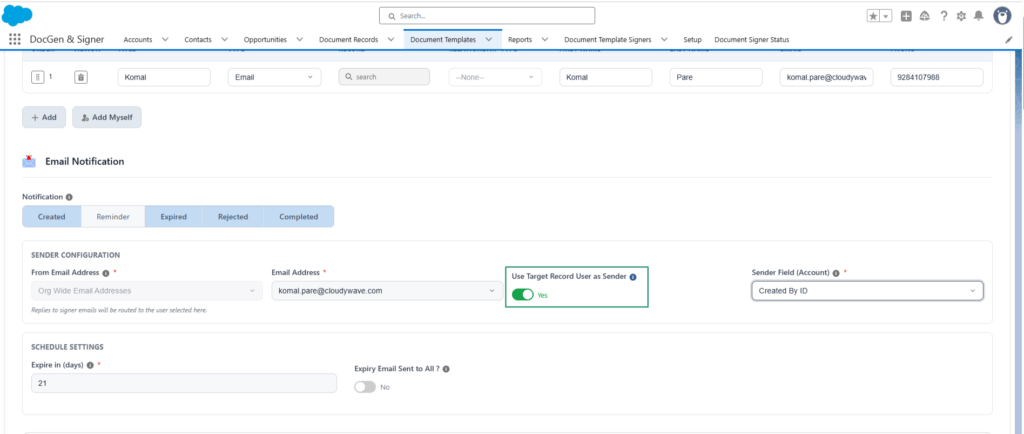
The Use Target Record User as Sender allows the system to dynamically determine the sender of a document email based on a user associated with the target record.
Enable Use Target Record User as Sender
To use a user from the target record as the sender:
- Select the Target Object while creating the document template.
- Enable the Use Target Record User as Sender checkbox on signer section
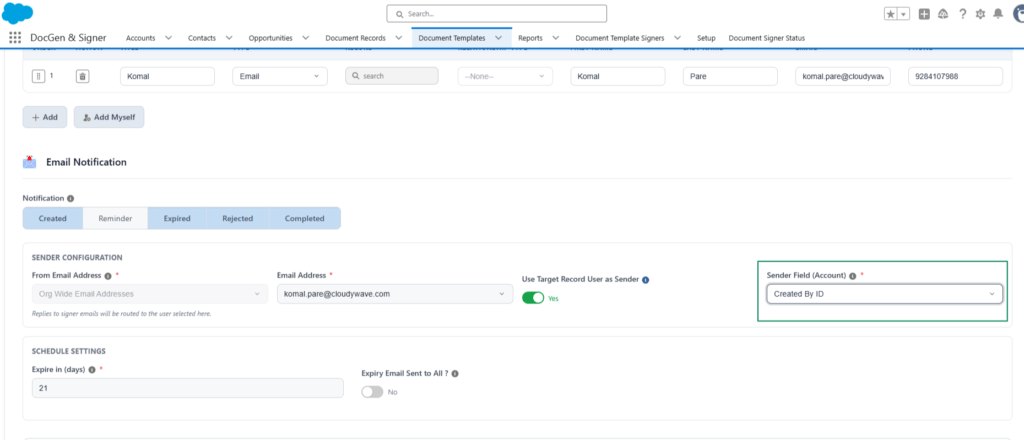
- Select a Sender Field from the selected Target Object.
- Save the document template configuration.
The Sender Field identifies the Salesforce user who should be considered as the sender when the document email is generated and sent.
Sender Field
When Use Target Record User as Sender is enabled, the Sender Field is required.
The Sender Field can be:
- System-generated user fields, such as Created By and Last Modified By.
- User Lookup Field – Identifies the User Lookup field on the target object.
Only fields that identify a Salesforce user are available for selection as the Sender Field.
Example
Target Object – Opportunity
Use Target Record User as Sender – Enabled
Sender Field – Created By
If the Opportunity was created by Demo User, the system identifies Demo User from the Created By field when the document email is sent.
The system then checks whether the identified user has a valid and configured sender.
- If the sender is properly configured, the email is sent using the applicable sender.
- If the identified user does not have a matching configured sender, the email is sent using the default configured sender email address.
When Use Target Record User as Sender Is Disabled
When the Use Target Record User as Sender checkbox is disabled:
- The Sender Field is not required.
- The system does not identify a sender from the target record.
- The document email is sent using the default configured sender email address.

Note: The selected Sender Field must contain a valid Salesforce user with an Organisation-Wide Email Address configured and verified. If no valid sender is found, the system uses the default sender email address.
Example Business Scenario
Scenario: Customer Agreement Signing
A company generates a customer agreement from a Salesforce record and sends it for electronic signature.
The generated document creates a Document Signer record for the customer. The signer is associated with the appropriate Contact and Document Record, while the Document Template Signer identifies the signer configuration defined in the template.
The signer’s name, email, phone, title, and relationship type are maintained on the record. If multiple people need to sign, the Order Number determines the signer’s position in the configured signing sequence.
Once the agreement is sent, the Document Sent Date and Signing Status are updated. If the signer does not complete the document within the expected timeframe, the Reminder Date and Reminder Sent information support the reminder process.
When the customer signs, Cloudy DocGen & Signer records the Signature Date, Sign, and Signature URL, and the Signing Status changes to Completed.
If the customer rejects the agreement, the system can capture the Document Reject Date, Rejected Reason, and Declined By information.
Outcome:
Document Signer provides a complete signer-level record of who needs to sign, how they access the document, where they are in the signing process, and how the signing activity was completed, rejected, expired, or cancelled.
 SEE ALSO :
___👉Document Template Signer
___👉Signer Creation