








 Settings (Advanced Settings & Integrations)
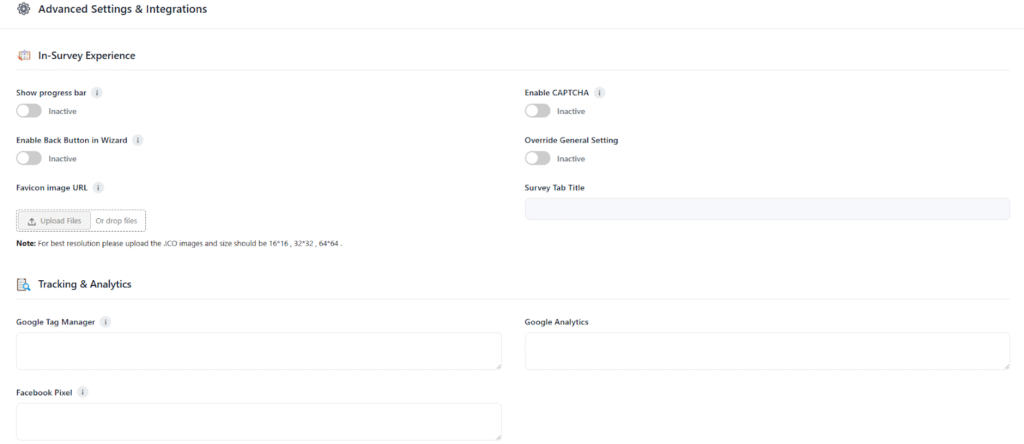
The Advanced Settings & Integrations section allows administrators to configure how the survey behaves, appears, and interacts with external tools. It includes options to enhance the user experience within the survey (like showing progress bars, enabling navigation, or adding CAPTCHA for security) and supports integration with tracking platforms such as Google Analytics, Google Tag Manager, and Facebook Pixel.
This section helps ensure surveys are both user-friendly and data-driven, allowing for better control, branding, and performance tracking.
In-Survey Experience
- Show Progress Bar: Displays a progress indicator to respondents as they move through the survey.
- Enable Back Button in Wizard: Allows users to navigate back to previous questions or sections.
- Favicon Image URL: Lets users upload a favicon image that appears in the browser tab for branding.
- Enable CAPTCHA: Adds a CAPTCHA verification to prevent bot submissions.
- Override General Setting: Allows customization of survey behavior independent of global settings.
- Survey Tab Title: Sets a custom title that appears in the browser tab during the survey.
Tracking & Analytics
- Google Tag Manager: Enables integration with Google Tag Manager for advanced tracking and event management.
- Google Analytics: Connects the survey with Google Analytics to monitor participant behavior and engagement.
- Facebook Pixel: Allows tracking of survey traffic and conversions through Facebook advertising tools.
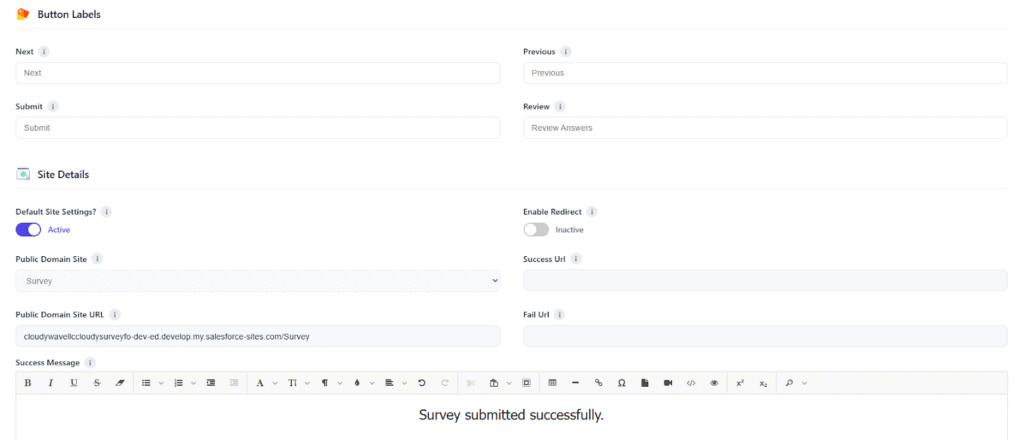
Button Labels
Defines the display text for survey navigation buttons.
- Next: Custom label for the “Next” navigation button.
- Previous: Custom label for the “Previous” navigation button.
- Submit: Custom label for the “Submit” button when users finish the survey.
- Review: Custom label for the button that lets users review their answers before final submission.
Site Details
Manages survey site configurations, redirects, and response messages.
- Default Site Settings: Toggles the default site configuration for surveys.
- Enable Redirect: When active, redirects respondents to a specified page after completing the survey.
- Public Domain Site: Selects the Salesforce public site domain for survey accessibility.
- Public Domain Site URL: Displays the site URL used to publish and access the survey.
- Success URL: Defines where respondents are redirected after successful submission.
- Fail URL: Defines where respondents are redirected if submission fails.
- Success Message: Message shown when a survey is successfully submitted.
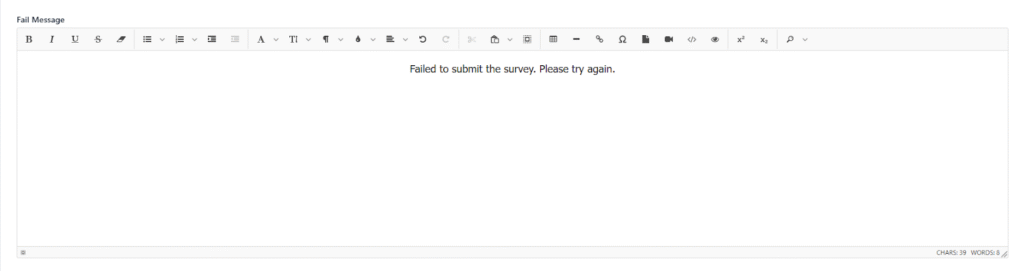
- Fail Message: Message shown if a survey submission fails.
- Success URL Parameters: Allows additional query parameters for the success redirect URL.
- Fail URL Parameters: Allows additional query parameters for the failure redirect URL.