








 Question
A Question is the fundamental building block of a survey. It defines what information or feedback is being collected from the respondent. Each question can be configured with specific types, options, validations, and display settings to ensure accuracy and relevance of responses.
Purpose & Use:
- To capture specific input or feedback from survey participants.
- To define the nature of the response required — for example, text input, choice selection, rating, or date entry.
- To guide respondents in providing accurate, consistent, and complete information.
Question Creation Process (Step-by-Step)
- Navigate to the Question Module
- Go to Questions.
- Click New.
- Select Question Type
- From the Type dropdown, choose the question type (e.g., Date, Text, Email, Single Choice, Multiple Choice, Rating, Slider, Matrix, Pricing).
- The selected type determines how responses are collected and which additional options are available.
- Enter Question Text
- In the Question field, enter the main question you want to ask respondents.
- You can format the text (bold, italic, underline, or bullet points) for better readability and emphasis.
- Mark Question as Required (if needed)
- Toggle the Required? option to Active if the question must be answered before submission.
- This ensures critical data is collected without omission.

- Add Help Text (Optional)
- Enter a brief hint or note in the Help Text field (e.g., “Please select a valid date.”).
- This appears below or beside the question to guide respondents.
- Add Instructions (Optional)
- Provide detailed steps or context in the Instructions section (e.g., “Use the calendar icon to select your appointment date.”).
- Helpful for complex questions or specific response expectations.

- Configure Type-Specific Settings
- Depending on the question type, additional configuration options appear:
- Choices (for Single/Multiple Choice questions)
- Rows & Columns (for Matrix questions)
- Min/Max or Default values (for Slider or Date questions)
- Scale (for Rating questions)
- Adjust these as per the question’s purpose.
- Depending on the question type, additional configuration options appear:
- Set the Target Object (Optional)
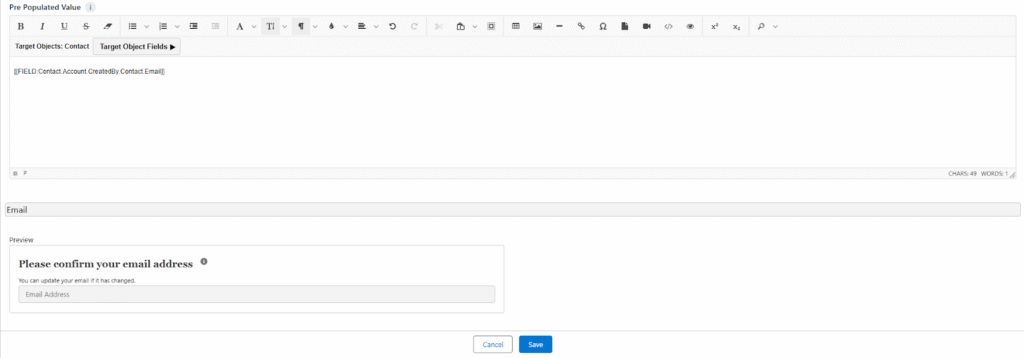
- The Target Object allows questions to automatically retrieve and prefill values from Salesforce records related to the survey recipient.
- When a Target Object (such as Contact, Lead, or Account) is selected, the system can prepopulate field values during survey loading.
- Example:
- If the Question Type is set to Email, and the Target Object is selected as Contact, then — after sending the survey invitation — when the recipient opens the survey link, the Email Address field will automatically be prefilled with the email value from the related Contact record.
- This ensures accuracy, saves respondent effort, and improves completion rates.
- Preview the Question
- Review the question in the Preview section to confirm appearance, formatting, and data behavior.
- Save the Question
- Click Save.
Example Scenario
- Type: Email
- Target Object: Contact
- Question: “Please confirm your email address”
- Help Text: “This field is prefilled from your contact record.”
- Instructions: “You can update your email if it has changed.”
- Required: Yes
- Behavior: When the respondent clicks the survey link from their invitation, the Email Address field is automatically prepopulated with their Contact’s email.