










 Post-Setup Requirement
After installing the Survey package, the application must be configured before it can be used by end users through the user interface (UI).
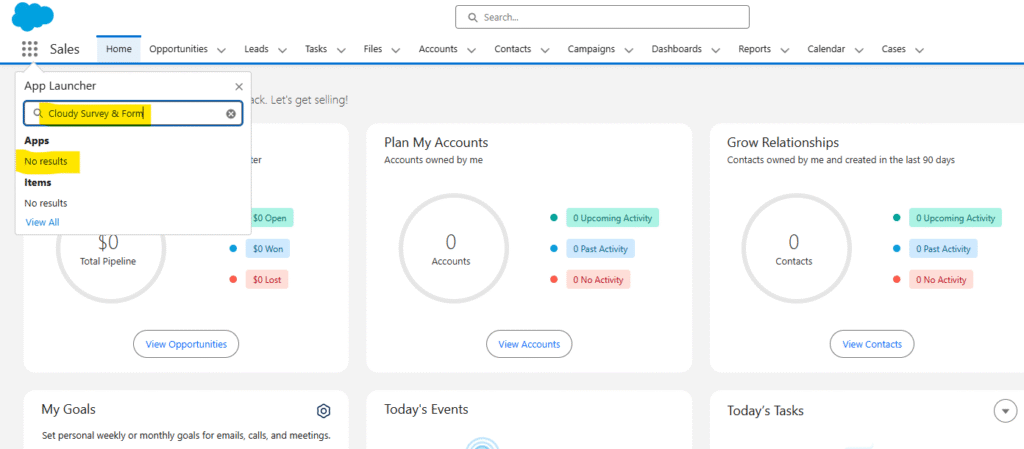
If a user or administrator is unable to see the Cloudy Survey & Form product (or its tabs/apps) in the App Launcher or the main navigation bar after installation, the cause is typically missing Permission Set Assignments.
The following steps must be performed by a Salesforce Administrator to grant the necessary permissions to the specific user:
Steps to Assign Required Permission Sets
Step 1: Go to Setup (⚙️ Gear Icon)
- Click the gear icon in the upper-right corner of Salesforce.
- Select Setup from the dropdown.
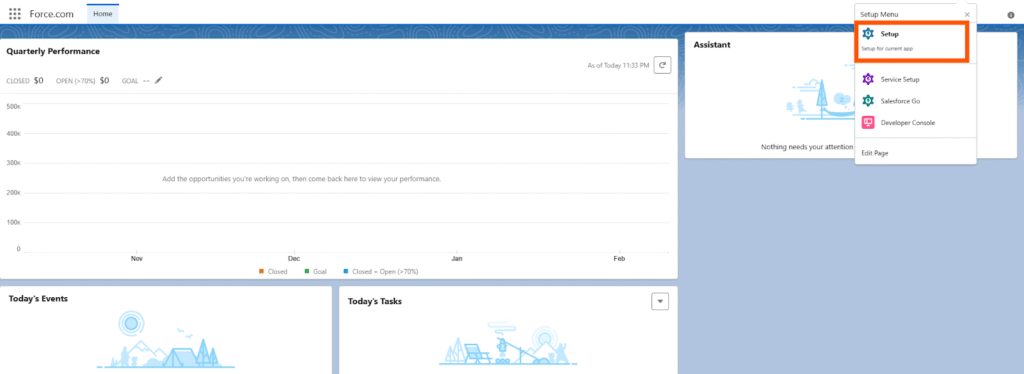
Step 2: Open Users List
- In the Quick Find box on the left, type Users.
- Click on Users under the “Users” section.
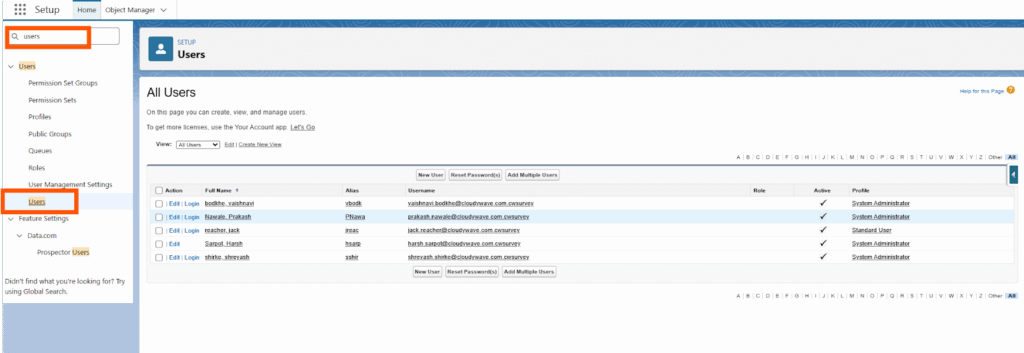
Step 3: View All Users
- If you don’t see the user, click the View dropdown and select All Users to show everyone.

Step 4: Select the Target User
- Click on the Name of the user who needs access to the product/app.
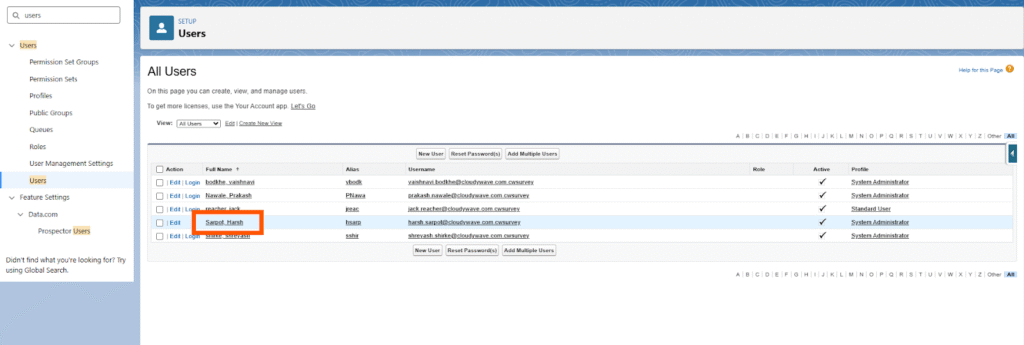
Step 5: Open Permission Set Assignments
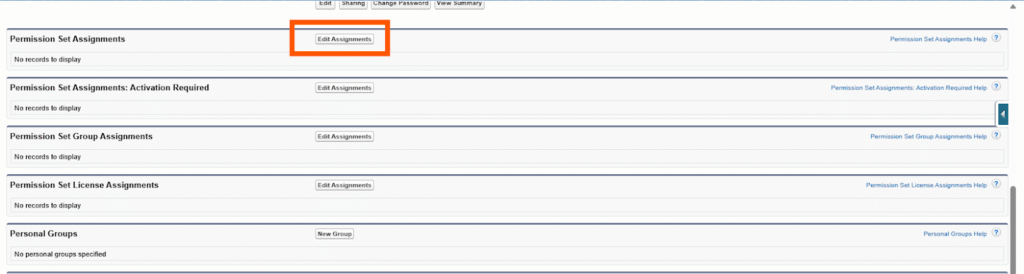
- On the user’s record page, scroll down to find the Permission Set Assignments related list.
- Click Edit Assignments.
Step 6: Find the Required Permission Sets
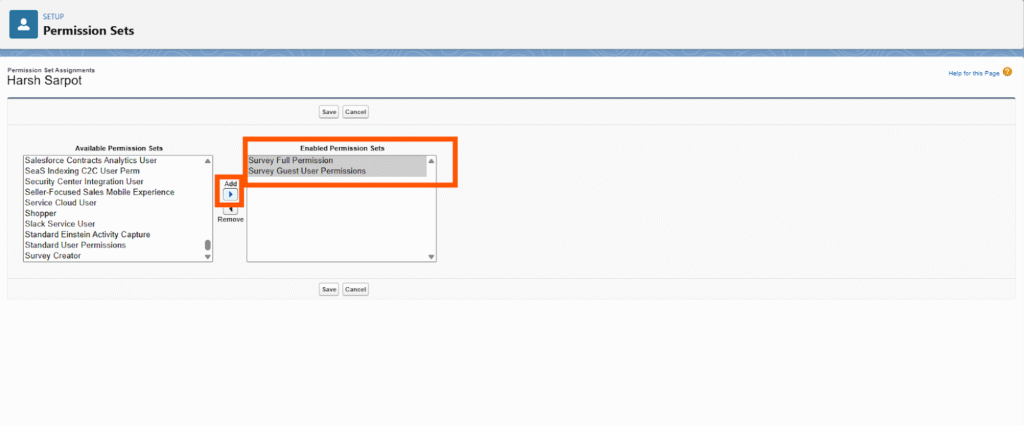
- In the Available Permission Sets list, locate:
- Survey Full Permission – gives full access to create, edit, and manage surveys.
- Survey Guest User Permission – required for public-facing forms to collect data.

Step 7: Assign Permission Sets
- Select both permission sets.
- Click the Add (→) arrow to move them to the Enabled Permission Sets column.
Step 8: Save Changes
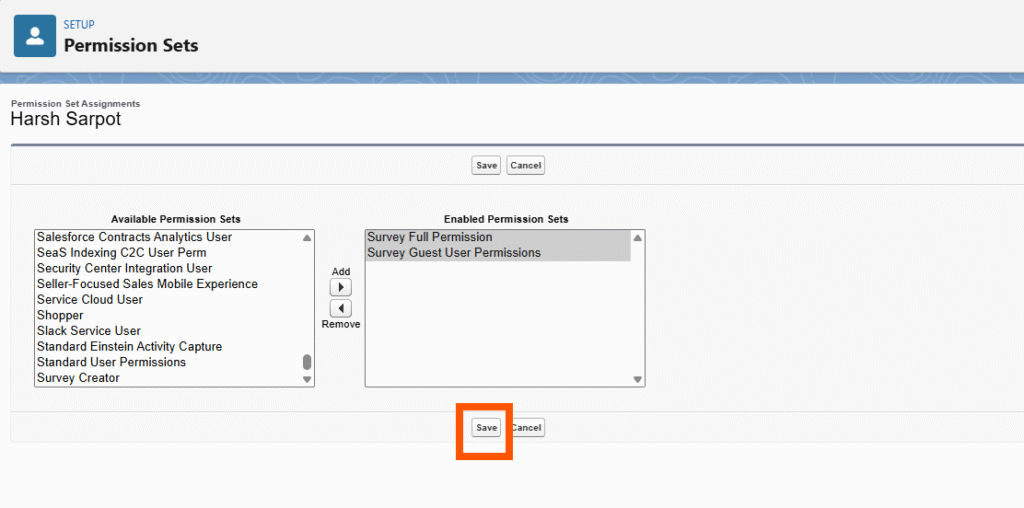
- Click Save to finalize the permission assignments.
Once these steps are completed, the user should log out and log back in, and the Cloudy Survey & Form application and tabs will be visible in their App Launcher and navigation bar.
This application needs to be configured after Cloudy Survey & Form package installation and before the end user begins using it through the user interface (UI).
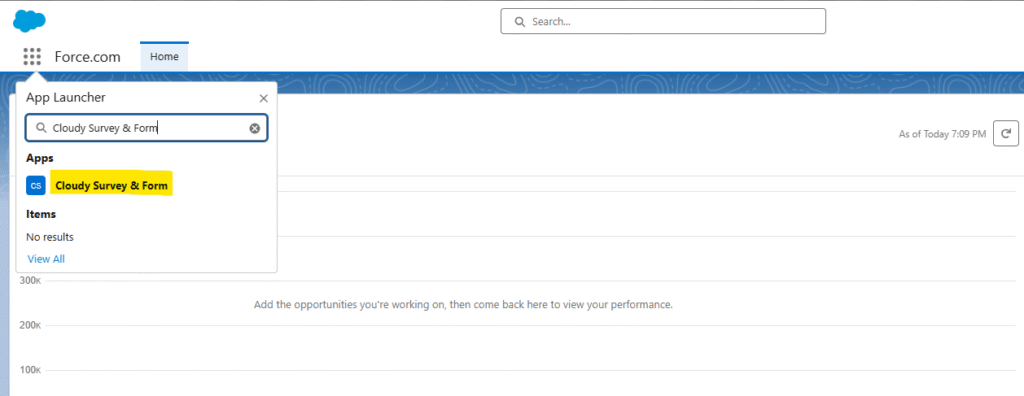
1. Search for the “Cloudy Survey & Form” in the app launchers search box.
2. Site Setup :
Step 1: Go to Setup (⚙️ Gear Icon)
- Click the gear icon in the upper-right corner of Salesforce.
- Select Setup from the dropdown.
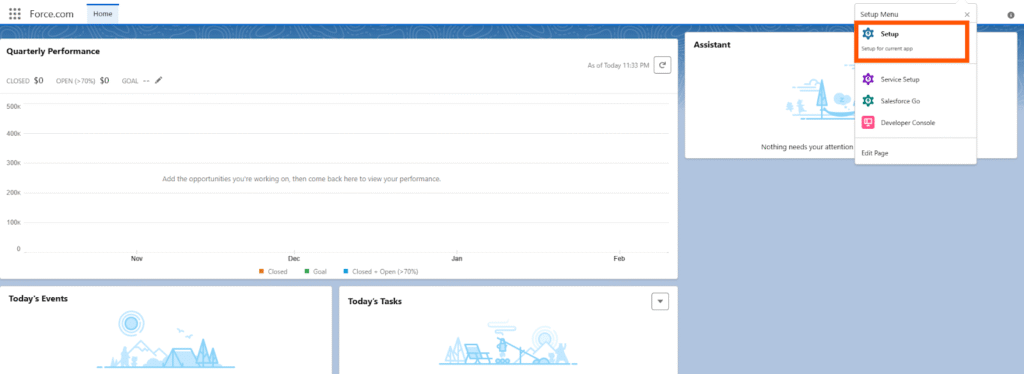
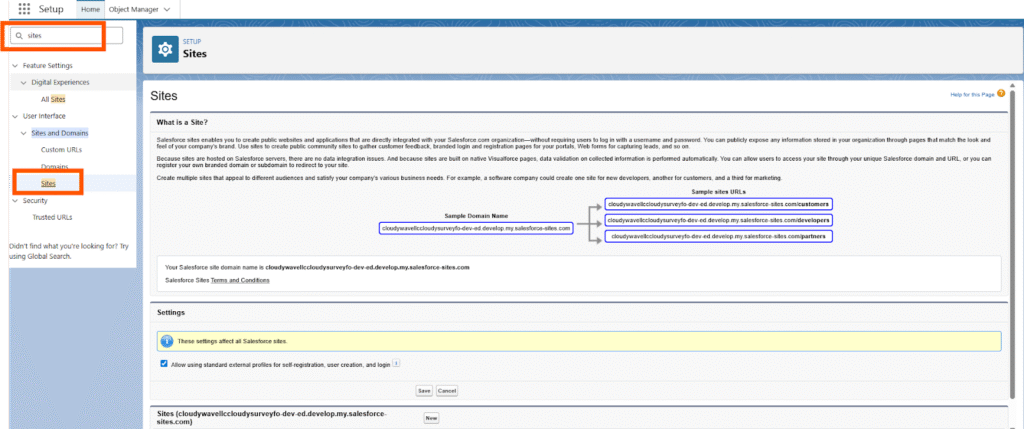
Step 2: Open Sites
- In the Quick Find box on the left, type sites.
- Click on Sites under the “Sites and Domains” and section.
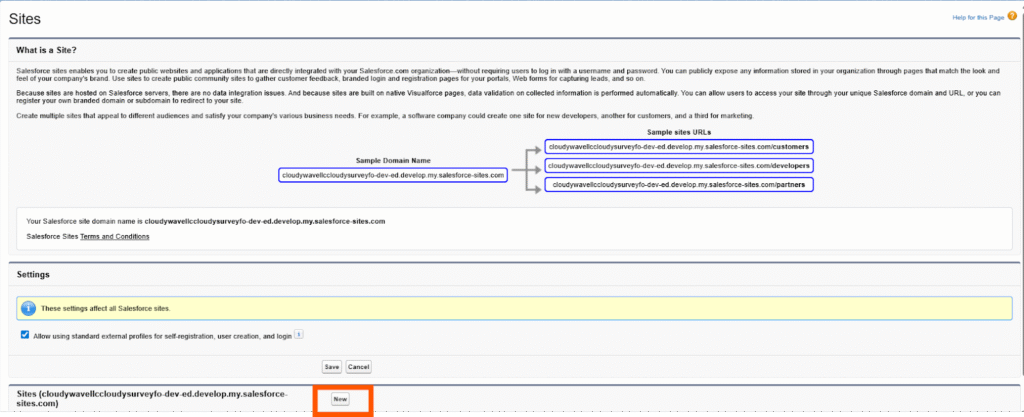
Step 3: Create New site
- In the Settings have a New button.
Step 4: Enter the Details
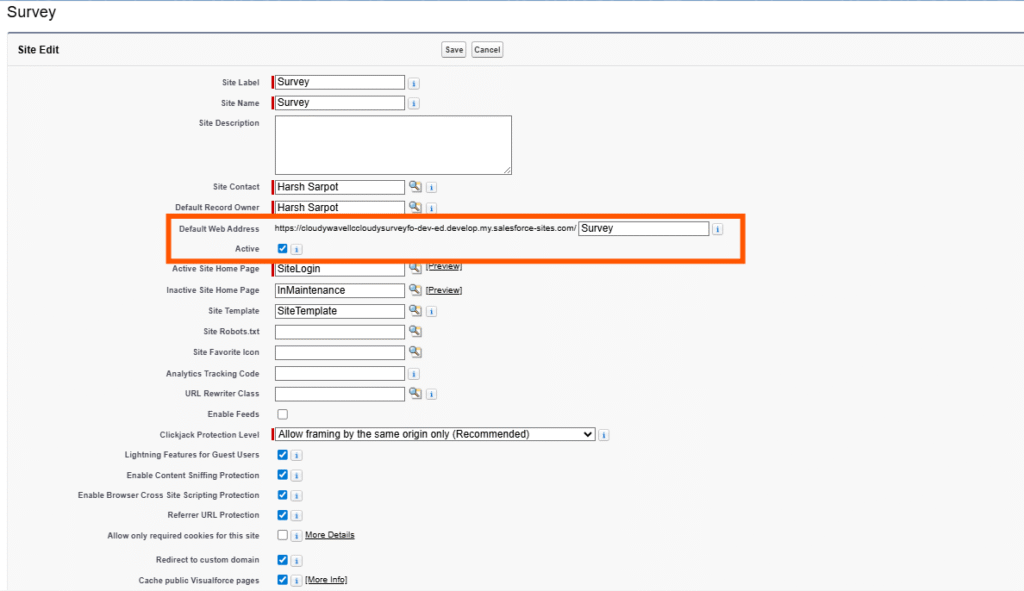
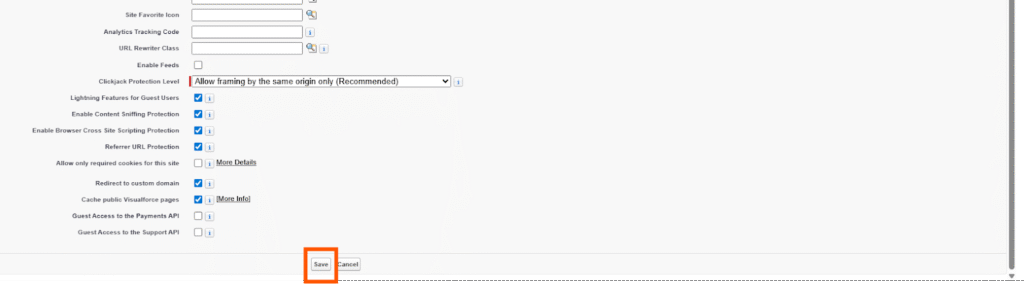
Step 8: Save Changes
- Click Save
4. Organization-wide Email Addresses :
To send emails to users, the application uses Organization-Wide Email Addresses. This feature allows emails to be sent from a verified organizational address instead of an individual user’s email.
Steps to Add an Organization-Wide Email Address
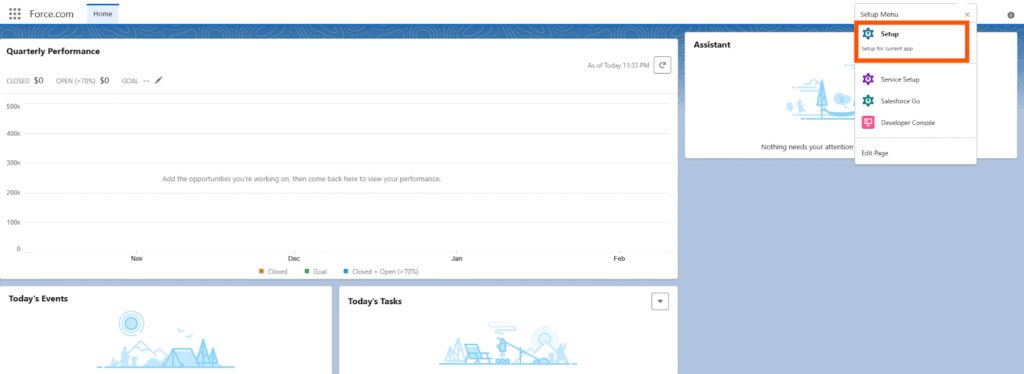
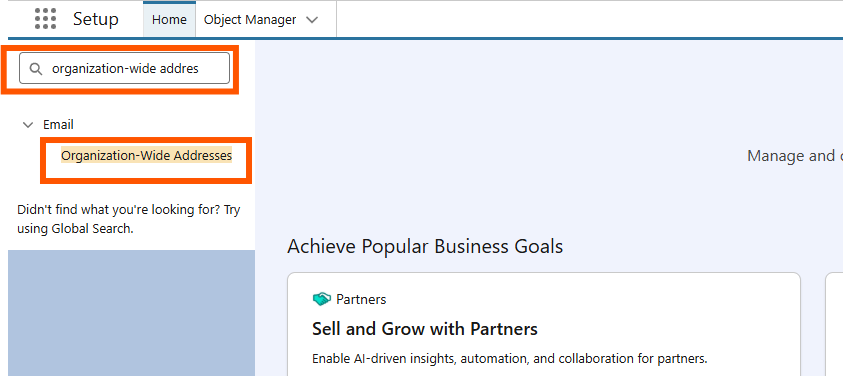
Step 2: Open organization-wide addresses
- In the Quick Find box on the left, organization-wide addresses type.
- Click on organization-wide addresses under the “Email” and section.
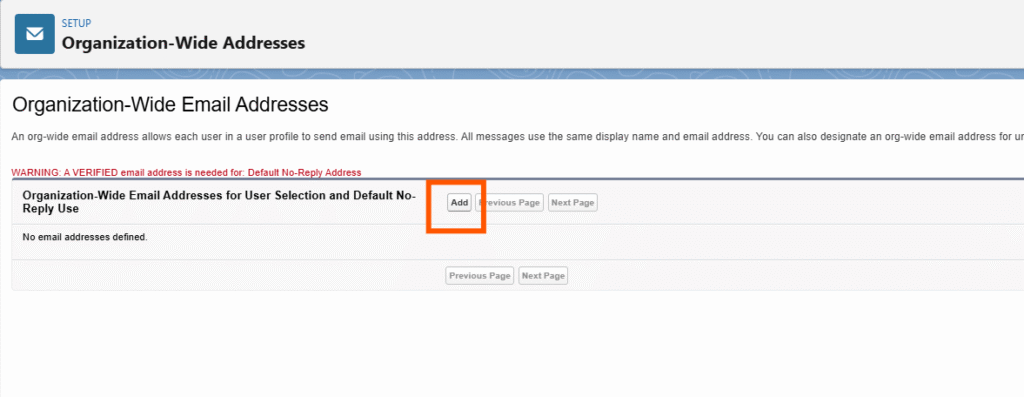
Step 3: click on the add button
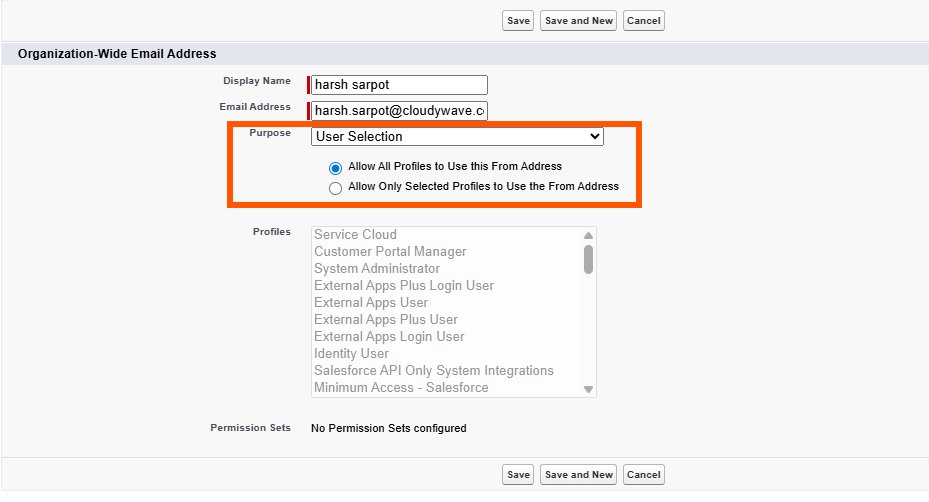
Step 4: Enter the required details
- Such as Display Name, Email Address
- Select the radio button Allow All Profiles to Use this From Address. Emails will not be sent to the user if a profile is not selected
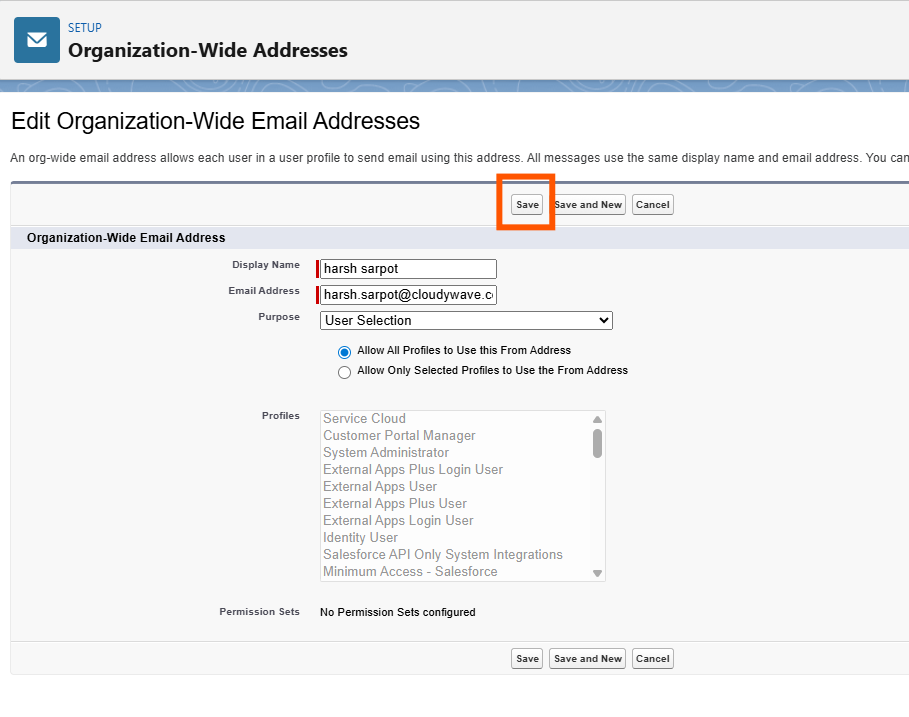
Step 8: Save
- Click Save to finalize
Step 9: Verification
- A verification email will be sent to the provided email address. Open the email and click the verification link to confirm.