










 General
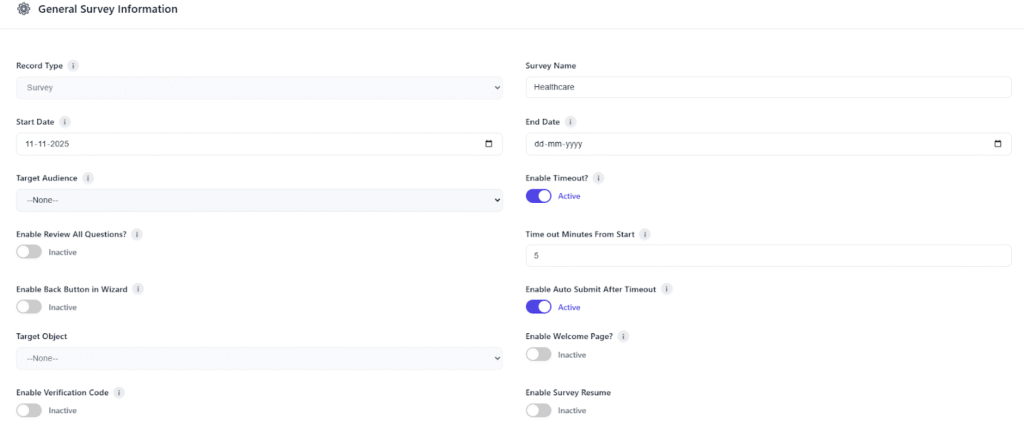
The General Survey Information section is used to define the core details, behavior, and configuration of the survey, including its target audience, timing, and related Salesforce object.
- Record Type:- Specifies the type of record being created — typically “Survey.” It determines the structure and available options for the survey.
- Start Date:- Defines the date from which the survey becomes active and available for respondents to access.
- End Date:- Specifies the date when the survey will expire or no longer accept responses.
- Target Audience:- Allows the selection of a specific group or audience (e.g., Customers, Employees, Partners) who will receive or can access the survey.
- Enable Timeout:- When enabled, the survey will automatically time out after a specified duration from the start time.
- Timeout Minutes From Start;- Defines the exact number of minutes after which the survey will automatically time out if not completed.
- Enable Auto Submit After Timeout:- When active, the system automatically submits the survey responses once the timeout duration is reached.
- Enable Review All Questions:- Allows respondents to review all their answers before final submission.
- Enable Back Button in Wizard:- Enables the “Back” button when navigating through multi-page surveys, allowing users to revisit previous pages.
- Target Object;- Specifies the Salesforce object (e.g., Contact, Lead, Account, Case) that the survey is linked or related to. Responses can be associated with this object.
- Enable Verification Code:- Activates a feature requiring respondents to enter a verification code before accessing the survey — ensuring secure participation.
- Enable Welcome Page:- Displays a customizable welcome page before the survey starts, often used for introductions or instructions.
- Enable Survey Resume:- Allows participants to save their progress and resume the survey later from where they left off.
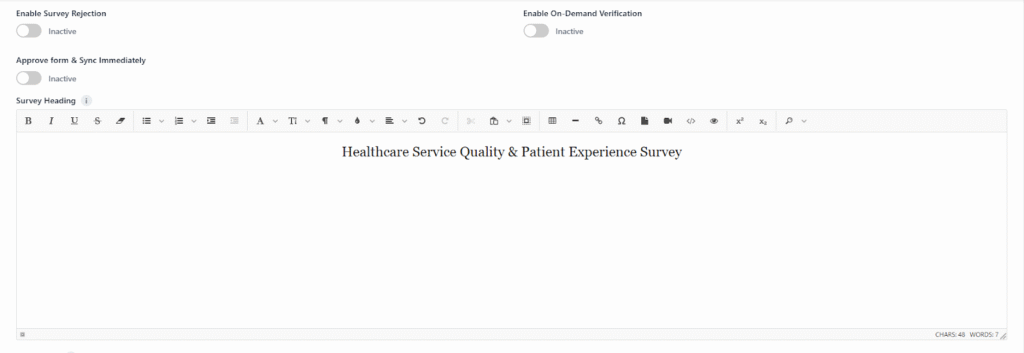
- Enable Survey Rejection:- Adds a rejection workflow where responses can be reviewed and rejected if they do not meet certain criteria.
- Enable On-Demand Verification:- Allows real-time verification of participant details or data during survey submission.
- Approve Form & Sync Immediately:- Automatically approves and syncs survey data immediately after submission without manual intervention.
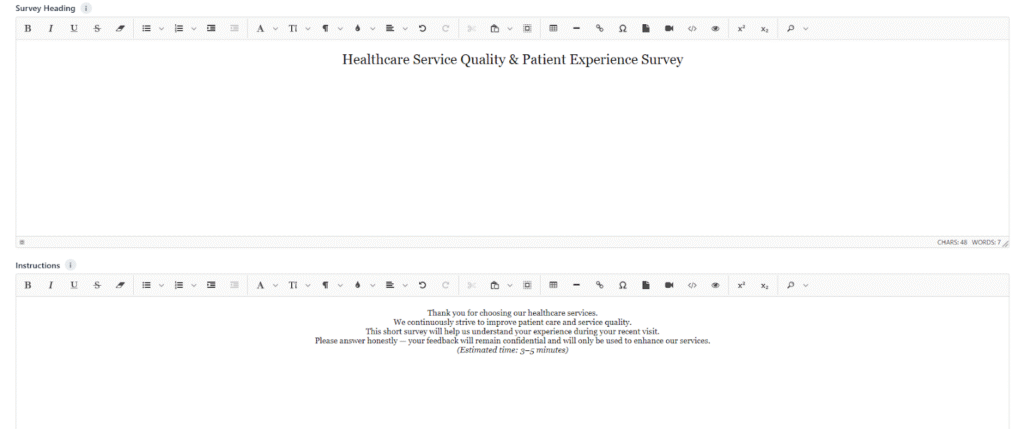
- Survey Heading:- Rich text area used to define the main title or introductory content of the survey displayed at the top of the survey form.
- Instructions:- Rich text area for providing respondents with guidelines, explanations, or instructions on how to complete the survey.
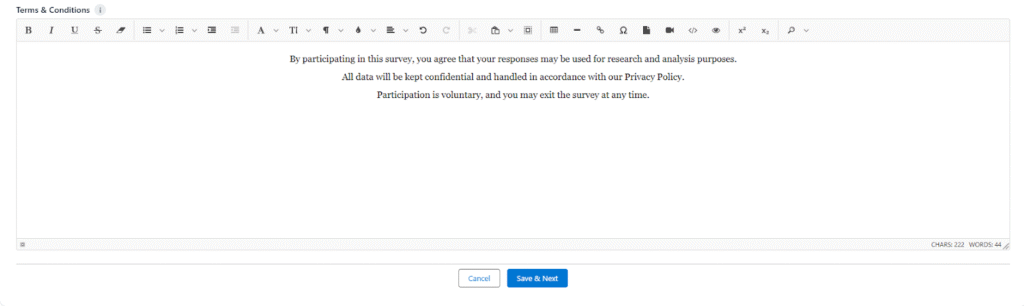
- Terms & Conditions:- Rich text field for defining rules, disclaimers, or agreements participants must accept before submitting the survey.
Buttons
- Cancel:- Discards the current survey setup and returns to the previous page without saving any changes.
- Next:- Proceeds to the next step in the survey creation process — typically the Survey Editor, where questions are added.
After clicking Next, you will be navigated to the Survey Editor .